How to Reduce Your Risk from Zero-Day Vulnerabilities
Reduce zero-day risk by updating software promptly, limiting exposure, using layered defenses, and acting quickly when a vendor issues a fix.
Update your operating system, browser, and applications using their official update mechanisms, then keep track of the software you use. A zero-day vulnerability is a software flaw for which no official patch or security update is available yet. Until a fix exists, reduce exposure and use other security controls; no measure can guarantee protection.
Before you start
Identify the devices and software you need to protect. For an organization, include managed computers, servers, and cloud or hybrid assets where applicable.
Know who handles updates and security alerts. On a work device, check with your IT or security team before changing managed settings or removing software.
Use official vendor update and security information. Avoid installing a supposed “zero-day fix” from an unverified download or message.
For computer-hardening basics, see how to apply NCSC security guidelines to protect your personal computer. For update prioritization, see how to identify and prioritize critical software updates on Windows and Linux.
Reduce exposure in order
1. Install available security updates
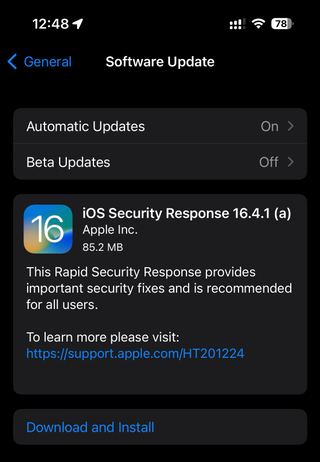
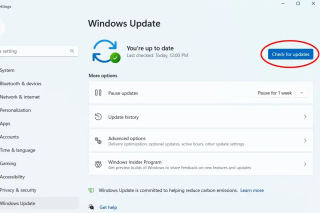
Check for updates for the operating system, browser, and installed applications through their official update mechanisms. Install security updates promptly, and restart if the software requests it. Repeat for each device you manage.
Expected result: The software reports that it is up to date, or that updates have been installed. An update may fix older weaknesses, but it cannot fix a zero-day for which the vendor has not released a patch.
For Android-specific steps, use how to check for Android security updates and avoid data loss. This guide does not assume a particular Android version or menu path.
2. Know what software and devices are exposed

Keep an inventory of the devices and software in use. For a personal device, note the operating system and important applications. For an organization, maintain visibility across the environment and prioritize software that is exposed or important to operations.
Remove or disable software only when you know it is not needed and doing so will not disrupt essential work. Reducing unnecessary exposure is a practical risk-reduction measure, not a substitute for installing a patch when one becomes available.
Expected result: You can identify which devices may need attention when a vendor announces a vulnerability or update. Inventory tools cannot necessarily identify every unknown flaw.
3. Use layered defenses while a patch is unavailable
Keep security protections such as firewall and antivirus software in use, and be cautious with unexpected links and attachments. These controls can reduce some opportunities for attack, but they do not guarantee that a zero-day exploit will be blocked.
In a workplace, follow your organization’s security procedures and report suspicious activity to its IT or security team. Do not make unapproved configuration changes to managed devices.
4. Monitor for vendor guidance, then act on a fix
Follow security notices from the makers of the affected software. If they publish a workaround before a patch, assess it against the vendor’s instructions and your environment; a workaround may reduce risk but can have operational effects. For a managed organization, have the responsible security or IT team evaluate and deploy it.
When the vendor releases a security update, install it promptly and check the affected devices. Keep watching for follow-up guidance if the vendor says the issue is still being addressed.
Optional: Find and track known zero-days in Microsoft Defender
Microsoft documents zero-day information in certain Defender products. Its documentation applies to Microsoft Defender Vulnerability Management, Microsoft Defender for Endpoint Plan 2, Microsoft Defender XDR, and Microsoft Defender for Servers Plan 1 and Plan 2. Access depends on the applicable product and tenant; the source mentions a free trial but does not specify free-versus-paid feature limits. See Microsoft’s zero-day mitigation guidance for current product details.
Find the vulnerability and its recommendations
The documented portal paths differ by experience:
For the preview experience described by Microsoft, look under Exposure management > Vulnerability management > Overview for “Zero day” tags in the relevant cards, or use Exposure management > Vulnerabilities to find a vulnerability.
For the existing experience described in the same documentation, look under Vulnerability management > Dashboard for zero-day tags, or use Vulnerability management > Weaknesses to find a vulnerability.
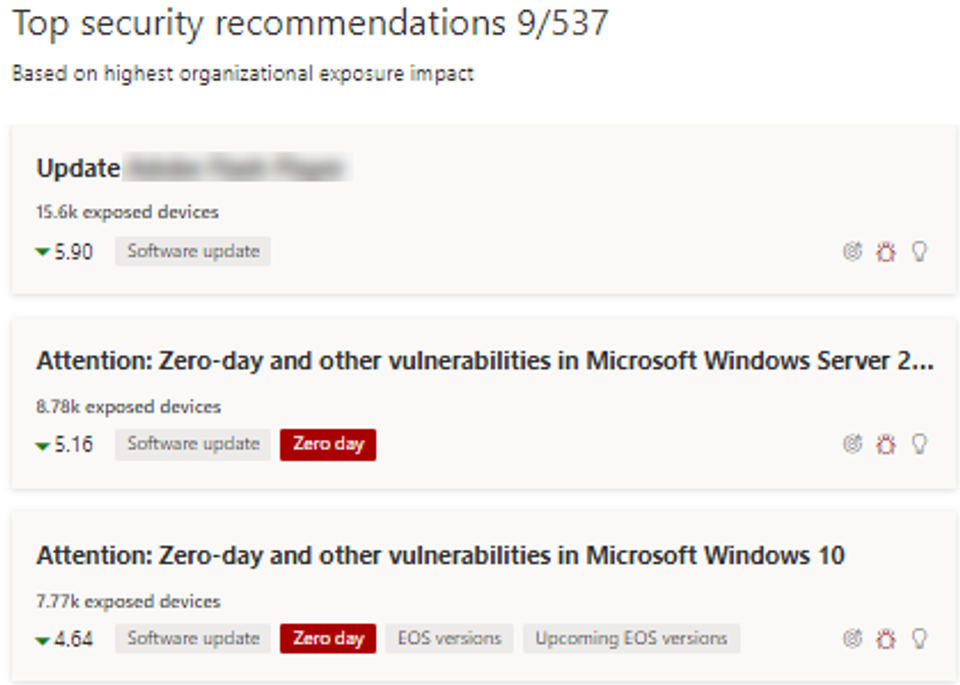
The article also describes zero-day tags in software inventory and recommendations. Available information is limited: Microsoft says vulnerability management displays only zero-days it has information about. A missing tag therefore does not prove that software has no zero-day exposure.
Choose a response and verify its status
Open a recommendation marked for a zero-day and review any available mitigation options or workarounds. Microsoft recommends the “attention required” remediation option when no update is available. Its documentation notes that this option has no due date or progress bar because there is no specific update action to track. If a patch is later released, the recommendation changes to an update recommendation and the zero-day tag is removed.
Expected result: You can see whether the product lists a known zero-day, any suggested mitigation, and whether an update recommendation has appeared. Treat the portal as one source of information, not a complete guarantee of detection.
Troubleshooting and completion check
No update appears: The vendor may not have released one, or the device may not be checking the right software source. Check the vendor’s official notice and ask IT if the device is managed. Do not treat the absence of an update as proof that there is no vulnerability.
A Defender zero-day tag is missing: The product may not have information about that vulnerability, or your portal experience may differ. Confirm your product and experience against Microsoft’s documentation; do not infer that the software is unaffected.
A workaround could disrupt work: Pause and have the responsible administrator assess it before deployment. Do not apply an unverified workaround.
You suspect a device is compromised: Contact your organization’s IT or security team, or the device/software vendor, for incident-specific instructions. This guide cannot determine whether a device has been compromised.
To verify completion, confirm that available security updates were installed on each relevant device; your inventory identifies the software in use; and any known vulnerability has a documented response, such as a vendor-supported workaround or a plan to install the patch when released. Zero-day risk is reduced, not eliminated.