How to apply NCSC security guidelines to protect your personal computer
Step‑by‑step guide to apply NCSC recommendations and secure your personal PC, from backups to 2‑step verification.
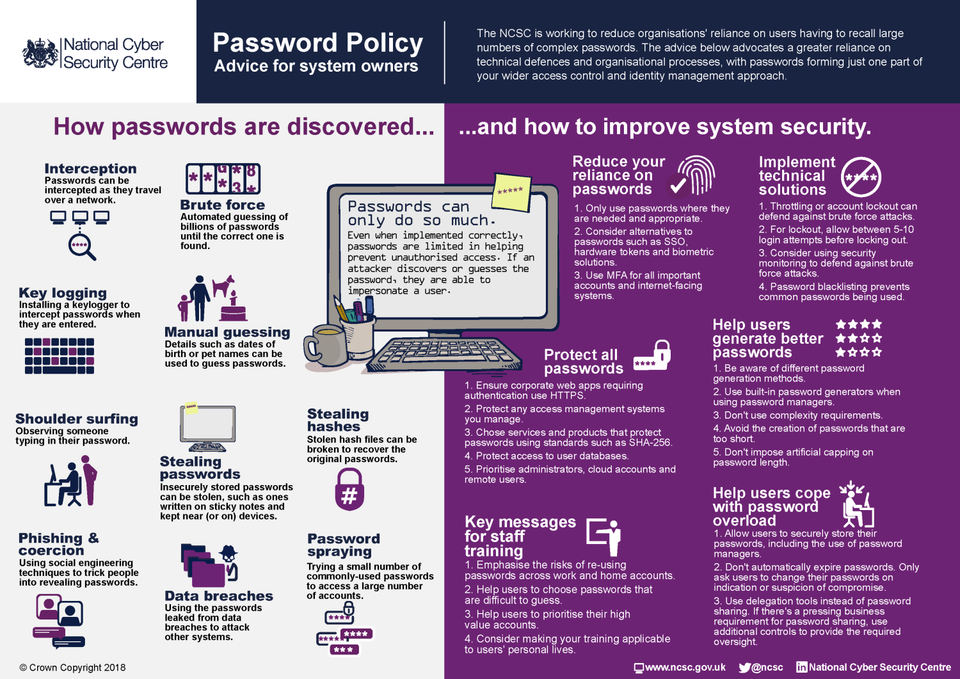
Quick start – enable two‑step verification (2SV) now
Open the security settings of each online account you use (email, banking, social media).
Locate the Two‑step verification or Two‑factor authentication option and turn it on.
Follow the on‑screen prompts to link a mobile authenticator app (e.g., Authy, Microsoft Authenticator) or receive SMS codes.
Result: Even if a password is stolen, an attacker cannot log in without the second factor.
Prerequisites
Verified backup of all important files (external drive or cloud).
Administrator rights on the PC.
Stable internet connection for updates and downloads.
A password manager (built‑in browser manager is acceptable) or a written list stored securely.
Important: Before any step that may modify system files (e.g., enabling encryption), confirm that your backup is complete and can be restored.
1. Secure your passwords
1.1 Use a password manager
Choose a reputable password manager (free tier is sufficient for personal use).
Import existing passwords or add new entries manually.
Enable the manager’s own master‑password 2SV if offered.
1.2 Update weak passwords
Review accounts listed in the manager.
Replace any password shorter than 12 characters or lacking mixed case, numbers, and symbols.
Save the new password in the manager.
Verification: Log out of an account and log back in using the newly saved credentials.
2. Install and configure antivirus/anti‑malware
Download a reputable free antivirus (e.g., Windows Defender is built‑in, or a well‑known free product).
Run the installer and allow the program to enable real‑time protection.
Schedule a full system scan for the next day.
If you suspect infection, follow the detailed guide on removing malware: How to Check a Computer for Malware and Remove It Safely.
Verification: After the scheduled scan, the antivirus should report no threats detected.
3. Keep the operating system and applications up to date
Open your OS’s update tool (e.g., Settings → Update & Security on Windows, System Preferences → Software Update on macOS).
Click Check for updates and install all available patches.
Enable automatic updates so future patches install without manual intervention.
Troubleshooting:
Update fails with error code: Restart the PC, ensure the internet connection is stable, then retry.
Missing updates: Verify that the device’s date and time are correct; incorrect clocks can block update servers.
Verification: After a reboot, revisit the update screen – it should state the system is up‑to‑date.
4. Enable full‑disk encryption
| Platform | Built‑in tool (free) | How to enable |
|---|---|---|
| Windows 10/11 | BitLocker (available on Pro, Enterprise) | Open Control Panel → BitLocker Drive Encryption, click Turn on BitLocker, follow the wizard, and store the recovery key safely (e.g., printed copy or encrypted cloud file). |
| macOS | FileVault | Open System Preferences → Security & Privacy → FileVault, click Turn On FileVault, and choose a recovery method. |
| Linux (most distros) | LUKS (requires manual setup) – not covered here due to variability. |
If your Windows edition is Home, you can use a free third‑party encryption tool, but ensure it is from a trusted source.
Verification: After enabling, restart the computer; you should be prompted for the encryption password or PIN before the OS loads.
5. Configure the firewall
Ensure the built‑in firewall is active:
Windows: Settings → Update & Security → Windows Security → Firewall & network protection → set to On for all network types.
macOS: System Preferences → Security & Privacy → Firewall → Turn On Firewall.
Add rules only for applications you trust that need inbound connections (e.g., a remote‑desktop client).
Verification: Use an online port‑check tool (search “port check” in a browser) to confirm common ports (e.g., 80, 443) are blocked unless required.
6. Secure your home network
Log into your router’s admin interface (usually at
http://192.168.1.1orhttp://192.168.0.1).Change the default admin password to a strong, unique one.
Set the Wi‑Fi encryption to WPA3 if available; otherwise, use WPA2‑PSK with a strong passphrase.
Disable WPS and any remote‑management features you do not need.
Keep the router firmware up to date – most routers have an Firmware Update section.
Troubleshooting:
Cannot log in: Reset the router (press the reset button for 10 seconds) and use the default credentials from the router label.
No WPA3 option: Your router may be older; consider upgrading to a newer model that supports modern encryption.
7. Regular maintenance & monitoring
7.1 Schedule weekly checks
Run a quick antivirus scan.
Verify that automatic OS updates are still enabled.
Review the password manager for any expired or reused passwords.
7.2 Stay informed
Subscribe to the NCSC’s Cyber‑Aware alerts for personal device guidance.
Review the NCSC’s device‑security page for any new recommendations: https://www.ncsc.gov.uk/collection/device-security-guidance
8. Safe disposal or resale of the PC
Back up any remaining data you wish to keep.
Use the OS’s reset or re‑install function to wipe the drive:
Windows: Settings → Update & Security → Recovery → Reset this PC → Remove everything.
macOS: Restart in Recovery Mode (⌘ + R), open Disk Utility, erase the startup disk, then reinstall macOS.
Verify the wipe by booting the PC; it should start the OS installation screen, not your previous desktop.
Verification: After the reset, no personal files or accounts should be accessible.
9. Verify you have completed the NCSC checklist
| Checklist item | Done? |
|---|---|
| 2‑step verification enabled on all accounts | ✅ |
| Strong, unique passwords stored in a manager | ✅ |
| Antivirus installed and real‑time protection on | ✅ |
| OS and apps fully patched | ✅ |
| Full‑disk encryption active | ✅ |
| Firewall enabled | ✅ |
| Router secured (admin password, WPA2/3) | ✅ |
| Recent, verified backup | ✅ |
| Device wiped before resale | ✅ |
If any box is unchecked, return to the relevant section and repeat the steps.
10. When you need help
For malware‑related issues, follow the step‑by‑step removal guide: How to protect your computer and data from cyber attacks.
For any NCSC‑specific queries, visit the official contact page: https://www.ncsc.gov.uk/section/advice-guidance/you-your-family
Remember: Security is a continuous process. Re‑visit this guide every few months or after major OS updates to keep your personal computer aligned with the latest NCSC recommendations.