How to Check a Computer for Malware and Remove It Safely
A practical, source-grounded guide to scanning Windows or Mac with Microsoft Defender, responding safely to detections, and checking whether the scan finished.
How to Check a Computer for Malware and Remove It Safely
Before you scan
Use the built-in Microsoft Defender tools described below, and save your work before starting. A Microsoft Defender Offline scan restarts the computer.
Before allowing a detection to be removed or quarantined, make sure you have a verified backup of important personal files. Verify that you can open the backup. Avoid backing up suspicious programs or files you do not recognize.
If you are using a work-managed computer, contact your IT team before changing security settings or removing software.
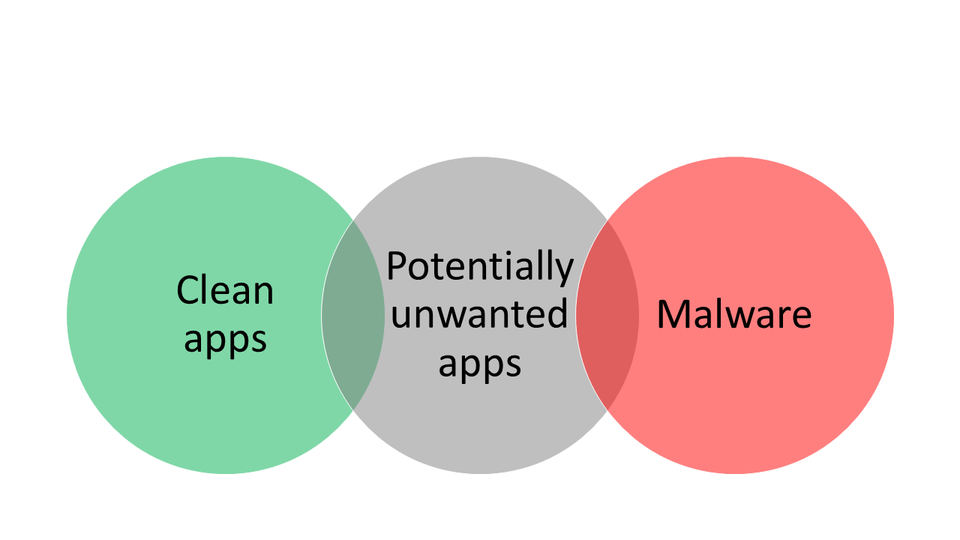
Slow performance, unexpected ads or pop-ups, browser redirects, reduced battery life, or unusually high data use can be signs of malware, but they do not prove an infection. Microsoft also distinguishes malware from potentially unwanted apps (PUA), which may show unwanted ads or offer additional software without necessarily being malware. See Microsoft's overview of unwanted software.
Scan a Windows computer
Run a quick scan
Open the Microsoft Defender dashboard.
Select Device details, then Manage in Windows Security.
Select Quick scan.
Wait for the scan to finish and read Defender's results.
A quick scan is a useful first check. If you want a more thorough scan, continue to the next section. Microsoft's instructions for starting a Defender scan cover the available scan options.
Run a fuller scan or Microsoft Defender Offline
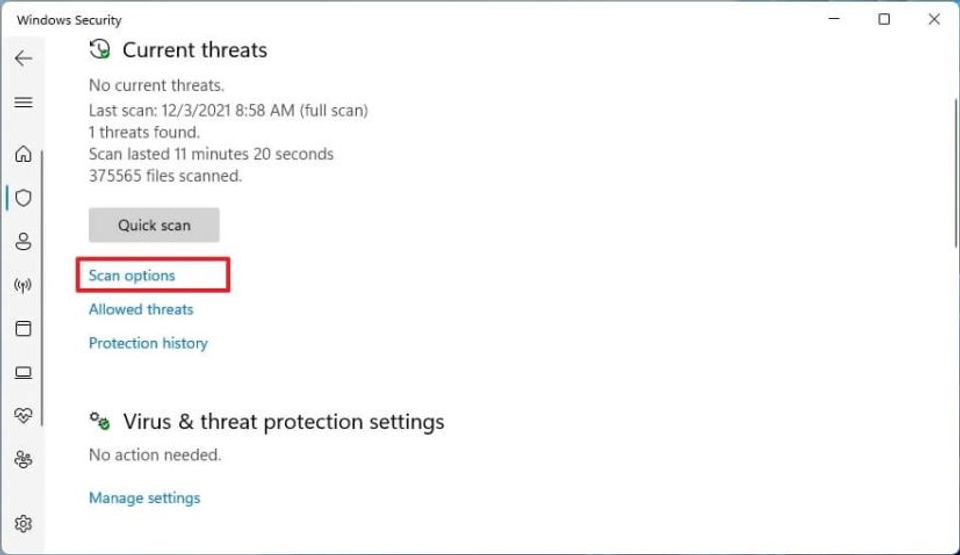
In Windows Security, open the scan options and choose a fuller scan type, then start it. Microsoft recommends getting the latest security intelligence before running a full scan; the supplied instructions do not specify the menu path for updating it.
If the suspected unwanted software persists, consider Microsoft Defender Offline. It restarts the computer to scan outside the usual Windows session. Review Microsoft's Defender Offline instructions for the supported steps and details before starting.
The Microsoft scan article describes Defender anti-malware on Windows, macOS, and Android. The Windows route above is different from the Mac route below. Windows 11 also includes Smart App Control, which Microsoft says can help protect against potentially unwanted apps; the supplied information does not provide its settings path.
Remove a detection carefully
Read Defender's result and follow the choices it presents for the detected item. Before choosing an action that removes or quarantines files, verify your backup as described above. Do not restore a detected file simply because you recognize its name; if you are unsure whether a result is legitimate, consult the official Microsoft security help rather than guessing.
If the problem appears to be an app you no longer want, Microsoft says to uninstall unneeded software from Settings > Apps > Apps & features. Older Windows versions may show Add or Remove Programs instead. Avoid uninstalling an app you do not recognize until you have checked what it is, especially on a work computer.
Scan a Mac with Microsoft Defender
Open the Microsoft Defender dashboard.
Select Device details, then Start scan.
Choose the scan type you want and select Start scan.
Review the result when the scan completes. Before acting on a detection that may remove files, make sure your important files have a verified backup.
These steps are from Microsoft's scan instructions for Defender on Mac. The supplied material does not specify Mac menu paths beyond the Defender dashboard, or explain which scan types are available in each app version. Check Microsoft's instructions for your installed version rather than assuming the Windows options apply.
Troubleshooting and checking the result
The scan finds nothing, but symptoms continue
A clean result does not explain symptoms by itself. Microsoft lists several symptoms that may be associated with malware, but they can also have other causes. On Windows, get current security intelligence and run a full scan; if unwanted software persists, Microsoft recommends considering Defender Offline. If you are unsure what the result means, use Microsoft's security help and learning rather than installing a tool from an unfamiliar download site.
You see unwanted software rather than a clear malware alert
Some software is classified as potentially unwanted rather than malware. Microsoft describes examples such as unexpected advertising or offers to install other apps. Review the app and its source before deciding whether to keep it. Microsoft recommends downloading apps from trusted sources and keeping Windows, browsers, and apps updated. For more background, see how to protect your computer and data from cyber attacks.
A download is blocked but you believe it is safe
Microsoft says that in Microsoft Edge, you can select the three dots next to the download alert and choose Report this file as safe to report a possible false positive. Do this only if you have a sound reason to trust the file; do not bypass an alert just to complete a download.
Verify completion
Check that the scan reports it has completed, review whether it found anything, and confirm that any chosen cleanup action has finished. If the original symptoms persist, run the fuller Windows scan or consider Defender Offline as described above. Keep security tools and software updated, and download apps only from sources you trust.