How to Connect Bluetooth Headphones to a PC
Pair Bluetooth headphones through Windows settings or, on supported devices, Swift Pair; the exact steps differ between Windows 11 and Windows 10.

Before you start
Confirm that your PC has Bluetooth. Most Windows PCs include it; Microsoft says a USB Bluetooth adapter can add Bluetooth to a PC that lacks it.
Turn on the headphones, charge them if needed, and put them in pairing mode so they are discoverable. The method varies by model, so follow the headphones’ manual or manufacturer’s instructions.
Keep the headphones nearby while pairing.
Connect in Windows 11
Turn on Bluetooth

Select Start > Settings > Bluetooth & devices.
Make sure Bluetooth is switched on. You can also select the Network, Sound, or Battery icon by the taskbar clock, then select the Bluetooth tile. If the tile is not visible, use Settings instead.
Pair the headphones

Put the headphones in pairing mode.
Select the Network, Sound, or Battery icon by the clock.
Open the chevron on the Bluetooth quick setting to manage Bluetooth devices.
Under New devices, select the headphones. If you do not see that section, scroll through Your devices.
Follow any on-screen prompts and select Done if it appears.
The headphones should appear as connected. Once paired, Windows says Bluetooth devices connect automatically when they are in range.
Connect in Windows 10
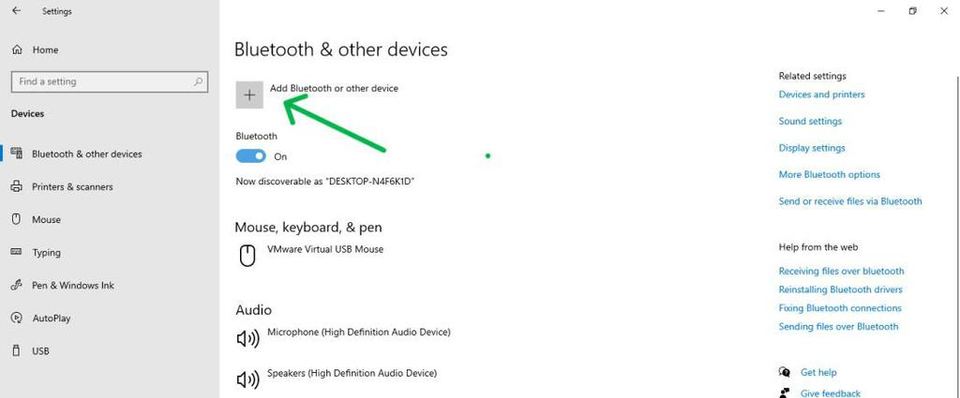
Select Start > Settings > Devices and turn Bluetooth on.
Put the headphones into pairing mode and follow the Windows pairing instructions for your version.
The supplied Microsoft instructions describe the Windows 10 settings path but do not show its complete add-device sequence. For the current Windows 10 steps, see Microsoft’s guide to pairing a Bluetooth device in Windows, and use the Windows 10 section. Menu names and screens differ from Windows 11.
Optional: use Swift Pair
Swift Pair works only when the headphones support it. Turn on Bluetooth on the PC, then put the headphones nearby and in discoverable pairing mode. If Windows shows a notification that a new Bluetooth device was found, select Connect. The first time you use Swift Pair, Windows may ask permission to use it; select Yes if you want to proceed. If no notification appears, use the regular pairing steps above.
Troubleshoot pairing
The headphones do not appear: Check that they are in pairing mode and discoverable. The method varies by model; consult the headphones’ documentation or manufacturer’s website.
The Bluetooth tile is missing in Windows 11: Open Settings > Bluetooth & devices to check Bluetooth. Microsoft notes that the Bluetooth action may need to be added to Quick Settings.
Bluetooth is on, but Windows still does not find the headphones: Microsoft notes that the device discovery setting may need to be set to Advanced. For instructions, use the Microsoft Bluetooth pairing and troubleshooting guide.
You need model-specific pairing instructions: Check the headphone manual or the manufacturer’s website. Pairing-mode controls vary by device.
Verify the connection
In Windows 11, open the Bluetooth quick setting and check whether it says Connected or shows the connected device. You can also return to Settings > Bluetooth & devices and check the headphones there. If Windows reports a connection, the pairing step is complete.