How to Recover Deleted Files from a USB Flash Drive for Free
Stop using the USB, check whether files are merely hidden, then scan and recover to a different drive.
Before you start
Stop saving, copying, or editing files on the USB drive. New data may overwrite deleted files, reducing what recovery software can find. If you can still open the drive, copy any remaining important files to another storage location before proceeding.
You’ll need a Windows PC, the USB drive, and a separate location with enough free space for recovered files. Do not save recovered files back to the USB: that could overwrite other data you want to recover.
Check whether the files are hidden
The files may not have been deleted. In File Explorer, open the USB drive, select View > Show, and enable Hidden items. Look through the drive again. If the missing files appear, copy them to a different drive or folder.
If they are still missing, continue with recovery. Windows’ Recycle Bin is not a dependable place to look: files deleted from USB drives often bypass it.
Scan the USB with free recovery software
The supplied source describes Recuva as a free option for recovering deleted files from USB drives. It does not specify a current version, download URL, or any free-use limits, so confirm those details on the software publisher’s official site before installing. Install the software on the computer, not on the USB drive.
Run a scan and recover files

Connect the USB drive. If Windows asks you to format it, cancel the prompt. Formatting can erase data; don’t proceed unless you have a verified backup and intend to erase the drive.
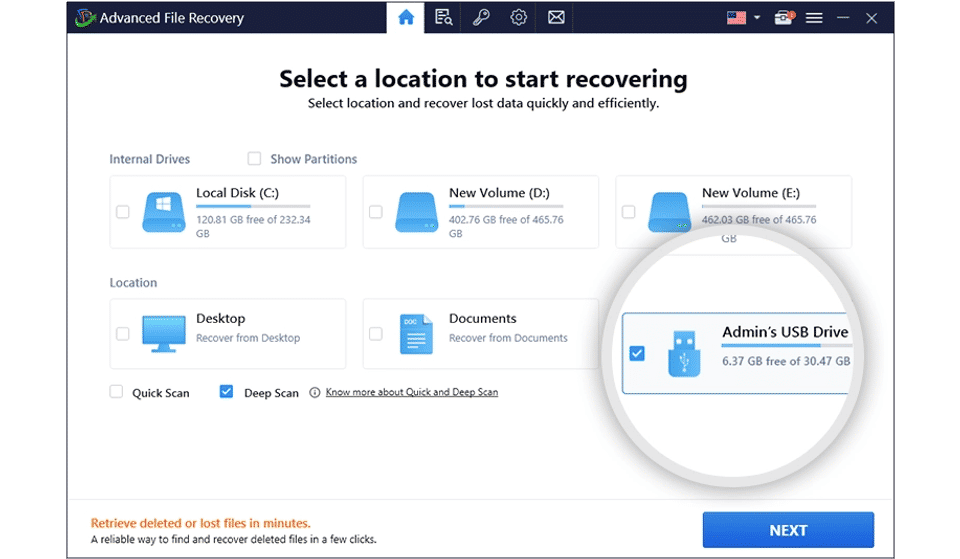
Open the recovery program and select the USB drive as the location to scan. Check the drive letter or name carefully so you don’t scan the wrong device.
Start a scan. The supplied material describes both quick and deep scans in Recuva; if a quick scan does not find the files, try a deep scan if the program offers it.
Review the results. Use the program’s preview option where available, and select the files you actually need. A file appearing in scan results does not by itself prove that it can be restored intact.
Recover the selected files to a folder on the computer or another separate storage device. Do not choose the USB drive as the destination.
Open the recovered files from that destination. Check that documents open and that photos or other media display or play as expected.
Recovery results vary. They depend in part on whether the relevant storage space has been overwritten and on the condition of the files and drive. A scan may find some files but not others, and some recovered files may not be usable.
If you already have a backup
Check the location where you normally store copies of the missing files, such as a computer folder or cloud storage account. A synced service may also sync deletions, so check whether it has a deleted-items or trash area before assuming a copy is available.
Windows File History may help only if it was set up to include the USB drive and a relevant backup exists. The supplied information does not provide verified steps for restoring from File History, so don’t assume that it automatically backed up removable drives.
Troubleshooting
The scan finds no files
Try a deep scan if available, and make sure you selected the USB drive rather than another disk. If new files have been written to the USB since deletion, some deleted data may already have been overwritten. Don’t keep saving to the drive while trying other recovery options.
The files appear, but recovery fails or the files won’t open
Choose a destination on a different drive and try recovering the selected files again. If a recovered file still will not open, the scan result may not represent an intact file. The supplied material does not establish a way to repair such files reliably.
Windows says the USB needs to be formatted
Cancel the prompt and do not format the drive as a recovery step. Formatting changes the drive and can make data recovery harder. The supplied source material does not provide a verified procedure for safely recovering data from a drive in this condition.
Verify the recovery
Check the recovered files in their new location, not just the recovery program’s results list. Open a sample of each important file type, confirm that the contents are present, and make a second copy of anything successfully recovered. Keep the original USB unchanged until you have checked the recovered copies.