How to Check for and Install Microsoft Updates on Windows
Check Windows Update in Settings, install anything offered, restart if prompted, and verify the update status afterward.
Prerequisites
Connect the PC to the internet. Windows needs an internet connection to download updates.
If you’re updating a laptop or tablet, Microsoft recommends keeping it plugged in when it isn’t in use, so it has enough power if an update installs outside active hours.
The steps below cover Windows operating-system updates through Windows Update. They don’t describe updates for individual apps.
Check for and install updates
Windows 11
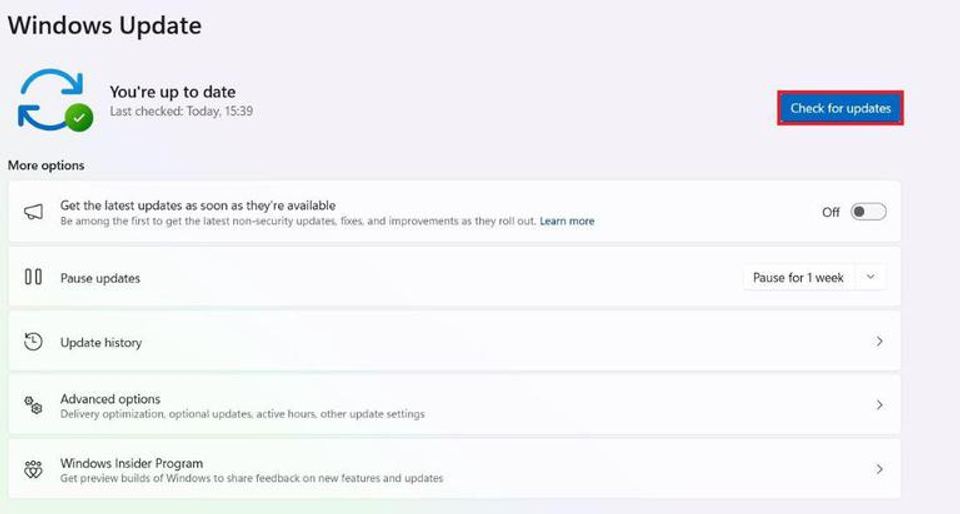
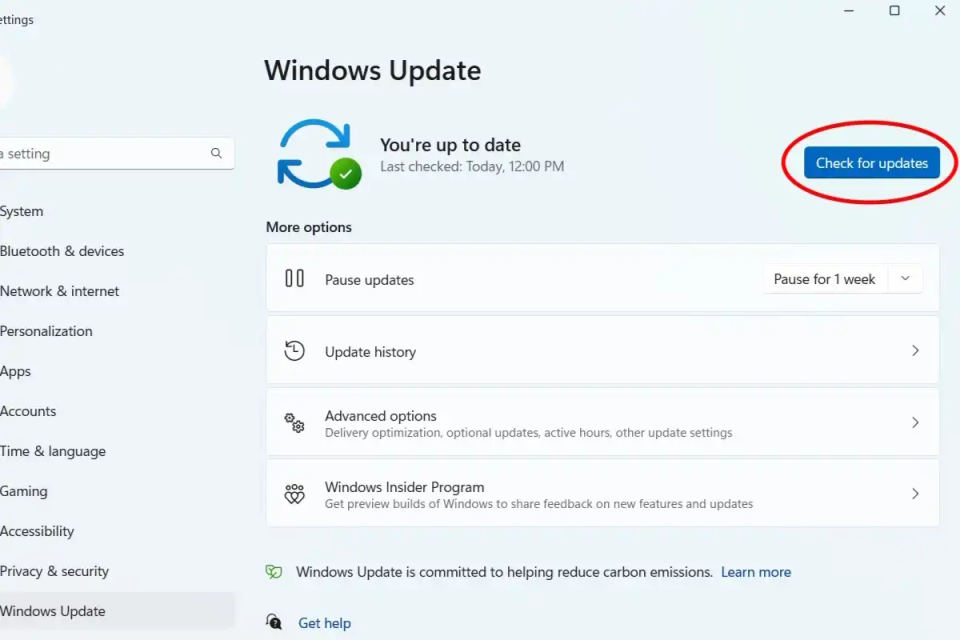
Select Start > Settings > Windows Update.
Select Check for updates. Windows will check whether updates are available for your device.
If Windows offers updates, select Download & install. Wait for the download and installation to finish.
If Windows asks you to restart, save your work and restart the PC to apply the updates.
Windows 11 automatically downloads and installs updates, but you can check manually using the steps above. You can also read Microsoft’s Windows update instructions.
Windows 10
Select Start > Settings > Update & Security > Windows Update.
Select Check for updates.
If updates are offered, follow the on-screen instructions to download and install them. Restart if Windows prompts you to do so.
Windows 10 support changed on October 14, 2025. Microsoft says that after this date it no longer provides free software updates through Windows Update, technical assistance, or security fixes for Windows 10. The PC will still work, but Microsoft recommends moving to Windows 11. Microsoft’s Windows help page mentions the Extended Security Updates (ESU) program, but the supplied information does not specify its price or eligibility. Don’t assume that ESU is free or that a particular device qualifies; check Microsoft’s Windows help and support for current details.
Check that the update finished
Open Start > Settings > Windows Update.
Review the update status and any updates still shown as available. Microsoft recommends this screen for checking whether your device is up to date.
If an update requested a restart, restart first, then return to Windows Update and check the status again.
You can also review update history in Windows 11 by opening Start > Settings > Windows Update > Update history. Microsoft says installed updates can be removed from the Uninstall updates section, but it doesn’t recommend removing updates, and not all updates can be uninstalled. Avoid removing one unless you have a specific reason.
Troubleshoot common problems
No updates appear
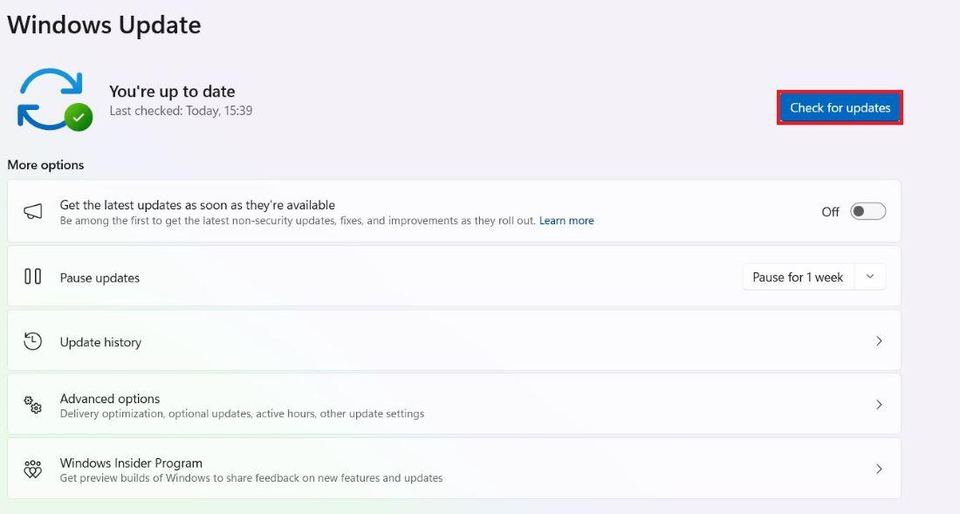
Check that the PC is connected to the internet, then run Check for updates again. If Windows reports that the device is up to date, there may be no update currently offered to it. Windows updates depend on the Windows version being supported; an update that is available for one device may not be offered to another.
An update won’t download or install
Use Microsoft’s troubleshooting guidance for Windows updates. The official instructions also point to separate help for installation errors and for freeing space when Windows reports that there isn’t enough storage. Follow the guidance that matches the message on your screen rather than trying unrelated fixes.
If you’re using a metered internet connection, some Windows updates may not install automatically. Connect using a suitable internet connection and check for updates manually. Windows 11’s update FAQ explains this limitation and provides additional Windows Update answers.
The latest Windows version isn’t offered
Microsoft says that if the latest version isn’t offered automatically through Check for updates, it may be available through the Windows Update Assistant. The supplied information doesn’t include the Assistant’s download address or its detailed instructions, so use Microsoft’s official Windows update instructions to find the appropriate route. Don’t download an installer from an unofficial site.