How to Uninstall a PDF Reader on Android
Uninstall any PDF reader on Android safely using Google Play or Settings, with backup tips and troubleshooting.
Prerequisites
Android phone or tablet with the PDF reader installed.
Internet connection (required for Google Play Store).
Verified backup of any PDFs stored inside the app’s private folder (e.g., export them to a cloud service or the device’s Downloads folder) before proceeding.
Device unlocked and you have access to the Google account used to install the app.
Direct first action
Open the Google Play Store app and start the uninstall process from there.
Uninstall via Google Play Store
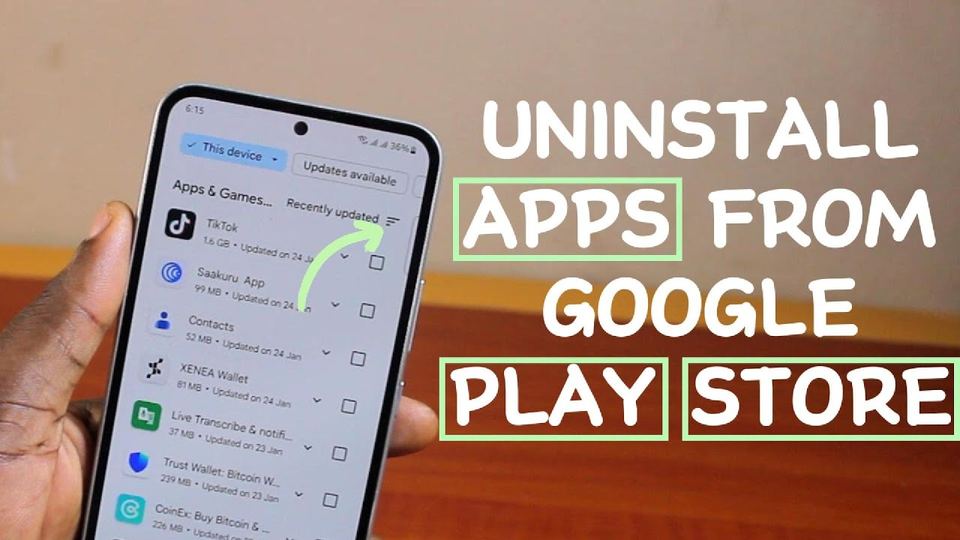
Launch the Google Play Store app.
Tap the Profile icon at the top‑right corner.
Select Manage apps & devices → Manage.
Find the PDF reader you want to remove (e.g., Adobe Reader) in the list and tap its name.
Press Uninstall and confirm when prompted.
Wait a few seconds for the app and its data to be removed.
This procedure follows the official Google instructions Delete apps on your Android device – Google Help. Some steps (profile icon, Manage apps) are only available on Android 13 and newer; on older versions, you can still uninstall via the Play Store’s app page.
Alternative method (Settings) – for older Android versions or if the Play Store button is missing
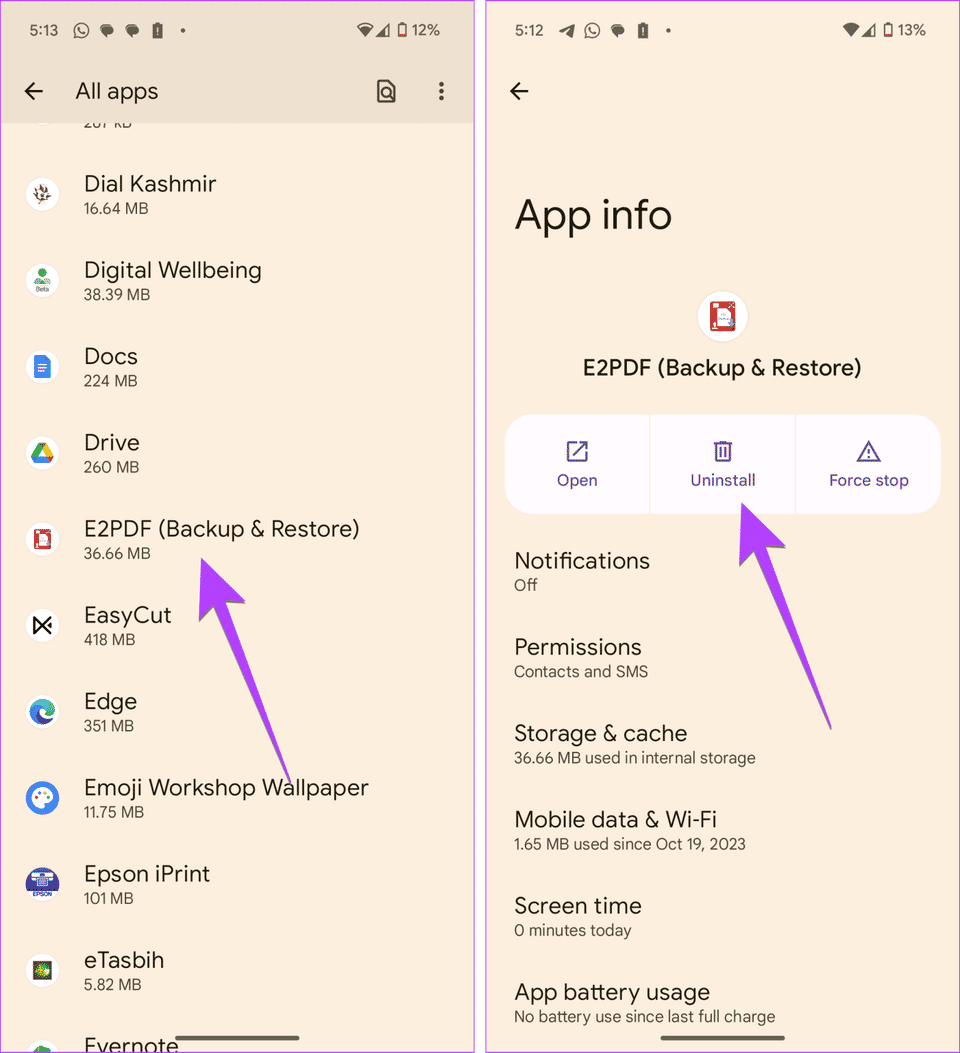
Open Settings.
Go to Apps or Apps & notifications → See all apps.
Scroll to the PDF reader and tap it.
Tap Uninstall. If the button is greyed out, the app may be a system‑level app; you can only Disable it here.
Specific note for Adobe Reader
If you are removing Adobe Reader, the community guide shows the same steps via Play Store How to uninstall and reinstall Adobe Reader for Android.
Troubleshooting
Uninstall button missing or disabled: The app might be pre‑installed as a system app. Use the Disable option in Settings instead; this hides the app and stops it from running.
App data not removed: Some apps store files on external storage (e.g.,
/sdcard/Adobe/). Manually delete those folders after uninstall if you no longer need the files.Cannot open Settings: Restart the device and try again; a temporary glitch can hide app options.
After uninstall
Re‑install the app later from the Play Store without repurchasing (if it was a paid app you own).
Verify that any needed PDFs are still accessible from your backup location.
If you disabled a system PDF viewer, you can re‑enable it via Settings → Apps → Disabled.
This guide is based on official Google documentation and the Adobe community post; no additional sources were used.


