How to tell if your iPhone has been hacked and secure it
Check for unauthorized Apple Account activity, secure the account, and distinguish account compromise from evidence about the iPhone itself.
How to tell if your iPhone has been hacked and secure it
Start by checking for account activity you don’t recognize. An unfamiliar Apple Account sign-in, a password change you didn’t make, or a two-factor authentication code you didn’t request can indicate that someone else has access to your account. These signs do not by themselves prove that your iPhone has been hacked or infected. The Apple guidance available here focuses on Apple Account security, not on diagnosing malware on the device.
Check for signs of unauthorized access

Look for Apple notifications about an unfamiliar sign-in or a password change you didn’t make. Also check for:
Two-factor authentication codes you didn’t request.
Messages sent or items deleted without your knowledge.
Account details or trusted devices you don’t recognize.
Purchases you didn’t make.
A password that no longer works, or a device placed in Lost Mode without your action.
One sign alone may not explain what happened. Treat an unrequested sign-in code or an unfamiliar trusted device as a reason to secure the account promptly.
Secure your Apple Account
1. Change the account password
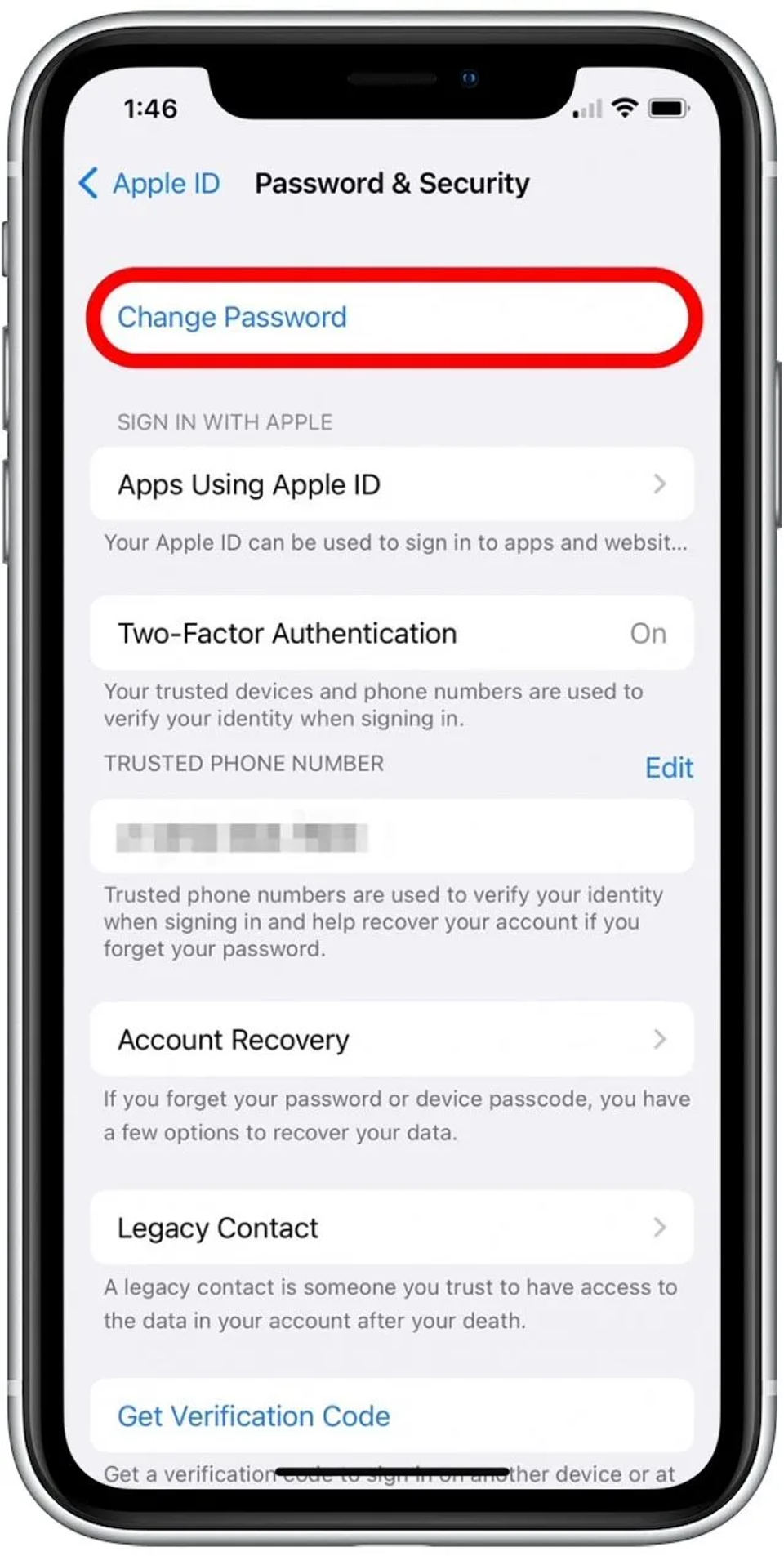
If you can still sign in, change your Apple Account password and choose a strong, unique password. Use Apple’s guidance for a possibly compromised Apple Account.
Expected result: You can sign in with the new password, and anyone relying on the old password should no longer be able to use it to sign in.
If someone else changed the password and you can’t change it, use Apple’s account-recovery instructions on that same support page. Apple says recovery may involve a waiting period; it does not promise immediate access.
2. Review devices and account details

Go to account.apple.com, open Devices, and remove devices associated with your account that you don’t recognize. Review your personal and security information there too, and correct details that aren’t yours.
On your iPhone, open Settings and tap your name. Check that the displayed email address is the one associated with the Apple Account you intend to use. Apple also recommends checking other services signed in with the account, including FaceTime, Messages, Media & Purchases, Mail, and Calendar.
Expected result: The account details and device list contain only information and devices you recognize or trust.
3. Check your email address and phone number
Make sure you control every email address and phone number associated with the Apple Account. If your number is involved, ask your cellular carrier to check that SMS forwarding hasn’t been set up for it without your knowledge.
This matters because control of an associated email address or phone number can undermine your efforts to regain control of the account.
4. Turn on account protections
If you haven’t already, set up two-factor authentication for your Apple Account. Apple describes it as an additional safeguard intended to prevent access by someone who knows your password. The supplied Apple guidance recommends this feature but does not give a version-specific setup path.
Also use a passcode to protect your iPhone. Apple recommends Stolen Device Protection for additional protection in the rare case that someone else has your iPhone and knows its passcode. The supplied guidance does not specify the iOS versions or exact menu path for these features, so check Apple’s security help page for current instructions rather than relying on a guessed path.
If you can’t sign in
If your password no longer works, first try the account-recovery options described in Apple’s compromised-account guidance. If you can’t reset the password or sign in to account.apple.com, Apple directs users to iforgot.apple.com to start account recovery. Apple says access may depend on completing a waiting period.
If a code arrives that you didn’t request, don’t share it with anyone. Go to the account-security steps above and check the account and its devices. If you can’t regain access, use Apple’s recovery route rather than following instructions from an unexpected message or caller.
Verify that you’ve secured the account
After making changes, check that:
You can sign in using the password you chose.
The account’s contact and security details are yours.
The device list has no unfamiliar devices.
You control the associated email addresses and phone number, and your carrier has checked for unrecognized SMS forwarding if relevant.
You no longer see account activity you can’t explain.
If those checks don’t resolve the concern, or you suspect someone is accessing information you haven’t shared, consult Apple’s security help. The supplied guidance does not establish a reliable on-device test for proving that an iPhone itself has been hacked, so don’t treat an account check as a malware diagnosis.