How to Check an Android TV Box for Malware and Protect Your Home Network
Use Play Protect to check apps, isolate a suspicious box from your network, and remember that a clean scan cannot rule out firmware-level malware.
Disconnect a box you suspect is compromised: unplug its power and Ethernet cable, or block its Wi-Fi connection through your router. This stops it using your home connection while you check it. A Play Protect scan can flag harmful apps, but it cannot confirm that a box’s firmware is clean.
Before you start
Have the box’s remote handy. If you want to isolate it through your router, you’ll also need access to that router’s controls. Menu names and available settings vary by box and Android version.
The checks below apply to Android TV devices with Google Play Store and Play Protect. Some inexpensive boxes use a different Android build or firmware, so the paths may not match. Don’t assume a missing menu means a clean device.
Check the box with Google Play Protect
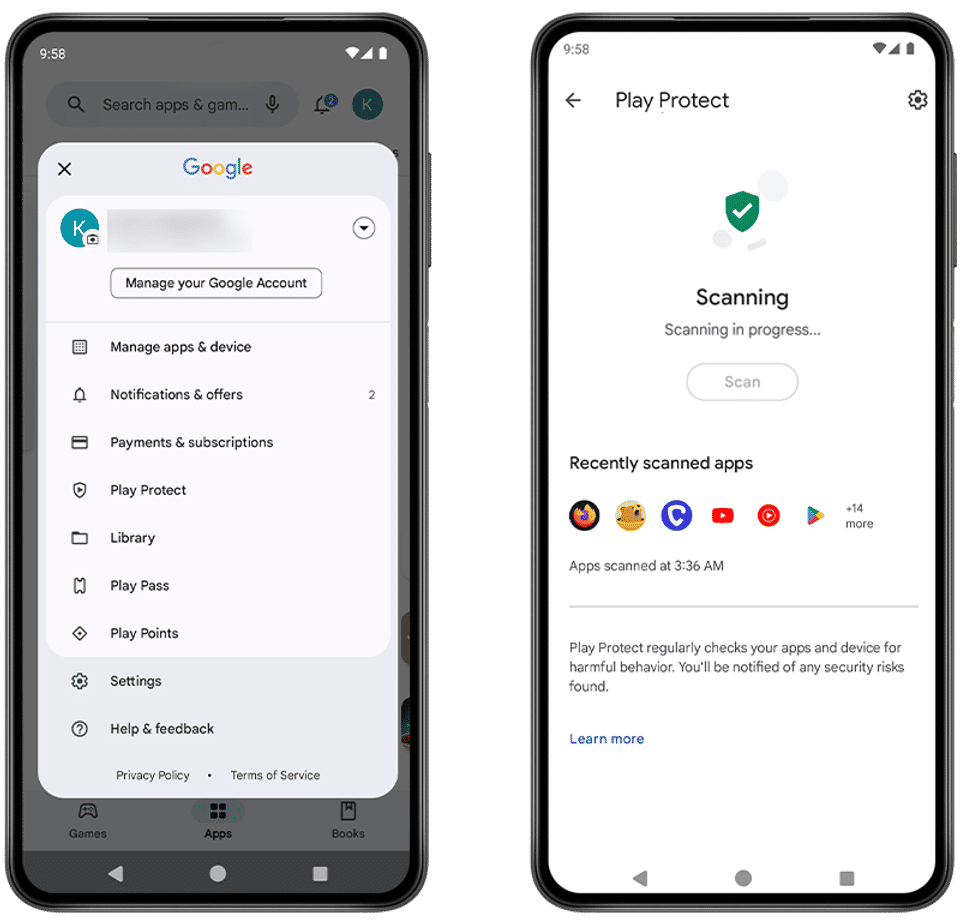
Google says Play Protect checks apps when they’re installed and periodically scans the device. It can warn about potentially harmful apps, disable an app, or remove one. It also checks apps from outside the Play Store. See Google’s instructions for protecting an Android TV with Play Protect for the documented paths and details.
Android TV 11 or later
Open the Google Play Store app on the box.
Open Menu > Play Protect > Settings.
Check that Scan apps with Play Protect is on.
If you install apps from outside Google Play, consider turning on Improve harmful app detection in the same settings area. Google says this allows Play Protect to automatically send unknown apps to Google for analysis.
Return to Play Protect and review any warning or scan result shown on your device.
Expected result: Play Protect is enabled, and any detected threat may trigger a notification or app action. Follow an on-screen warning to review or uninstall the named app. A scan without a warning means Play Protect did not report a harmful app; it does not establish that the box’s firmware is trustworthy.
Android TV 10 or earlier
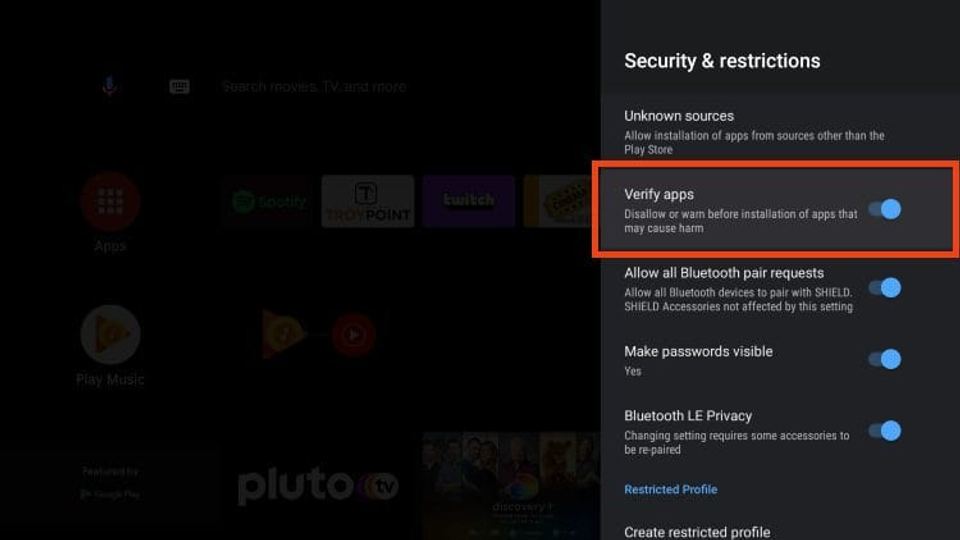
Open Settings > Apps > Security & restrictions.
Turn on Verify apps.
Google documents this setting for Android TV devices running Android 10 or lower. If your menus differ, don’t guess at a replacement path. Check the box maker’s official support information for your exact model and software version.
Isolate a suspicious box from your home network
A report about the XCPE botnet says some Android TV boxes may have had a backdoor in their firmware before reaching buyers, rather than becoming infected only through an app download. The report describes Google’s takedown of XCPE, but a takedown does not prove that every potentially affected box has been cleaned. Read the report on Android TV box malware and XCPE.
Disconnect the box. Unplug its power and Ethernet cable. If it uses Wi-Fi, remove or block its connection through your router’s controls. Router menus differ, so use your router maker’s instructions rather than assuming a particular setting name.
Keep it off your main network while you assess it. If your router offers a guest or IoT network, the report recommends using a separate network for smart devices such as TV boxes. Network separation can limit access to devices on your main network, but it does not remove malware from the box.
Don’t treat a factory reset as a cure. The report says a reset may remove apps or additional malware modules, but may not remove a backdoor stored in protected firmware. Do not reset unless you have a verified backup of anything you need and model-specific instructions from a trustworthy source. A reset is not a substitute for clean, trusted firmware or replacing a suspect device.
Decide what to do with a warning or a suspicious box
If Play Protect names an app as harmful, use its on-screen option to uninstall it, or follow the notification’s removal steps. Google says it may also disable or automatically remove an app. Reopen Play Protect afterward and check for further warnings.
If the box behaves suspiciously but Play Protect reports nothing, keep it disconnected. A clean app scan cannot rule out firmware-level malware. Don’t sideload apps or install firmware from an unverified source. For model-specific firmware guidance, contact the manufacturer through its official support channel; no manufacturer support link or verified clean-firmware download is provided here.
A report cited above says certification is not a guarantee against every firmware threat. It also notes that a complete list of affected models is not provided in the supplied material. Don’t label a box infected based only on its brand, appearance, or a clean app list.
Troubleshooting and verification
The Play Protect menu is missing
Check whether the box runs Android TV 10 or lower or Android TV 11 or later, then use the corresponding path above. If the Play Store or setting is absent, the box may use a different software build. Verify its exact model and version using the manufacturer’s official instructions instead of trying an unverified menu path.
Play Protect reports no harmful apps
That is a useful app-level check, not proof that all parts of the device are safe. If you have a separate reason to suspect the box, leave it disconnected and seek model-specific advice from the manufacturer.
Confirm the immediate steps are complete
The box is isolated when it is unplugged from wired networking and no longer connected to Wi-Fi. The Play Protect check is complete when the documented protection setting is on and you have reviewed any warnings. Record the box’s model and Android version before contacting its manufacturer. Keep in mind that these checks do not verify or repair the box’s firmware.


