How to set up a basic home server on Windows or Linux
Set up a private-network file server on Windows or Linux, with security, backup, and troubleshooting basics.
Prerequisites
A computer you can leave on when you need the server, connected to your home network. Ethernet is preferable for a computer that stays in one place.
A separate device on the same network to test access.
A clear purpose, such as sharing files. This guide covers file sharing on your home network, not access from the internet.
A verified backup of any files you care about. Before any OS installation, drive formatting, or repartitioning, back up the data and verify that you can open or restore files from that backup. Those destructive steps are not covered here.
1. Prepare the computer
Choose Windows or Linux and install available system updates. Restart if prompted.
Give the computer a recognizable name, such as
HomeServer, in its system settings. The exact setting varies by OS version.Connect it to your home router. In the router settings, you can reserve the computer’s current local IP address so it is easier to find later. Router menus vary by model; consult the router manufacturer’s documentation if you need model-specific instructions.
Use a strong sign-in password, and keep the computer’s firewall enabled. Do not configure router port forwarding for file sharing; keep this server available only on your trusted home network.
2. Set up a shared folder
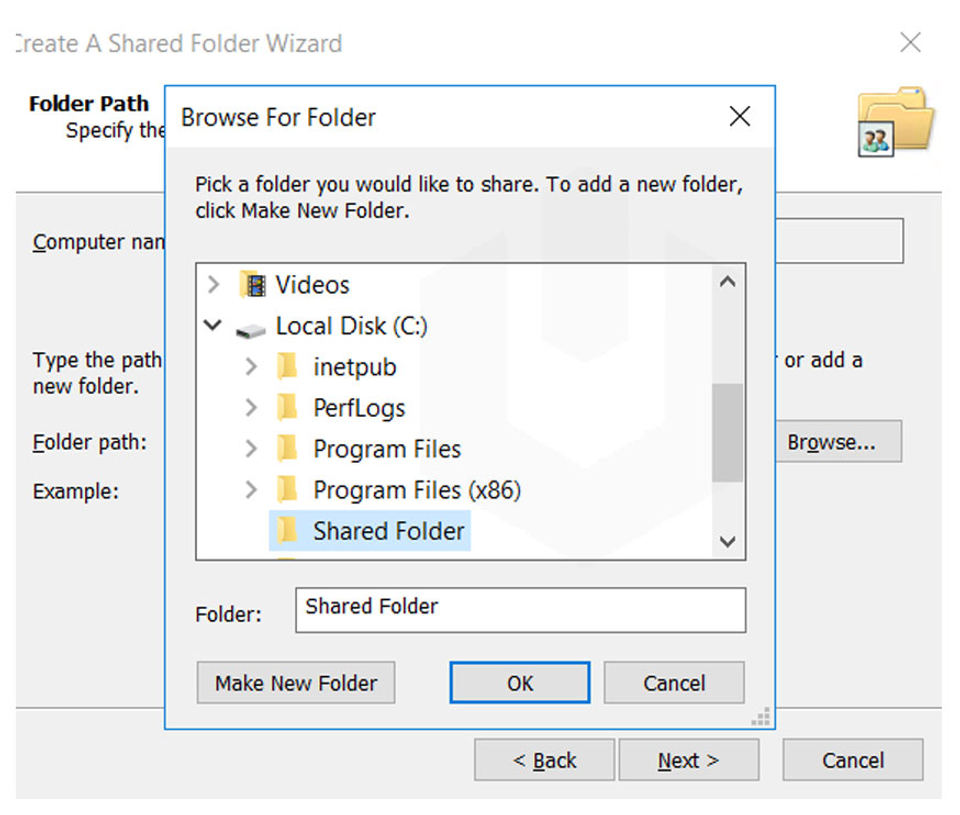
Choose one of these paths. Only share a folder intended for server use, rather than your whole drive or home directory.
Windows
Set the home network connection to Private in Windows network settings. Menu names can differ by Windows version.
Create a folder, for example
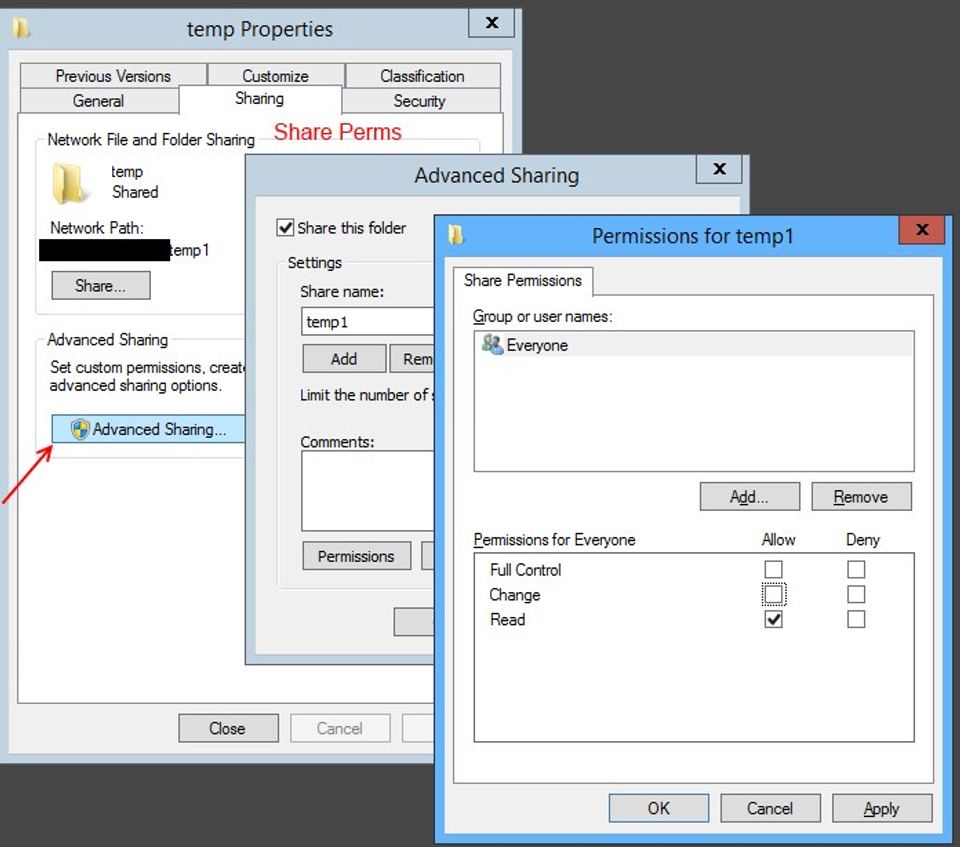
HomeShare, in a location with enough storage.Open the folder’s Properties and find Sharing. Use Advanced Sharing to share this folder, then set permissions for the specific Windows account that should have access. Give only the access needed, such as read or change; avoid granting broad access to everyone.
In Windows’ advanced sharing settings, enable network discovery and file sharing for the private network if they are not already enabled. Leave password-protected sharing on, and approve any firewall prompt for private networks only.
On another Windows computer, open File Explorer and enter
\\HomeServer\HomeSharein the address bar, replacingHomeServerwith the server name. If name lookup fails, try the server’s local IP address instead. Enter an account name and password authorized on the server.
Linux (Ubuntu or Debian)
Install Samba using your distribution’s package manager. On Ubuntu or Debian, open a terminal and run
sudo apt updatefollowed bysudo apt install samba.Create a folder for sharing, for example
/srv/homeshare. Set its owner to your Linux account and restrict access to that account. For example,sudo mkdir -p /srv/homeshare, thensudo chown "$USER":"$USER" /srv/homeshareandsudo chmod 2770 /srv/homeshare.Add a Samba password for your existing Linux account with
sudo smbpasswd -a "$USER". This sets Samba access credentials; it does not change your Linux sign-in password.Edit
/etc/samba/smb.confwith a text editor and add a share section at the end. Replaceyourusernamewith your Linux account name:[HomeShare]path = /srv/homesharebrowseable = yesread only = novalid users = yourusernamecreate mask = 0660directory mask = 0770Check the configuration with
testparm. If it reports an error, correct the share section before continuing. Then restart Samba withsudo systemctl restart smbd. If a firewall is active, allow Samba only from your trusted home network; do not disable the firewall or expose file sharing to the internet. Package names, service names, and firewall controls vary across Linux distributions.From another device, connect to
\\server-IP\HomeShareon Windows orsmb://server-IP/HomeSharein a file manager that supports network shares. Replaceserver-IPwith the Linux computer’s local address and sign in with the Samba credentials.
3. Test access and use the share
From the second device, create a small test file, open it, and check that the access permissions behave as intended. If you need the share to appear as a drive in Windows, follow this guide to map a network drive. Keep a separate backup of important files; a shared folder is not itself a backup.
Troubleshooting
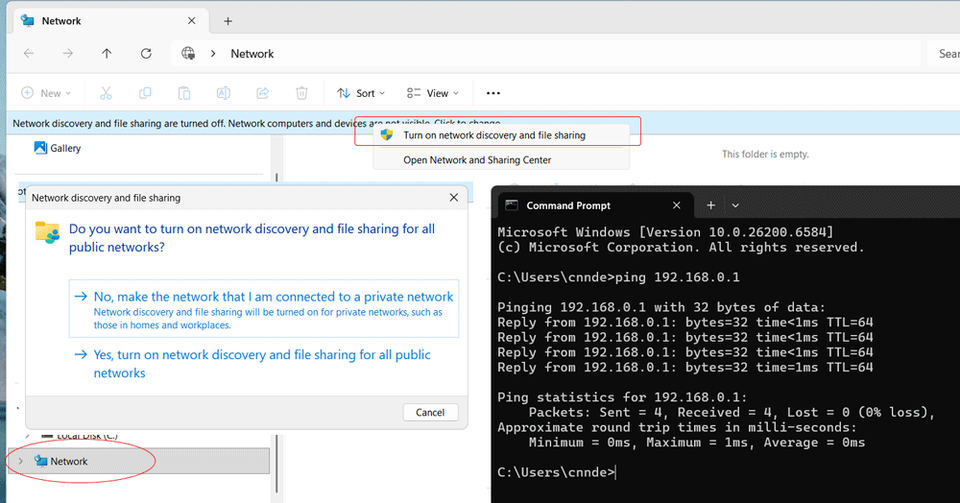
The server does not appear on the network: Confirm both devices are on the same home network, the server is awake, and network discovery or file sharing is enabled. Try the local IP address rather than the computer name.
Access is denied: Check that you are using an account permitted by the share. On Linux, confirm the account exists, has a Samba password, and can access the shared folder.
The share cannot be reached: Check the server’s firewall rules for private-network access to file sharing. Do not solve this by turning off the firewall or opening file-sharing ports to the internet.
Linux reports a configuration error: Run
testparmagain and review the share name, path, and account spelling. Linux menu and service details differ by distribution, so consult that distribution’s official documentation for system-specific help.