How to set up and use GitHub Copilot for coding assistance
Set up GitHub Copilot in a supported IDE, try chat and code suggestions, review AI-generated changes, and troubleshoot common setup issues.

Prerequisites
A GitHub account with access to an active Copilot plan. The supplied documentation says a free or paid plan, or access through an organization or enterprise, may provide access.
A supported IDE, such as Visual Studio Code, Visual Studio, a JetBrains IDE, Eclipse, or Xcode.
Permission to install extensions or plugins in your IDE. Work or school accounts may be subject to organization policies.
Before trying agent mode or accepting broad edits, make and verify a backup of important project files. For example, confirm that a separate copy opens and contains the files you need. A version-control commit can also preserve a known-good state, but only if the relevant work is committed and available in your repository.
Set up Copilot
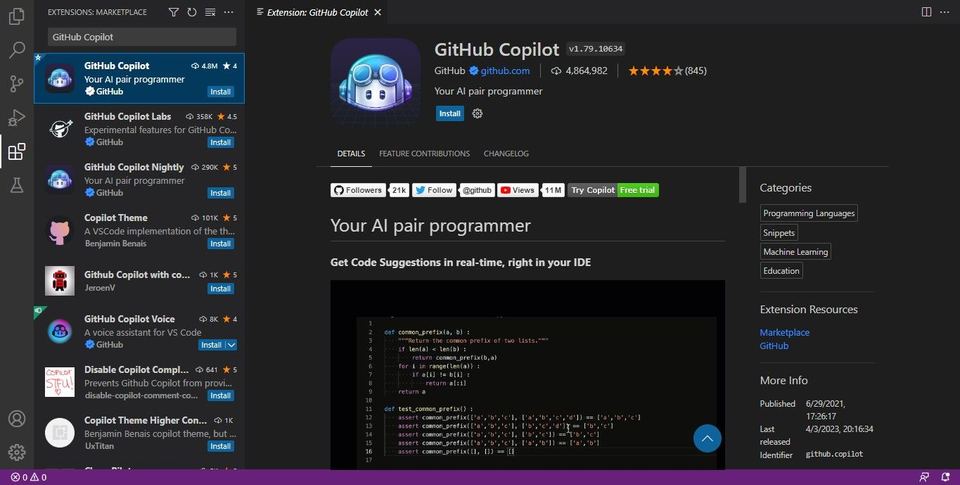
Check your access. Sign in to GitHub and confirm that your account or organization provides Copilot access. Plan names, availability, and policies can change; check GitHub's current account information if you're unsure.
Install the IDE extension or plugin. Follow the instructions for your specific editor in GitHub's Copilot setup guide. The steps differ by IDE.
Sign in from the IDE. Use its GitHub sign-in prompt and complete the authorization flow. Check that the IDE shows Copilot as connected before trying a suggestion.
Check settings. Make sure Copilot is enabled for the editor and language you want to use. If you're on a managed account, your organization may control which features are available. The setup guide also covers configuration and network settings.
Use Copilot for everyday coding
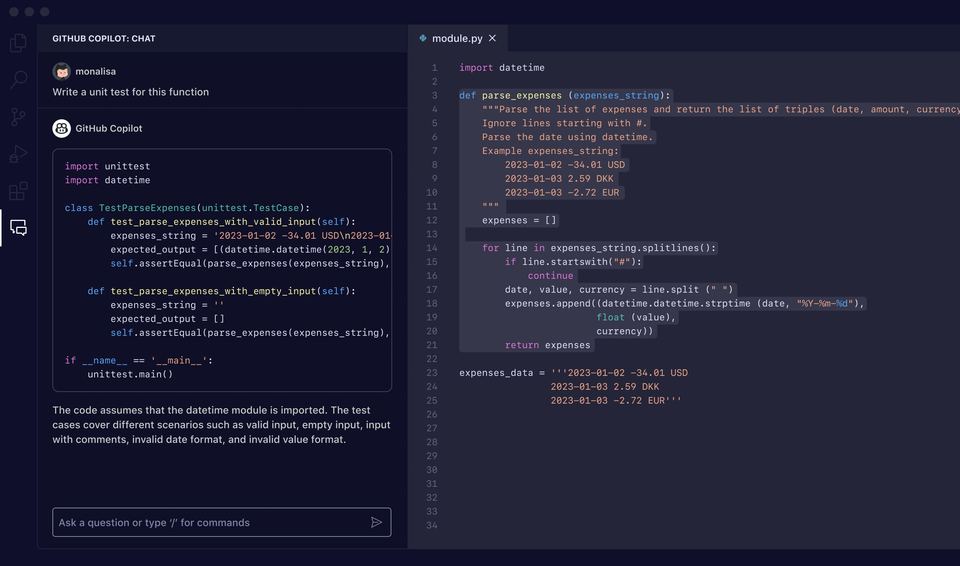
Ask about existing code
Open a project file, open Copilot Chat using your IDE's menu or sidebar, and ask a specific question, such as “What does this function do?” or “Explain this line.” Copilot can use the open file as context. Verify its explanation against the code, especially when behavior depends on other files or runtime settings.
Try an inline suggestion
In a code file, write a clear function name, comment, or partial implementation. Copilot may show a proposed completion. Review it before accepting; in many IDEs, the Tab key accepts an inline suggestion, but the control can vary by editor.
Request a larger change
If your IDE supports agent mode, describe a narrow task and the expected result. Agent mode can propose edits across files and, depending on the IDE, request approval to run commands. Review proposed commands and file changes before approving them. Do not approve a command you don't understand. Check the final diff and run your project's usual checks before relying on the result.
Troubleshooting
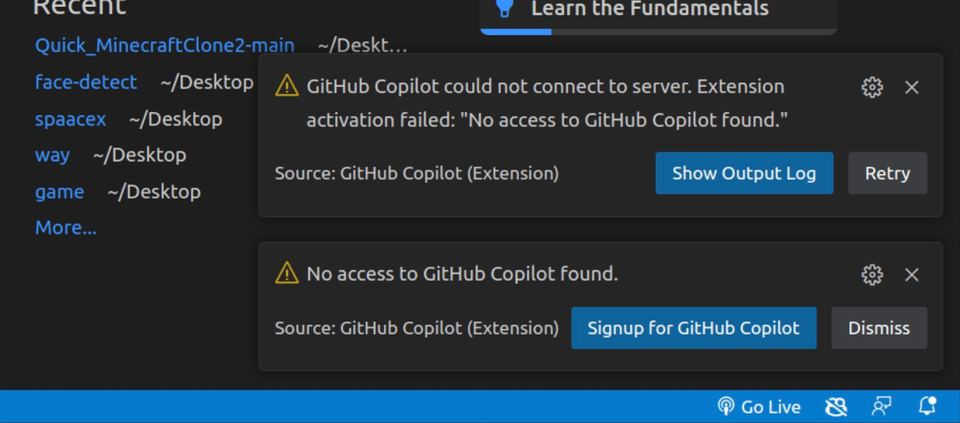
Copilot is missing or unavailable: Confirm account access, sign-in, extension installation, and IDE settings. Use the IDE-specific instructions in GitHub's setup guide; organization policies may also restrict access.
No inline suggestions appear: Confirm Copilot is enabled for the current file and language, then try a more descriptive prompt or code comment. Suggestions can vary and may not appear for every input.
Chat doesn't seem to understand the project: Ask about the open file or include the relevant code and constraints in your question. Check the answer against the actual project rather than assuming it has complete context.
Changes cause problems: Stop accepting further edits and compare the working files with your verified backup or known-good commit. Recovery depends on what was saved, committed, or backed up; do not assume an older copy exists. For IDE-specific steps, use the official Copilot quickstart and the support links available from GitHub's documentation.
Treat Copilot output as a suggestion, not a guarantee. Review code for correctness, security, licensing, and fit with your project's conventions before merging or deploying it.