How to recognize and remove a fake Apple security alert
Ignore browser-based Apple security scare messages, close the page or tab, and secure your account if you shared information.
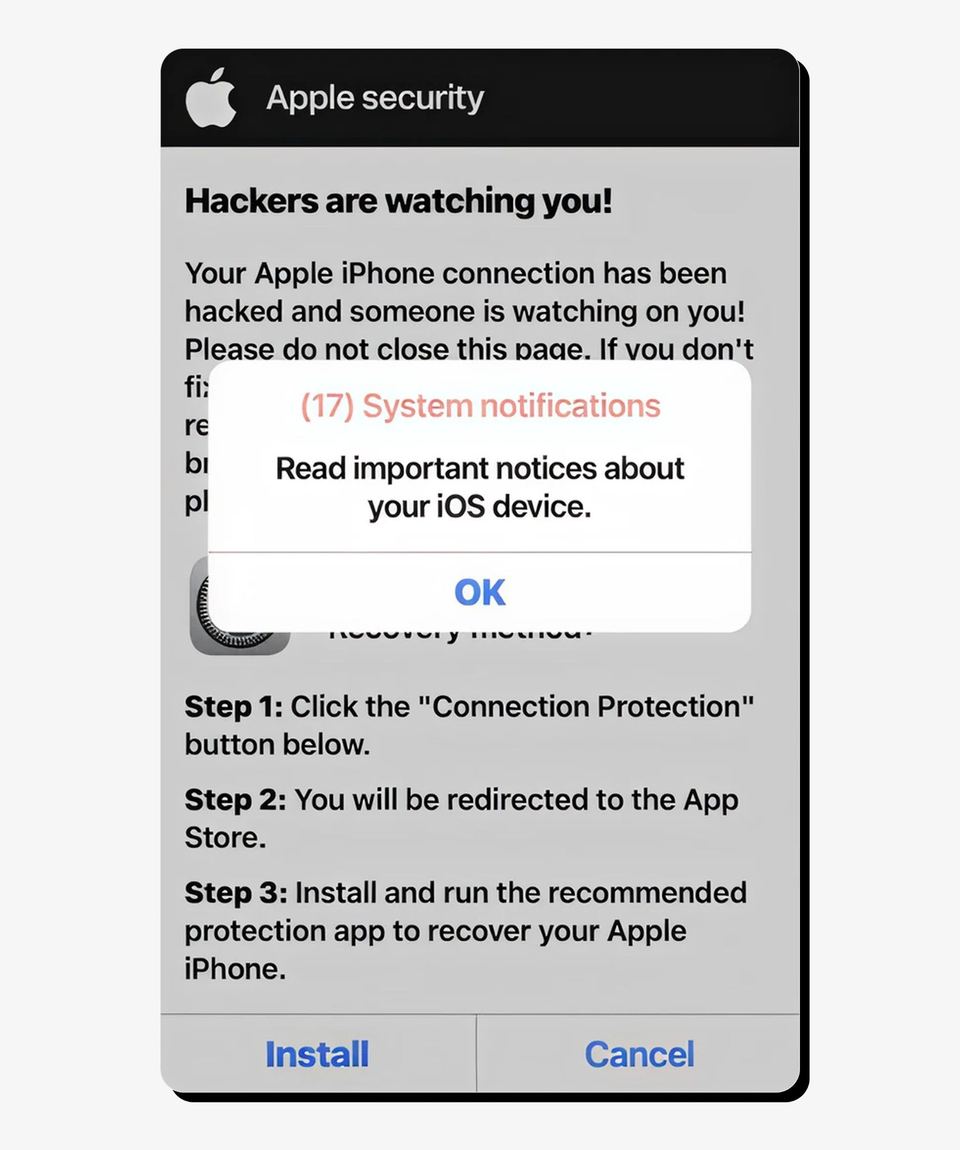
If a browser pop-up says your Apple device has a virus, urges you to call a number, or demands personal information, don’t tap its links, call the number, or provide details. Navigate away from the page or close the entire window or tab.
Before you start
Don’t follow instructions in the alert, even if it uses Apple’s name or logo.
Don’t share your Apple Account password, device passcode, verification code, payment details, or money.
Don’t install software or a configuration profile offered by the pop-up.
Apple warns that misleading pop-ups and ads may falsely claim a device has a security problem to pressure people into sharing information, paying, or downloading software. The advice below is based on Apple’s guidance on recognizing and avoiding scams.
Recognize a fake Apple security alert
Check how it appeared and what it asks you to do
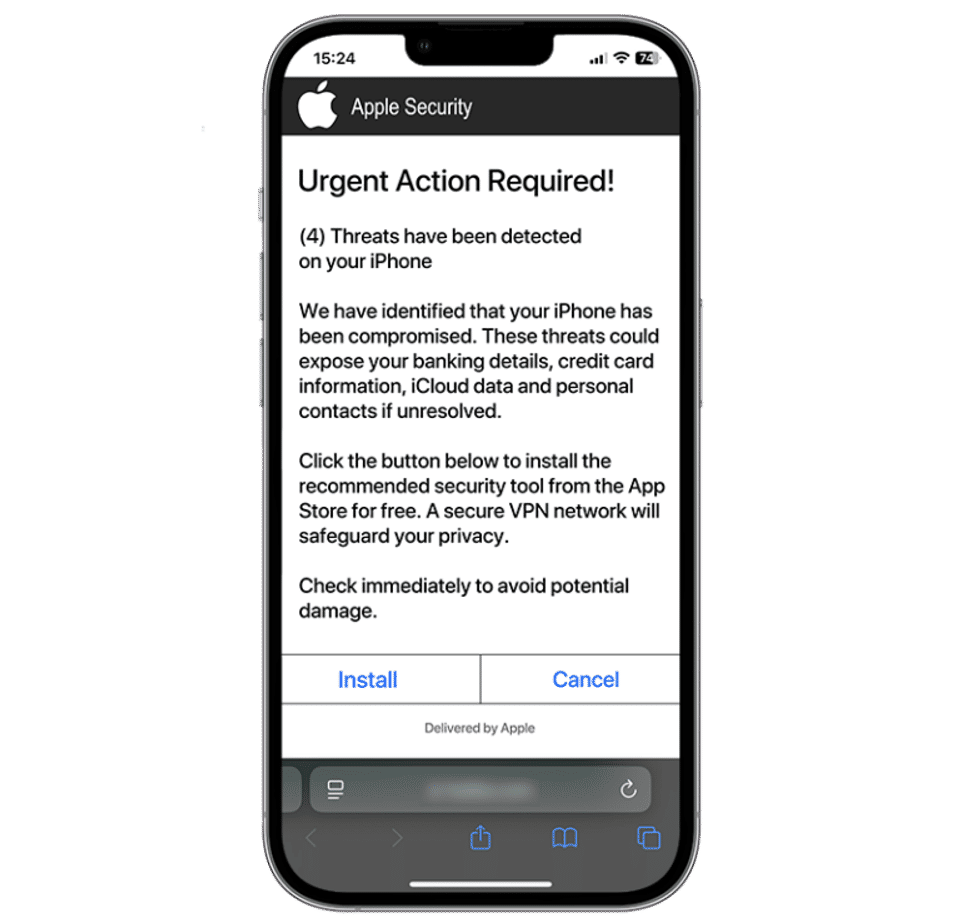
Be suspicious of an alert that appears while you browse a website and claims your device has a virus or security problem. Apple says these browser pop-ups are usually fraudulent advertisements. Scammers may also create urgency, threaten consequences, or direct you to a website that imitates an Apple sign-in page.
Treat requests for your password, device passcode, two-factor authentication code, money, or gift cards as warning signs. Apple says it will not ask you to enter your password or verification code on a website, accept a two-factor authentication prompt, or disable security features such as two-factor authentication.
A caller ID or message that appears to come from Apple is not proof that it does. Apple warns that scammers can spoof caller ID and impersonate trusted companies. If an unsolicited caller claims to be from Apple Support, hang up rather than sharing information.
Distinguish a webpage pop-up from other unwanted messages
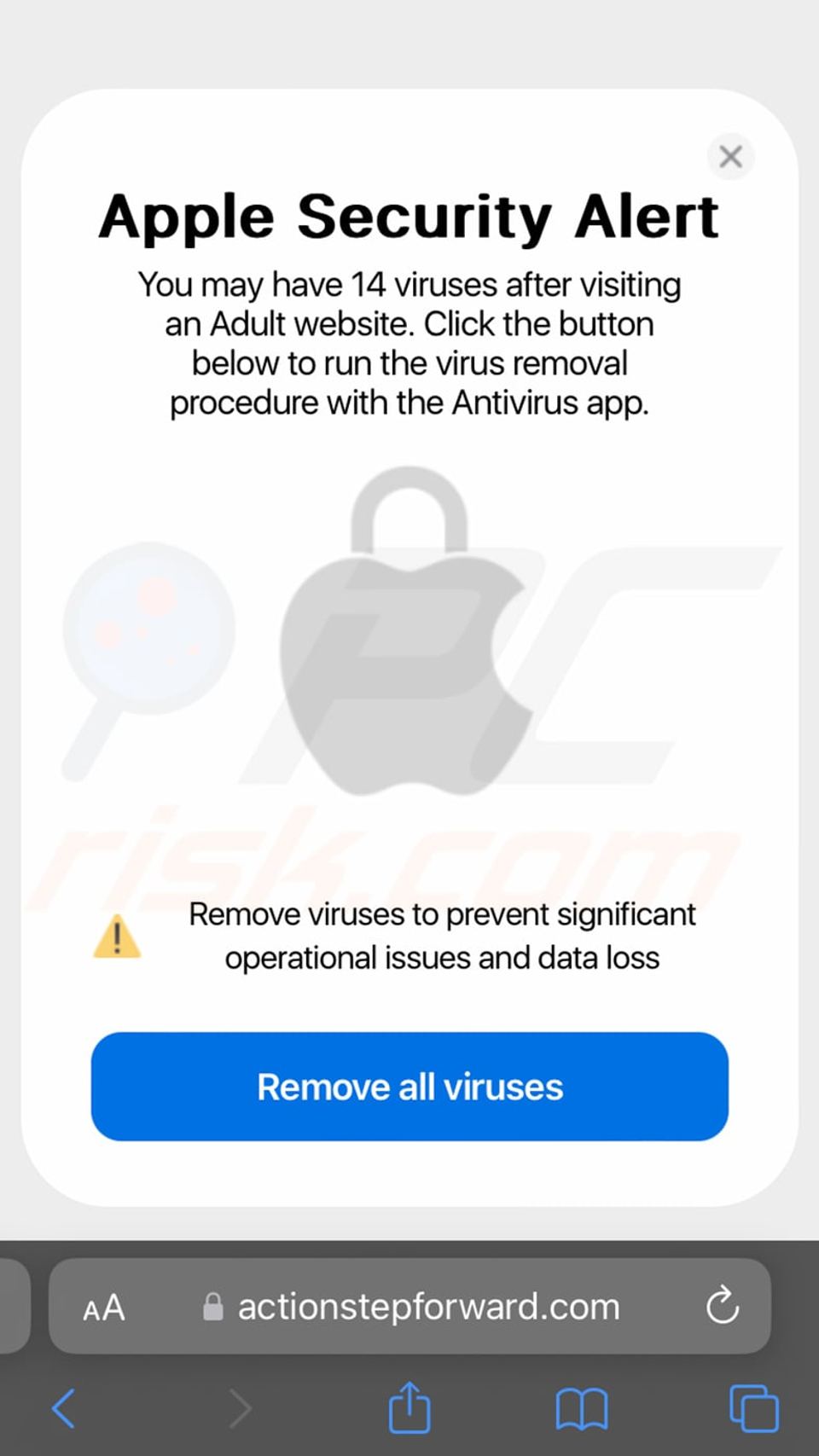
This guide’s close-the-tab steps apply to a warning displayed while browsing. Apple also identifies suspicious emails, text messages, phone calls, and unwanted calendar events as possible scam routes. Don’t assume that closing a browser tab removes a spam calendar subscription or resolves an account compromise.
Remove a browser-based fake alert
Close the page without interacting with the message
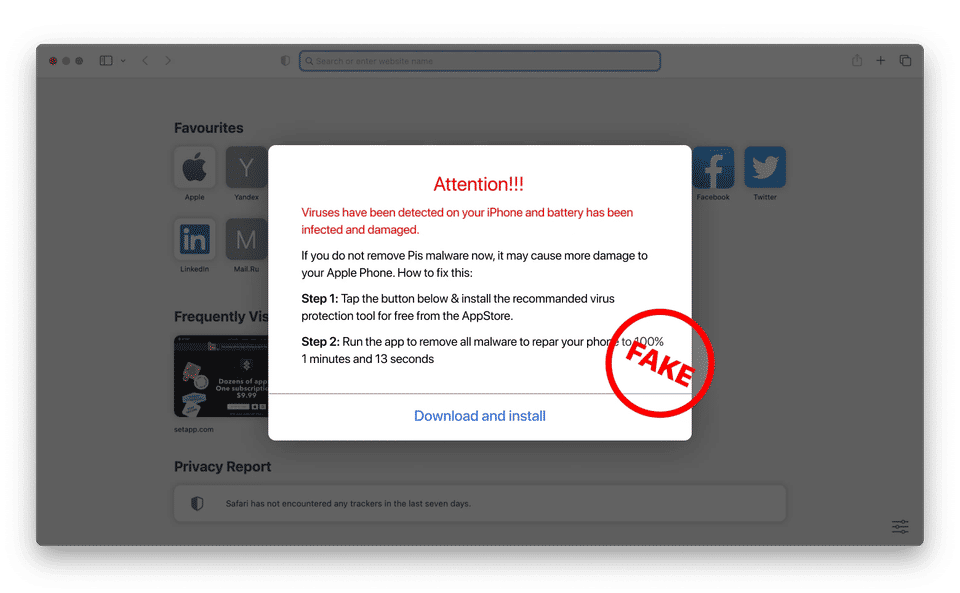
Don’t call a displayed number, follow a link, claim a prize, or download anything offered by the alert.
Navigate away from the page or close the entire browser window or tab. Apple recommends either action for suspicious pop-ups.
If the alert was in a particular tab, close that tab rather than continuing to use the page. The expected result is that the alert is no longer displayed in that page or tab.
Example: A webpage says “Apple Security Alert: Virus detected” and tells you to call support immediately. Don’t call. Close the tab or window, or navigate away from the site.
These instructions apply whether the pop-up appeared while browsing on an iPhone, iPad, or Mac. The supplied Apple guidance does not provide device-specific button names or menu paths for closing a browser tab, so use the controls available in your browser rather than following a guessed settings route.
If the alert came from a calendar or an installed download
If you’re receiving suspicious calendar events, Apple says an unwanted calendar subscription can be deleted. The source guidance does not give the steps or menu path, so don’t rely on an unverified route; use Apple’s support guidance for the appropriate instructions.
Be cautious if a website prompted you to download software or install a configuration profile. Apple warns that unknown or unwanted software and profiles may be intrusive and could put data at risk. Apple recommends getting software from the App Store or directly from the developer’s website. Don’t install a profile just because a pop-up claims it will fix a security problem.
If you already interacted with the alert
If you entered Apple Account information
If you entered your Apple Account password or other personal information on a scam website, change your Apple Account password immediately and ensure two-factor authentication is enabled. Use Apple’s scam and account-safety guidance for next steps. Don’t use a sign-in link from the suspicious message.
If you provided a device passcode, verification code, or payment information, the supplied source does not give a complete recovery procedure for each situation. Don’t share any further codes or details with the person or site that contacted you. Contact the relevant company through a channel you find independently, and consult Apple’s official guidance for account-related concerns.
If you downloaded or installed something
Don’t open or install additional files offered by the alert. Apple’s guidance recommends caution with internet downloads and identifies unknown configuration profiles as a risk, but the supplied material does not include removal steps or model-specific instructions. Follow the official Apple support links on its scam guidance page for help with unwanted software or profiles.
Troubleshooting and verification
The pop-up returns while the same page is open: Close the entire window or tab, or navigate away. Don’t follow the pop-up’s instructions.
You still receive warnings after leaving the webpage: Check whether they are actually suspicious calendar events, messages, or calls. Apple treats these as different scam channels; closing a browser tab alone does not address them.
You can’t tell whether a request is genuine: Treat unexpected requests for passwords, security codes, money, or changes to security settings as suspicious. Contact Apple directly using a channel you locate yourself, not contact details in the alert.
To verify the browser alert is gone: Return to ordinary browsing without reopening the suspicious page. If the warning was a webpage pop-up, closing its window or tab should remove that page from view. This does not by itself verify that an account, calendar, or installed profile is secure.