How to fix Windows' Inaccessible Boot Device error
Start with recent storage or firmware changes, then use Windows Recovery Environment to inspect the disk and boot configuration without guessing at repairs.
Prerequisites and safety
You’ll need access to the PC’s firmware settings and, if Windows won’t start, Windows Recovery Environment (WinRE). If using installation media to reach recovery tools, use media for the installed Windows version. Don’t choose an option that reinstalls Windows, formats a partition, or deletes files as part of this troubleshooting guide.
Before changing boot configuration or attempting any repair that could affect data, make sure you have a verified backup of important files. If you cannot access the files or verify a backup, stop before making changes that write to the disk.
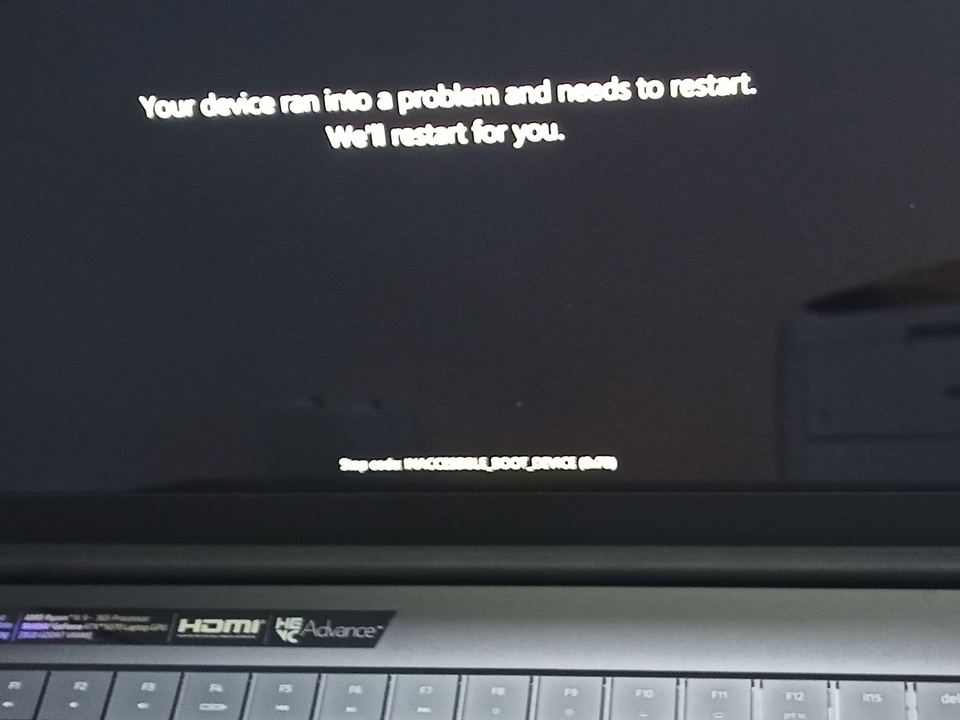
The INACCESSIBLE_BOOT_DEVICE stop error, also known as stop error 0x7B, means Windows could not access the system disk during startup. Causes can include a storage-controller setting change, a different controller or storage driver, disk or partition issues, or faulty hardware. See Microsoft’s stop error 7B troubleshooting guide for the detailed, version-specific guidance.
1. Undo a recent storage or firmware change
If the error began immediately after changing hardware or firmware settings, start there. For example, if you recently changed a storage controller setting, restore the previous setting only if you know what it was. Don’t guess between AHCI, RAID, or another mode; Windows may fail to start if the controller mode doesn’t match its configuration.
If you added or replaced a disk, SSD, controller, or external storage device, undo that change if it is safe and practical, then try starting Windows again. If the disk was moved to another computer, its storage controller may differ from the one Windows was configured to use.
Expected result: If the changed setting or hardware caused the error, restoring the previous configuration may let Windows start. If the error remains, continue below. If you cannot identify the original setting or safely reverse a hardware change, contact the computer manufacturer for model-specific help rather than experimenting.
2. Open Windows Recovery Environment
If Windows cannot start normally, enter WinRE. Microsoft’s troubleshooting guidance says to start the PC using installation media for the installed Windows version. At the setup screen, choose Repair your computer, not the option to install Windows, to reach recovery tools.
If you cannot reach WinRE, or you’re unsure which recovery option is safe, stop and consult Microsoft’s linked troubleshooting guide or your PC manufacturer. The exact recovery steps can vary by device and Windows version.
3. Check whether the system disk is detected
From the WinRE Command Prompt, run these commands one at a time:
diskpart
list disk
Check whether the expected physical disk appears. Then type exit to leave DiskPart. These commands inspect disk detection; do not enter other DiskPart commands unless you know exactly what they do.
If the disk is missing: Don’t attempt boot-file repairs against a disk that recovery tools cannot see. This points to a possible connection, disk, controller, or hardware problem. Seek model-specific support or professional help, especially if the disk contains files without a verified backup.
If the disk is listed: Continue to inspect the boot configuration. A listed disk is a useful finding, but it does not prove that its partitions or Windows installation are healthy.
4. Inspect the boot configuration before changing it
At the WinRE Command Prompt, run:
bcdeditReview the Windows Boot Manager and Windows Boot Loader entries. The device and path values must refer to the correct boot partition and Windows loader. The expected details depend on the system’s layout and whether it uses UEFI or BIOS. Microsoft’s guide gives different examples for these configurations: UEFI entries can use .efi paths, while BIOS-based entries may look different.
Do not copy an example value or assume a drive letter. Drive letters in WinRE may not match the letters you see in normal Windows. A wrong BCD edit can make startup problems worse. If an entry appears wrong or missing, first make a backup of the BCD store, as Microsoft recommends, and follow the official guide’s instructions for your exact system layout. If you can’t confidently identify the correct partition and values, stop and get qualified help instead of running a guessed repair command.
Microsoft’s article includes a bcdboot example specifically for Windows 10 recovery scenarios. Don’t assume that example’s drive letters or parameters apply to a different PC or Windows version.
5. If the first checks don’t resolve it
If the disk is detected and the firmware settings are as expected but the error persists, the cause may require diagnosis of the storage controller, driver, disk, or partition layout. Microsoft lists these among possible causes and provides further troubleshooting in its official stop error 7B guide. Use that guide for instructions appropriate to your Windows version and boot configuration; avoid registry edits or partition changes unless the exact conditions apply and you have a verified backup.
If the error began after moving the disk to another PC, changing the controller, or installing Windows on different storage hardware, ask the manufacturer or a qualified technician to check compatibility. If the disk is absent from recovery tools, prioritize hardware diagnosis rather than boot-configuration edits.
Verify that Windows starts again
After a safe correction, restart the PC and confirm Windows reaches the sign-in screen and starts normally. If the blue screen returns, note any recent hardware or firmware changes and whether WinRE detects the disk. Don’t repeat a repair with different guessed settings; use those findings when consulting Microsoft’s guide or your computer manufacturer.


