How to use the PS5 DualSense controller on a Windows PC
Step‑by‑step guide to connect a PS5 DualSense (or DualSense Edge) controller to Windows via USB or Bluetooth, configure Steam, and troubleshoot.
Prerequisites
PC running Windows 10 (1809+) or Windows 11.
USB‑C cable that supports data transfer or a Bluetooth adapter built into the PC/laptop.
(Optional) DS4Windows if you want the controller to work in non‑Steam games that require XInput.
Ensure Windows is up to date and Bluetooth drivers are installed (if using wireless).
1. Connect the DualSense controller (wired)
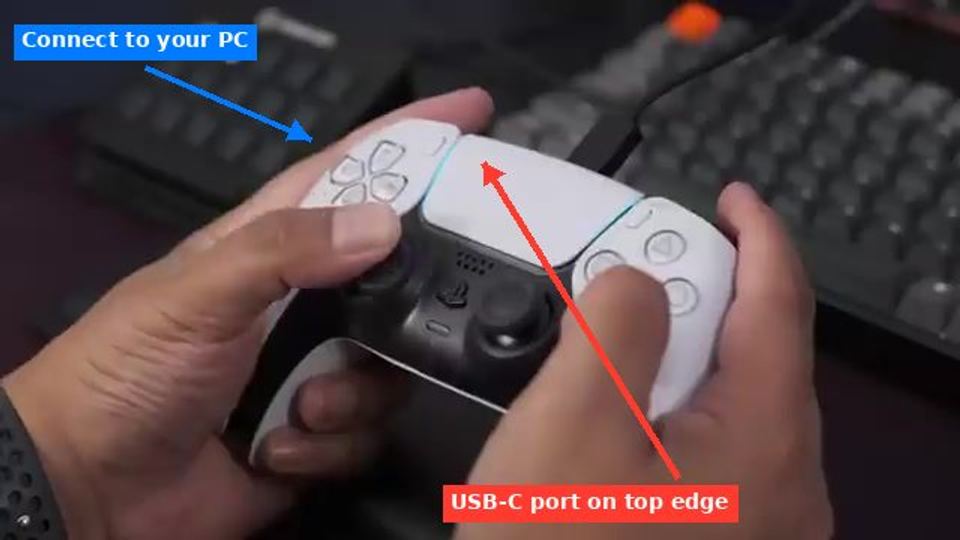
Plug a data‑capable USB‑C cable into the controller’s port and the other end into a USB port on the PC.
Windows should automatically install the generic HID driver.
Verify the connection:
The light bar will stay solid and the player indicator will light up.
Open Device Manager → Human Interface Devices → you should see HID-compliant game controller.
Tip: If the controller only charges, the cable lacks data lines – try another cable.
2. Connect the DualSense controller (Bluetooth)
2.1 Put the controller into pairing mode
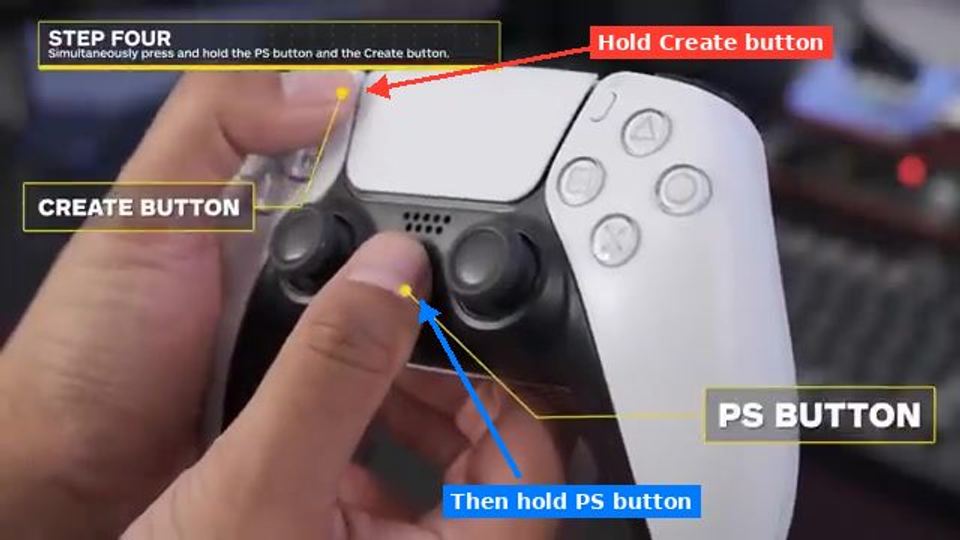
Make sure the controller is off (light bar dark).
Press and hold the PS button and the Create (Share) button simultaneously for about 3 seconds until the light bar starts flashing.
2.2 Pair from Windows
Windows 11:
Open Settings → Bluetooth & devices.
Click Add device → Bluetooth.
Select Wireless Controller from the list.
Windows 10:
Open Settings → Devices → Bluetooth & other devices.
Click Add Bluetooth or other device → Bluetooth.
Choose Wireless Controller.
When pairing succeeds, the light bar will blink briefly then stay solid, and the player indicator lights up.
Windows will list the device as Wireless Controller under Bluetooth & other devices.
2.3 Remove old pairings (if you hit a conflict)
In Settings > Bluetooth & devices, locate any existing entry named Wireless Controller.
Click the three‑dot menu → Remove device.
Repeat the pairing steps above.
3. Verify basic functionality
Open Control Panel → Devices and Printers.
Right‑click Wireless Controller (or the USB entry) → Game controller settings → Properties.
Press buttons and move sticks; the test window should show movement and button presses.
If the controller is recognized here, the OS side is complete.
4. Enable full DualSense features in Steam
Launch Steam → Steam menu → Settings.
Select the Controller tab → General Controller Settings.
Check PlayStation Configuration Support (this enables Steam Input for DualSense).
Click OK and restart Steam if prompted.
For a specific game:
Open the game’s Properties → Controller → set Override for this game to Enable Steam Input.
Launch the game; you can now access the Controller Configuration screen (press the PS button + Options).
Steam Input will expose haptic feedback and adaptive‑trigger settings for games that support them.
5. Using the controller in non‑Steam games
5.1 Add the game to Steam (quick method)
In Steam, click Games → Add a non‑Steam game to My Library.
Browse to the game’s executable and add it.
Launch the game from Steam; the same Steam Input configuration will apply.
5.2 Use DS4Windows (XInput fallback)
If a game does not work with Steam Input, DS4Windows can translate DualSense input to XInput.
Download the latest DS4Windows from the official GitHub releases page.
Extract the zip and run DS4Windows.exe.
Follow the setup wizard – it will install the required drivers (ViGEmBus).
Connect the controller (USB or Bluetooth) – DS4Windows should list it as DualSense.
Create a profile (optional) and enable Enable DualSense Features if you want vibration.
Launch your non‑Steam game; DS4Windows runs in the background and presents the controller as an XInput device.
6. Common troubleshooting
| Symptom | Likely cause | Fix |
|---|---|---|
| Controller not detected | Cable without data lines, Bluetooth off, driver issue | Use a known‑good data cable; enable Bluetooth; update Bluetooth drivers via Windows Update. |
| Light bar stays off after pairing | Controller still paired to another device | Reset the controller (see step 7) and delete old Bluetooth entries before pairing again. |
| Input lag / stutter | Weak Bluetooth signal or interference | Switch to wired connection; keep the controller within 2 m of the adapter; remove other Bluetooth devices nearby. |
| No vibration or adaptive‑trigger response | Game does not support DualSense, or Steam Input disabled | Verify the game’s Steam Input settings; enable PlayStation Configuration Support in Steam; for non‑Steam games, use DS4Windows and enable vibration in its profile. |
| Controller disconnects after a few minutes | Power‑saving settings on the PC’s Bluetooth adapter | Open Device Manager → Bluetooth → your adapter → Properties → Power Management; uncheck Allow the computer to turn off this device to save power. |
7. Resetting the DualSense controller (last‑resort fix)
Locate the tiny reset hole on the back of the controller near the L2 button.
Insert a paperclip and hold for 5 seconds.
The controller will power off. Press the PS button to turn it back on and repeat the pairing steps.
8. Confirm everything works
Open a Steam game that lists DualSense support (e.g., Astro’s Playroom or any recent title).
Verify that the light bar reacts, the sticks move, and you feel haptic feedback when the game triggers it.
For a non‑Steam title, launch it with DS4Windows active and test button inputs via the game’s options menu.
If all inputs respond and any available haptic/trigger effects are felt, the setup is complete.
You’re now ready to game on Windows with the PS5 DualSense (or DualSense Edge) controller.
Sources
AI-assisted publication. Source checks are not device testing. How we make guides