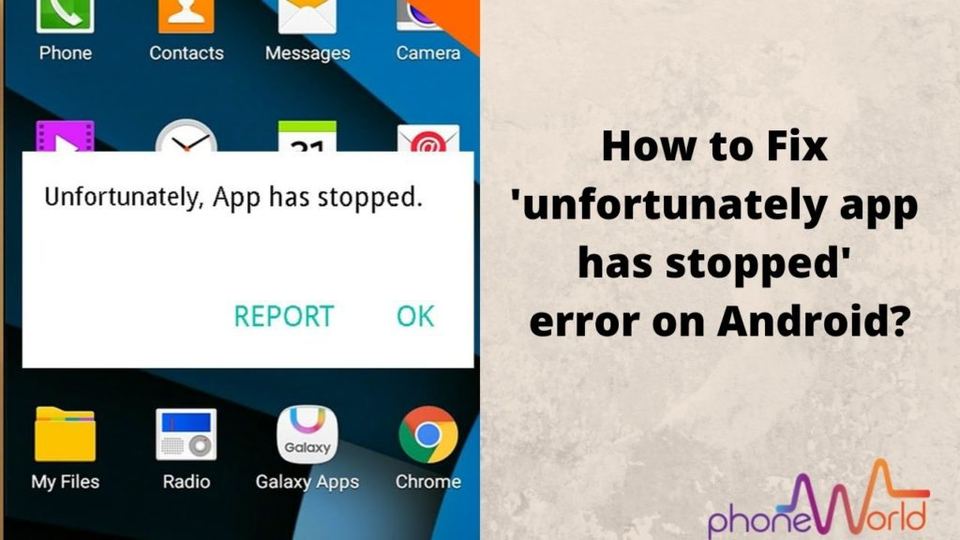
How to fix the "Program has stopped" error on Android
Quickly resolve Android’s “Program has stopped” crash by restarting, updating, clearing cache/data, and reinstalling the app.
Immediate Action: Restart Your Device
Force‑restart your phone:
Press and hold the Power button for about 30 seconds (or until the device restarts).
If a Restart option appears, tap it.
After the reboot, open the problematic app to see if the error persists.
If the app runs, the issue was a temporary glitch.
If the error remains, move to the next section.
Prerequisites
Backup important data (photos, messages, app data) before clearing app data or reinstalling. Use Google Drive, Samsung Cloud, or another trusted backup solution.
Ensure the device is charged ≥30 % or connected to power.
Verify you have a stable internet connection for updates and downloads.
Step 1: Check for System and App Updates
System update
Open Settings → System → Advanced → System update (path may vary; on some devices it is About phone → Software update).
If an update is available, follow the prompts to install it and restart when finished.
App update
Open the Google Play Store.
Tap your profile icon → Manage apps & devices.
Under Updates available, locate the problematic app and tap Update (or choose Update all).
Relaunch the app.
For detailed guidance on updating Android apps, see the official help page: Fix an installed Android app that isn’t working.
Step 2: Force‑Stop and Clear Cache
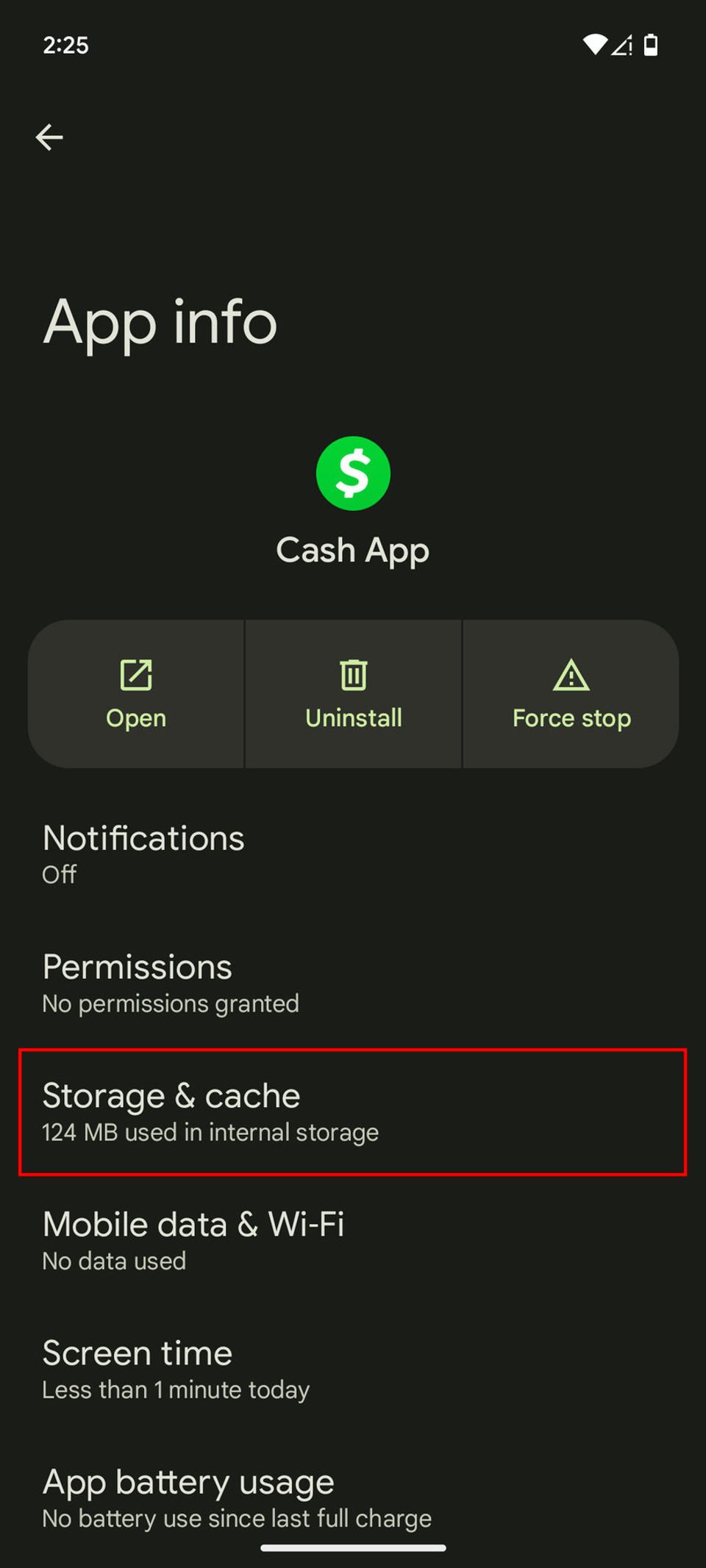
Open Settings → Apps & notifications → See all apps.
Locate the app that shows “Program has stopped.”
Tap Force stop → confirm.
Tap Storage & cache.
Choose Clear cache first. Test the app.
If the crash continues, return to Storage & cache and tap Clear storage (or Clear data). Note: This erases the app’s local data; you may lose login credentials or preferences.
Open the app again.
Step 3: Verify Date & Time Settings
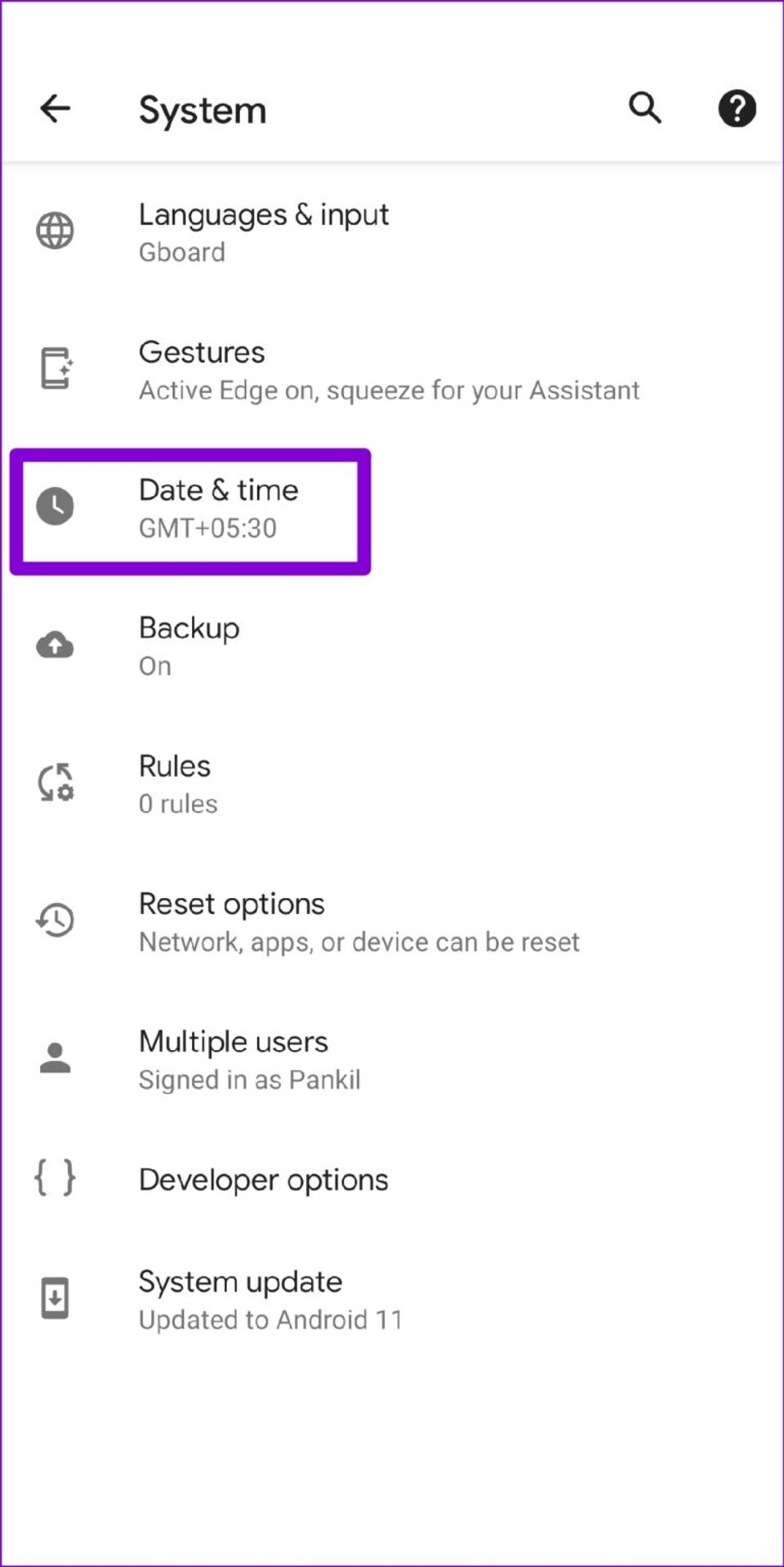
Incorrect time can cause crashes for apps that rely on server authentication.
Open Settings → System → Date & time.
Turn off Automatic time zone and Automatic date & time.
Manually set an incorrect date (e.g., a day ahead) and wait a few seconds.
Turn the automatic options back on.
Relaunch the app.
Step 4: Free Up Device Storage
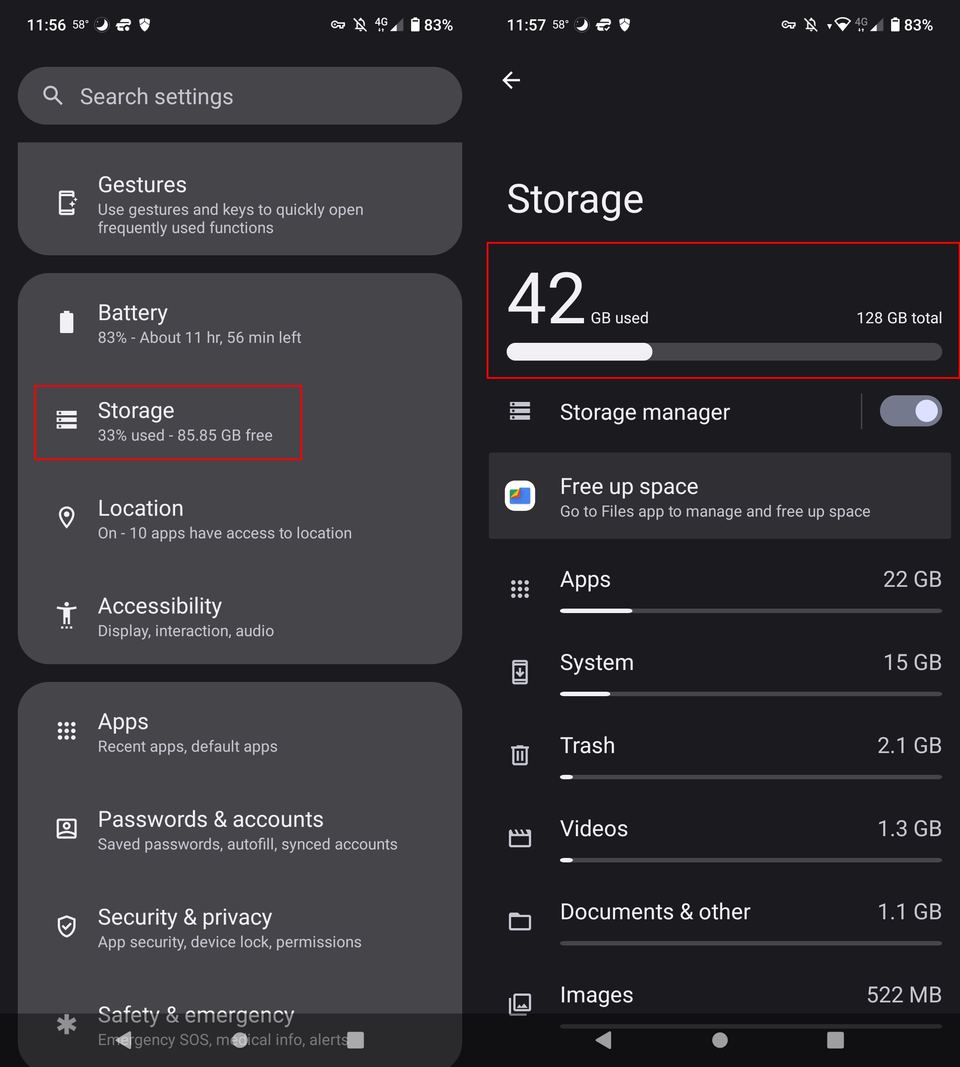
Low storage can prevent apps from writing temporary files, leading to crashes.
Open Settings → Storage.
Review the Free space bar. Aim for at least 15 % free.
Delete unused apps, large media files, or clear cached data from Settings → Storage → Cached data.
Retry the app.
Step 5: Uninstall and Reinstall the App
If previous steps fail, a clean reinstall often resolves corrupted files.
Uninstall
Press and hold the app icon on the home screen or app drawer.
Drag to Remove or tap the X/Uninstall button.
Confirm deletion. Remember: any data stored only locally to the app will be lost.
Reinstall
Open Google Play Store.
Search for the app and tap Install.
After installation, open the app and sign in if required.
Step 6: Test in Safe Mode (Optional)
Safe Mode disables third‑party apps that might interfere.
Press and hold the Power button.
When the power menu appears, long‑press Power off until a Safe mode prompt appears.
Tap OK to reboot into Safe Mode.
Open the problematic app. If it works, another installed app is likely causing the crash.
Restart normally to exit Safe Mode.
Common Failure Points & Fixes
| Symptom | Likely Cause | Fix |
|---|---|---|
| App still crashes after clearing cache | Corrupted app data | Clear storage (Step 2) or reinstall (Step 5) |
| Crash occurs only on Wi‑Fi | Network‑related bug | Verify internet stability; toggle Airplane mode; reset Wi‑Fi router |
| “Program has stopped” for multiple apps | System‑level issue | Perform a full System update (Step 1) or consider a factory reset after backing up all data |
| App won’t open after reinstall | Incompatible Android version | Check the app’s Play Store page for minimum OS requirement; update OS if possible |
Verifying Completion
Open the app three times in a row, performing a typical action (e.g., send a message, load a map).
Observe that no “Program has stopped” dialog appears.
Check Settings → Apps & notifications → App info → Battery → Background restriction – ensure the app is allowed to run in the background if needed.
If the app integrates with Google services, open Settings → Accounts → Google → Sync and confirm sync completes without errors.
When to Seek Further Help
The app continues to crash after all steps.
The device shows system‑wide instability (random reboots, freezing).
You suspect a hardware issue (e.g., overheating).
Contact support:
For Google‑provided apps or Play Store issues, visit the Google Play Help page linked above.
For manufacturer‑specific problems, locate the support contact in your device’s Settings under Help & feedback or on the maker’s official website.
Optional: Factory Reset (Last Resort)
Only attempt after backing up all data (photos, contacts, app data via Google backup). A reset erases everything on internal storage.
Settings → System → Reset options → Erase all data (factory reset).
Follow on‑screen prompts, then set up the device anew.
Reinstall the app and test.
Remember: Most “Program has stopped” errors are resolved by a simple restart, update, or cache clear. Reserve the more drastic steps for persistent cases.