





How to Clear Cache and Cookies on iPhone & iPad

Have you ever noticed that your iPhone or iPad feels sluggish, especially when browsing the web or using certain apps? The culprit could be the cache and cookies that have accumulated over time. These data bits, while useful for quick access and browsing, can clog up your device and slow down its performance. Not to worry, this guide will walk you through the process of clearing cache and cookies on your iPhone or iPad to help speed up your device, free up space, and protect your privacy.
The problem is simple: as you browse the internet and use various apps, your iPhone or iPad stores data in the form of cache and cookies. While this data can help load web pages and app content faster, it can also fill up your storage quickly, slowing down your device. This is why it’s essential to clear this data periodically. This post will provide you with a step-by-step guide on how to clear cache and cookies on your iPhone or iPad, tailored to users who may not be tech-savvy.
Let's dive right into the solution. Clearing the cache and cookies from your iPhone or iPad is a straightforward process. By following the steps provided in this guide, you can optimize your device's performance, save storage space, and enhance your privacy. This guide will cover clearing cache and cookies for Safari, Chrome, and Firefox, the most popular browsers on iOS devices. Additionally, we will discuss the benefits and risks associated with clearing cache and cookies, and provide tips on how often you should perform this task.
- Why Clear Cache and Cookies?
- Understanding Cache and Cookies
- Benefits of Clearing Cache and Cookies
- Risks of Saving Cache and Cookies
- How to Clear Cache and Cookies
- Clearing Cache and Cookies in Safari
- Clearing Cache and Cookies in Chrome
- Clearing Cache and Cookies in Firefox
- How Often Should You Clear Cache and Cookies?
- Additional Tips for Managing Cache and Cookies
- Conclusion
Why Clear Cache and Cookies?
Understanding the purpose of cache and cookies, as well as the benefits and risks of clearing them, can help you decide whether this action is right for you.
For a general resource on clearing cache across different browsers, check out How to clear Cache: on all browsers.
Understanding Cache and Cookies
Cache is a temporary storage area on your device where your iPhone or iPad saves information from websites and apps, such as images and web page data, to make future visits faster. Cookies, on the other hand, are small data files that websites store on your device to remember your preferences and track your activity.
Benefits of Clearing Cache and Cookies
- Faster Performance: By clearing cache and cookies, you can speed up your device and improve the performance of your web browsing and app usage.
- More Storage Space: Removing these data files can free up a significant amount of storage space, allowing you to install new apps and store more media. For related tips on managing storage, see How to free space on Google Drive.
- Privacy Protection: Clearing cache and cookies can protect your privacy by removing browsing history and sensitive information.
- Troubleshooting: If you encounter issues with a particular website or app, clearing the cache and cookies can help resolve the problem.
Risks of Saving Cache and Cookies
- Privacy Concerns: Storing cache and cookies can pose a risk to privacy if someone else gains access to your device.
- Security Vulnerabilities: Cookies can be exploited by certain types of cyber attacks to steal personal information.
- Outdated Data: Accumulating outdated cache and cookies can lead to unexpected behavior and errors on websites.
How to Clear Cache and Cookies
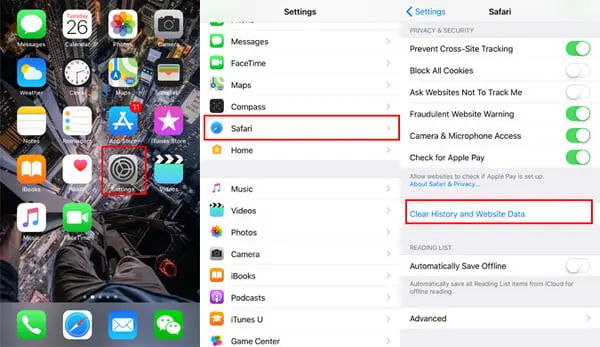
Clearing cache and cookies can vary slightly depending on the browser you use, but the process is generally straightforward for all major browsers.
Clearing Cache and Cookies in Safari
- Open Settings: Go to the Settings app on your iPhone or iPad.
- Select Safari: Scroll down and tap on Safari in the list of apps.
- Clear History and Website Data: Scroll down and tap on Clear History and Website Data.
- Confirm: Tap Clear History and Data to confirm the action.
Clearing Cache and Cookies in Chrome
- Open Chrome: Launch the Chrome app on your device.
- Access Settings: Tap on the menu icon (three dots) at the bottom right, then select Settings.
- Delete Browsing Data: Scroll down and tap on Privacy and then Clear Browsing Data....
- Select Data Types: Ensure Cookies and site data and Cached images and files are selected. For additional tips and details, refer to How to clear cache in Google Chrome and How to clear Cache and Cookies on Google Chrome.
- Confirm Deletion: Tap Clear Browsing Data to confirm the deletion.
- Clear Specific Data: If you prefer to clear cache and cookies for specific sites, tap on Site Settings under Privacy and select the sites you want to clear.
- Clear Data for Specific Sites: Tap on Clear Data to remove cache and cookies for the selected sites.
- Confirm: Tap Clear Data to confirm the action.
Clearing Cache and Cookies in Firefox
- Open Firefox: Launch the Firefox app on your iPhone or iPad.
- Access Settings: Tap the menu icon (three horizontal lines) at the bottom right corner, then select Settings.
- Data Management: Under the Privacy section, tap on Data Management.
- Select Data Types: Here, you can toggle on Cache and any other data types you wish to clear.
- Clear Private Data: Tap Clear Private Data to confirm your selection and clear the cache and cookies.
How Often Should You Clear Cache and Cookies?
While clearing cache and cookies can significantly improve your device's performance, it's essential to find a balance. Here are some guidelines on how often you should perform this task:
- Regular Cleaning: Consider setting a monthly reminder to clear your cache and cookies. This will help maintain optimal performance without losing too much stored data.
- Before Transactions: If you plan to make online purchases or enter sensitive information, it's a good idea to clear your cache and cookies beforehand. This ensures that no outdated data interferes with the transaction.
- After Logging Out: Always clear your cache and cookies after logging out of sensitive accounts, such as banking or email, to prevent unauthorized access to your information.
- When Experiencing Issues: If a website is malfunctioning or not displaying correctly, clearing the cache and cookies can often resolve these issues.
Additional Tips for Managing Cache and Cookies
To further enhance your device's performance and storage management, consider the following tips:
- Use Storage Management Tools: Applications like Cleaner One for iOS can help you optimize your device by identifying and removing unnecessary files, including cache and cookies.
- Monitor Storage Regularly: Keep an eye on your device's storage settings. If you notice that your available space is dwindling, it may be time to clear cache and cookies.
- Educate Yourself on App Settings: Some apps have built-in options to manage cache and cookies. Familiarize yourself with these settings to maintain control over your data.
Conclusion
In conclusion, clearing cache and cookies on your iPhone or iPad is a simple yet effective way to enhance your device's performance, free up storage space, and protect your privacy. By following the step-by-step instructions provided for Safari, Chrome, and Firefox, you can easily manage your browsing data and ensure a smoother experience. Remember to clear your cache and cookies regularly, especially before sensitive transactions or when troubleshooting issues. With these practices in place, you can enjoy a faster, more efficient device that meets your needs.