How to clear cache in Google Chrome
Clear only cached images and files in Chrome on Windows, Mac, Android or iPhone, while keeping cookies, passwords and browsing history.
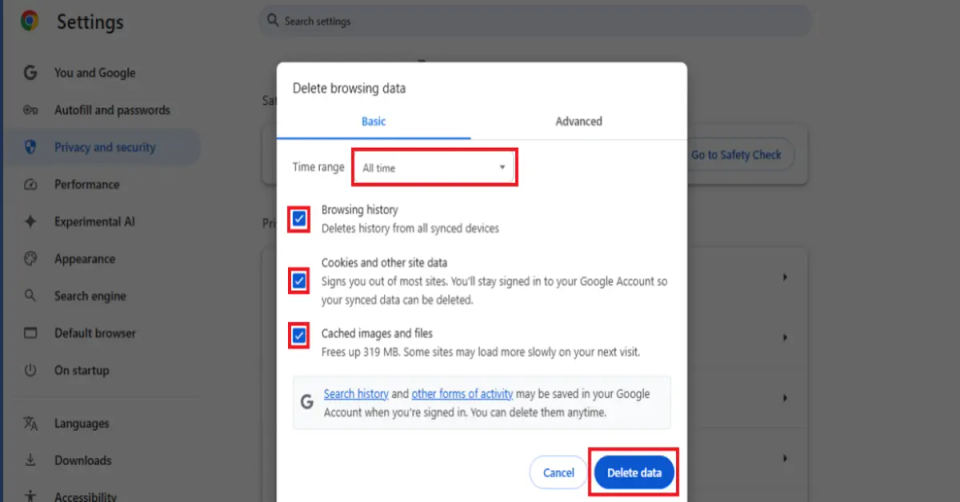
To clear only the cache in Chrome, open Delete browsing data, choose a time range, and select Cached images and files. Leave cookies, browsing history and other data types unselected if you want to keep them.
This can help when a page shows an old image, has broken formatting or fails to load correctly. It is a troubleshooting step, rather than something you need to repeat on a schedule. Clearing the cache does not guarantee that Chrome or your internet connection will become faster.
Before you delete anything
Review the selected data types before confirming. Cache, cookies and browsing history are different things:
| Data type | What it stores | Select it for a cache-only cleanup? |
|---|---|---|
| Cached images and files | Saved website resources | Yes |
| Cookies and site data | Website information such as sign-in state and preferences | No |
| Browsing history | Records of pages you visited | No |
| Passwords, autofill or other data | Separate saved information | No |
Deleting cookies can require you to sign in to websites again. For that task, use our separate Chrome cookies guide. Be particularly careful with account-saved data: Google explains that deleting some synced information can affect other signed-in devices.
Windows, Mac, Linux and Chromebook
Use the same Chrome menu on each desktop platform:
Open Chrome and select the three-dot menu → Delete browsing data.
Choose a time range that covers the problem. All time removes the cache across the full available period.
Select Cached images and files. Unselect cookies, history and any other items you want to retain.
Select Delete data, then reopen the problem page.
You can also open this dialog with Ctrl + Shift + Delete on Windows, Linux or ChromeOS, or Command + Shift + Delete on Mac. The shortcut opens the choices; it does not decide which data to delete.
See Google's desktop deletion instructions and official keyboard shortcuts.
Android phones and tablets
In Chrome, tap the three-dot menu beside the address bar, then Delete browsing data.
Open More options so you can inspect the data categories.
Set the time range and select Cached images and files only. Check that history, cookies and any open-tab deletion option are unselected.
Tap Delete data, then reload the website.
Google's Android instructions describe a quick deletion view with a default 15-minute duration. Review the detailed choices instead of assuming that the quick action deletes only cached files.
These steps use Chrome's own controls. They do not require resetting the app or clearing all of its storage through Android settings.
iPhone and iPad
Open Chrome and tap More → Delete Browsing Data.
Choose Time Range and set the period you need.
Tap Browsing Data, select Cached Images and Files, and unselect the other categories you want to retain.
Tap Confirm, then Delete Browsing Data.
The current iPhone and iPad instructions from Google also explain where to find the deletion dialog through History. Labels can differ slightly between app versions.
What changes after a cache-only cleanup?
Chrome must download cleared website resources again. The first visit to some pages can therefore take longer. Cache-only deletion leaves the other unselected data categories alone; deleting cookies as well is a separate action with different consequences.
Google's cache and cookies explanation describes why removing old stored resources can help with loading and formatting problems. It does not mean that every loading issue is caused by the cache.
If the website still does not work
The old page is still visible: Confirm that the time range includes when you first loaded it, and that cached files were selected. Close the affected tab and open the page again.
Only one site fails: Check whether that service reports an outage. If you later choose to remove its cookies or site data, expect that site's sign-in or preferences to reset.
Many sites fail: Test another network or device. Use our internet speed guide to help distinguish a connection problem from one browser page.
You were signed out: Cookies or other site data may have been selected along with the cache. Use the site's normal sign-in or official account-recovery process; clearing the cache cannot recover credentials.
The problem returns immediately: Repeated deletion may not address its cause. Use the support links above for Chrome help, or contact the affected website.
Common questions
Will clearing the cache delete saved passwords?
Cache and saved passwords are separate categories. For a cache-only cleanup, select cached files and leave other data unselected. Do not use a broader deletion or reset option unless you intend its additional effects.
Should I clear Chrome's cache every day?
There is no daily schedule required for these troubleshooting steps. The cache normally helps reuse website resources. Clear it when there is a reason to test whether stored content is causing a problem.
Can Chrome automatically clear all cached files when I close it?
The deletion dialog described here is a manual control. Do not rely on the older claim that its Advanced tab contains an “On exit” switch for clearing the entire cache. You do not need a cache-cleaning extension to follow this guide.
For another browser, see how to clear cache across browsers.
AI-assisted publication. Source checks are not device testing. How we make guides