How to manage storage and free space on an iPhone
Check what uses iPhone storage, then reclaim space safely with storage recommendations, app offloading, or iCloud Photos optimization.

Check what is using space
Open Settings > General > iPhone Storage. The screen shows available device storage, a list of apps and how much space each uses; it may also show recommendations.
Review the largest items first. Device storage is the space built into your iPhone. iCloud storage is separate: check it at Settings > [your name] > iCloud. Tap Storage or Manage Account Storage to review usage; the label shown may vary.
If you want more detail about the built-in storage screen and its recommendations, see Apple’s Manage storage on iPhone guide.
Before deleting anything: make sure you have a verified backup or another confirmed copy of any data you need. If you cannot verify that, do not delete it; start with reviewing usage or offloading an app instead.
Free space without deleting personal files
Offload an unused app
In Settings > General > iPhone Storage, select an app and tap Offload App if that option is available. Offloading removes the app but keeps its documents and data, according to Apple Community’s storage guidance. You can reinstall an offloaded app later, but do not assume this applies to every kind of app data or account content.
If you no longer need an app and have verified that its data is backed up or disposable, the same screen may offer Delete App. This removes the app and can remove its data, so do not use it as a substitute for offloading when you need to keep that data.
Review storage recommendations
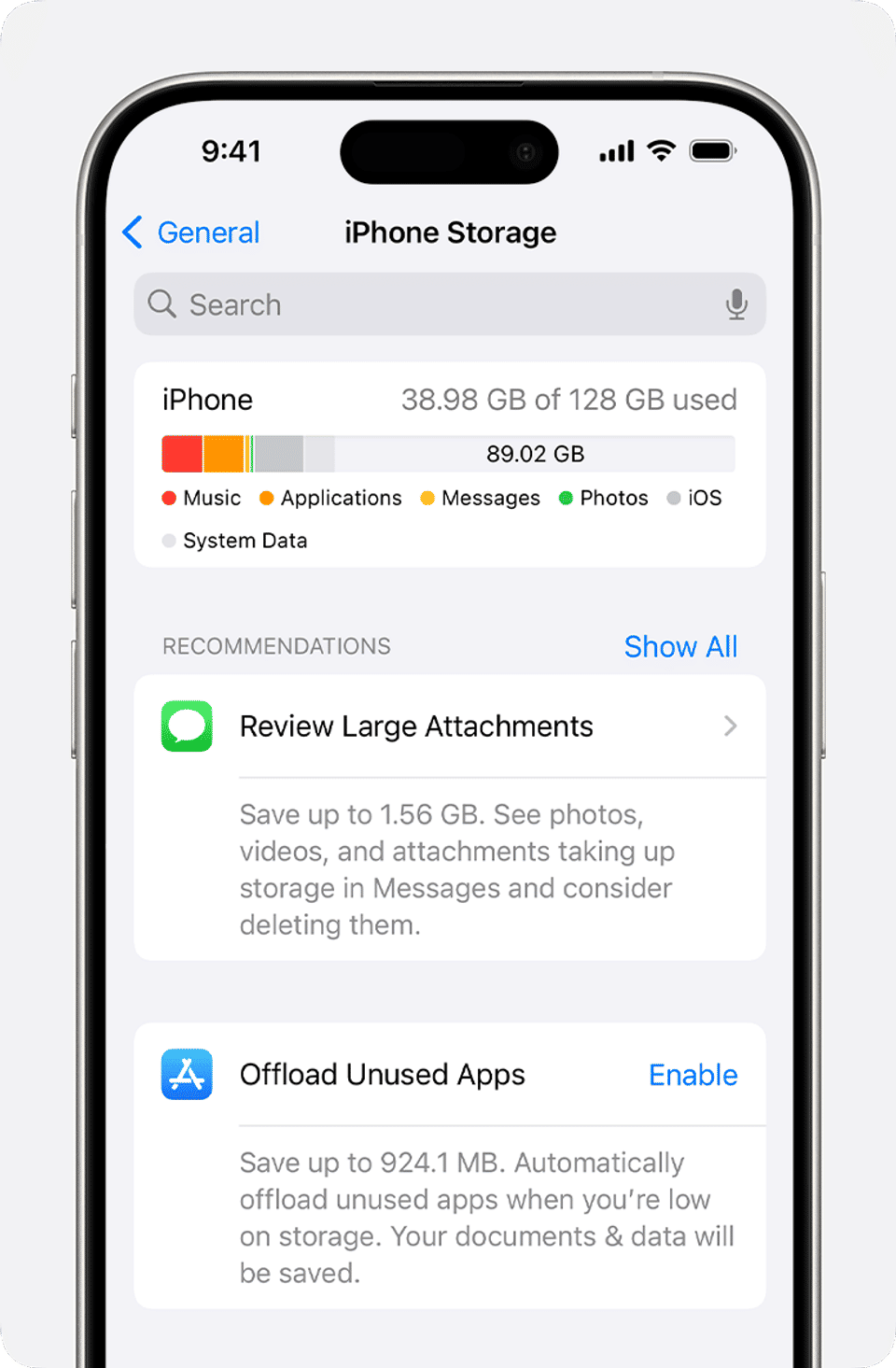
If recommendations appear on the iPhone Storage screen, read each one and check what it will remove or change before accepting it. Apple’s guidance says recommendations can include items such as large files, photos, or backups that may no longer be needed. Back up anything important before deleting it; skip a recommendation if its effect is unclear.
Reduce the space used by photos and videos

Photos and videos can occupy substantial device storage, especially when the iPhone keeps their original, high-resolution versions. Apple’s photo and video storage guide explains the available iCloud Photos options.
Use iCloud Photos with Optimize iPhone Storage

This option can reduce the local space used by a photo library, but it requires enough iCloud storage. iCloud Photos syncs the library; it is not the same as making a separate backup. Confirm that you have a verified backup or other copy of important photos before making changes or deleting items.
Open Settings > [your name] > iCloud > Photos.
Turn on Sync this iPhone. On iOS 15 or earlier, the setting is called iCloud Photos.
Turn on Optimize iPhone Storage. Apple’s supplied guidance says that, with this enabled, full-resolution photos and videos are stored in iCloud and space-saving copies are kept on the iPhone when needed. On iOS 27 or later, the guidance says to tap iPhone Storage within the Photos settings to find this option.
This only helps if the iCloud account has enough available space. Apple provides 5 GB of iCloud storage free when you sign up; more storage requires an iCloud+ plan. If you do not want to use iCloud Photos or lack enough iCloud space, Apple also suggests transferring photos and videos you do not want in iCloud to a computer. The supplied information does not specify transfer steps, so consult Apple’s help for instructions suited to your device and computer.
Delete unwanted media only after checking your backup
You can free device space by deleting photos or videos you no longer want, but deletion is irreversible for the copy you remove unless another copy or recovery option is available. First verify that the items you want to keep are backed up or copied elsewhere. If you use iCloud Photos, check Apple’s current guidance before deleting synced items, since the supplied storage instructions do not detail how deletion affects other synced devices.
Device storage and iCloud storage are different
Buying more iCloud storage does not increase the iPhone’s built-in capacity. It provides more cloud storage for supported content and services; the iPhone itself has a fixed storage capacity. Check both screens separately: Settings > General > iPhone Storage for the device, and Settings > [your name] > iCloud for cloud storage. If iCloud is full, review its usage or consider an iCloud+ upgrade; if the iPhone is full, manage items taking space on the device.
Troubleshooting and verify the result
You cannot find a setting: Check the iOS version and the labels noted above. Apple’s photo-storage instructions distinguish iOS 15 or earlier and iOS 27 or later; your menu wording may differ.
Optimize Storage is unavailable or does not help: Confirm that Sync this iPhone (or iCloud Photos on iOS 15 or earlier) is on, and check available iCloud space. Optimization depends on iCloud Photos and sufficient cloud storage.
iCloud has space, but iPhone Storage is still low: These are separate storage pools. Review the app list and recommendations on the iPhone Storage screen, and consider offloading an app you do not use.
You are unsure whether an item is safe to remove: Do not delete it until you have verified a backup or another copy. For model- or version-specific help, use the Apple photo and video storage guide.
To confirm the change, return to Settings > General > iPhone Storage and check the available space and app list. Recheck iCloud separately at Settings > [your name] > iCloud. A change in one does not necessarily mean the other has changed.


