How to save photos on iPhone instead of iCloud
Turn off iCloud Photos on your iPhone and download the originals first if you want full-resolution copies stored locally.

Choose how you want to keep your photos
To keep photos on your iPhone without syncing them through iCloud Photos, turn off Sync this iPhone and choose to download the photos and videos first. If you want iCloud Photos to keep syncing across devices, leave sync on and choose Download and Keep Originals instead, if that option appears.
These choices have different results:
Turn off Sync this iPhone: New photos and changes on this iPhone no longer sync through iCloud Photos. Download a copy before switching off if you want the originals stored on the phone.
Download and Keep Originals: Keeps iCloud Photos syncing, while asking the iPhone to store the original versions locally. This uses iPhone storage, and photos still sync with iCloud.
Turning off iCloud Photos on one device does not turn it off for all your other devices or delete the copies already in iCloud. Don’t choose an account-wide deletion option if your goal is only to keep photos on this iPhone.
Before you begin
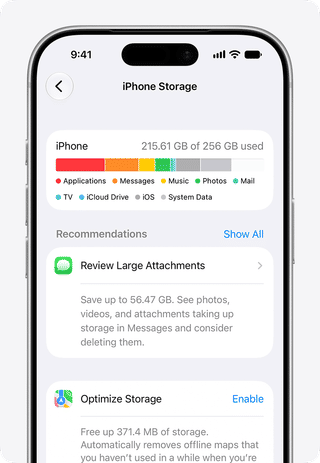
Check available iPhone storage. You need enough space for the originals you want to download. If the phone cannot hold them all, free up device storage or keep iCloud Photos on and use Download and Keep Originals only if there is sufficient space.
Keep in mind that iCloud Photos is a sync service, not the same setting as iCloud Backup. Turning off photo syncing does not by itself establish that no copy of a photo exists in iCloud. If you want to change other iCloud storage or backup settings, check what each setting does before changing it.
Know which outcome you want. To stop syncing from this iPhone, follow the steps below. To keep syncing but store originals locally, use the alternative in Step 2.
Turn off iCloud Photos and keep a local copy
1. Open the Photos sync setting

Open Settings on your iPhone.
Tap your name at the top of Settings.
Tap iCloud.
Under Saved to iCloud, tap Photos.
On some older iOS versions, Photos may appear under Apps Using iCloud instead. Apple’s current instructions use the Saved to iCloud label.
2. Download before switching off sync

If you want originals stored on the iPhone, choose Download and Keep Originals if that option is shown. Allow the phone to download the originals before continuing; it needs enough available storage to hold them.
When you’re ready to stop photo syncing on this iPhone, turn off Sync this iPhone. If prompted, choose Download Photos & Videos to keep a copy on the device. Do not choose Remove from iPhone if you want those photos kept locally.
The wording of the prompt can vary. Read it carefully: downloading keeps a device copy, while removing does not. If you aren’t sure the originals have downloaded, don’t choose the removal option.
For Apple’s current device-specific instructions, see how to turn off iCloud Photos.
3. Understand what changes

After sync is off, new photos and edits on this iPhone no longer sync through iCloud Photos with your other devices. The photos you kept are available in the iPhone’s Photos app, but they won’t be kept in step with changes made on devices that still use iCloud Photos.
This does not delete your iCloud Photos library. Apple describes account-wide deletion as a separate process: photos in iCloud are scheduled for deletion 30 days after that service is turned off for the account. Avoid that account-wide option unless deleting the iCloud copies is specifically your goal and you have confirmed you have the copies you need.
Keep iCloud Photos on, but store originals on the iPhone
If you want photos to continue syncing across Apple devices, leave Sync this iPhone on. In Settings > [your name] > iCloud > Photos, select Download and Keep Originals if available, rather than an option that optimizes iPhone storage.
This keeps iCloud Photos active, so it does not stop photos from syncing to iCloud. It also requires enough free iPhone storage for the originals. If that space is unavailable, don’t assume that every original has downloaded.
Verify the result
Return to Settings > [your name] > iCloud > Photos and check whether Sync this iPhone is off for the local-only setup.
If you chose to keep syncing, confirm that Download and Keep Originals is selected, if that control is shown.
Open the Photos app and check that the photos you expect to keep are present. For a local-only setup, remember that photos added after sync is turned off will not sync through iCloud Photos from this iPhone.
Troubleshooting
There isn’t enough iPhone storage
The download needs room for the originals. Free up space on the iPhone, then try again. Don’t select Remove from iPhone as a substitute if you need local copies.
You can’t find the Photos setting
Check Settings > [your name] > iCloud and look under Saved to iCloud or, on some older iOS versions, Apps Using iCloud. If the labels or choices differ on your device, use Apple’s instructions for turning off iCloud Photos rather than guessing at a different setting.
Photos still appear on another Apple device
Turning sync off on one iPhone does not turn it off on every device. Apple says changes on the device where sync is disabled no longer sync with other devices using iCloud Photos. Check each device separately if you want to change its sync behavior.
You want to remove the iCloud copies too
That is a separate, account-wide action, not required to keep photos on this iPhone. Before changing it, confirm that the originals you want are stored locally and review Apple’s iCloud Photos instructions, including the stated 30-day deletion timing and recovery option.