How to Check Whether Claude Is Down and Troubleshoot Access Problems
Check Claude’s official status page first, then use the error message to distinguish an outage from high demand, a usage limit, or a login problem.
Check Claude’s service status
Open the Claude Status page. Check the component you use, such as claude.ai, Claude API, or Claude Code. A degraded or outage status means the problem may be service-wide; an operational status does not rule out account-specific, device, or capacity issues.
Select an active incident to read its scope and latest update. Follow the status page for recovery information rather than repeatedly changing account settings while an incident is ongoing.
If the component is operational, compare your exact error with the cases below.
Prerequisites: An internet connection and access to a browser or Claude app. You do not need to sign in to view the public status page.
Identify what is preventing access
A capacity message usually is not an outage
If Claude says, “Due to unexpected capacity constraints, Claude is unable to respond to your message. Please try again soon,” wait a few minutes and try again. Anthropic describes this as temporary high demand, not a technical outage. These capacity constraints do not appear on the status page.
A usage-limit message is not an outage
A message such as “5-hour limit reached - resets [time]” or “You've reached your weekly limit” means you have reached a plan limit. The reset time in the message tells you when you can try again. Limits vary by plan; most plans have a five-hour session limit and a weekly limit, while verified Ultra accounts are exempt from the five-hour session limit.
Some paid plans can use paid usage credits if the feature is enabled in Usage settings. In that case, requests may continue using credits after a plan limit is reached, until the monthly spend limit or available credit balance stops them. Look for a message such as “Now using credits.” Don’t assume that a plan-limit warning means Claude is down.
A length-limit message concerns your prompt
If Claude says your message will exceed the chat’s length limit, shorten it, send the material in smaller parts, or start a new conversation. This message does not indicate a service outage.
Troubleshoot sign-in problems
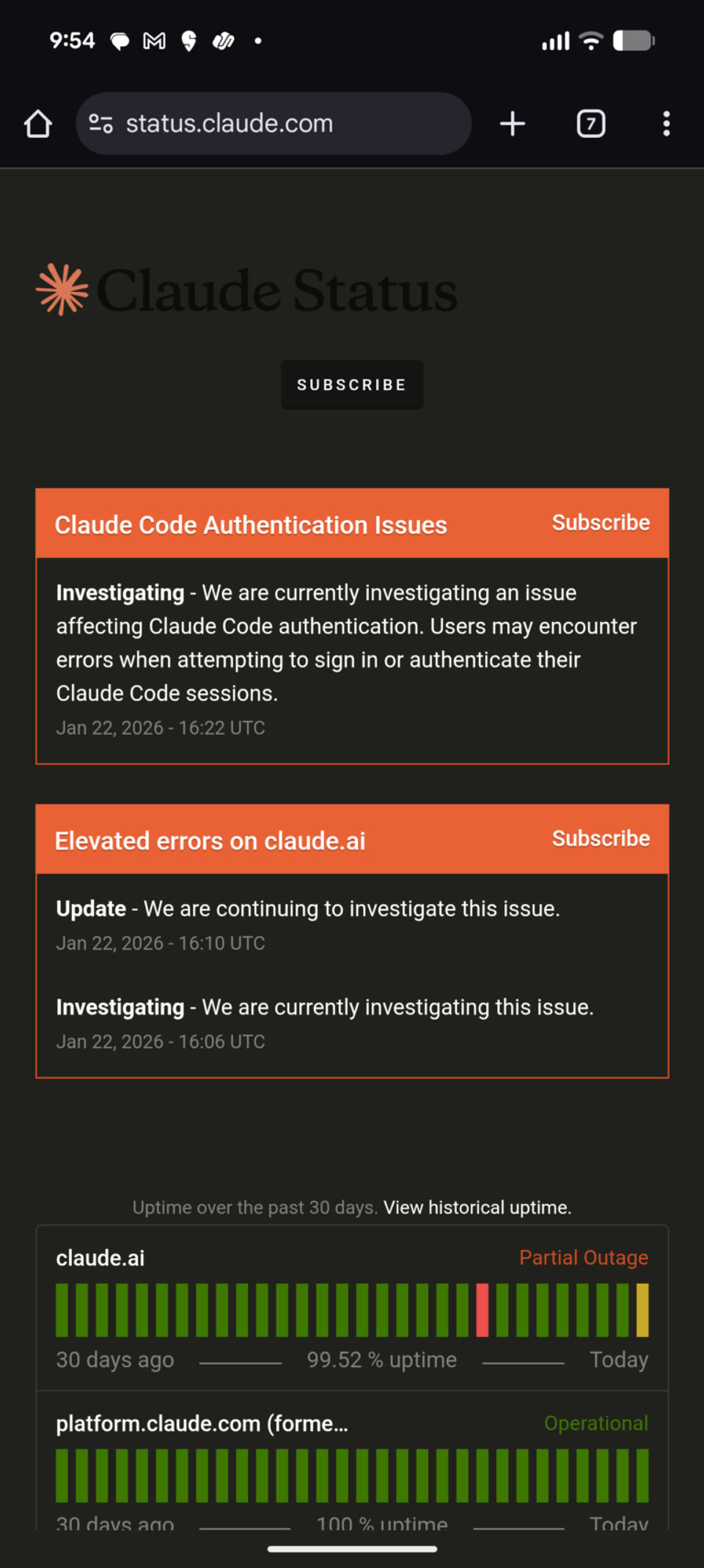
If you see a generic login error such as “There was an error logging you in,” try these steps in order:
Turn off your VPN, if you are using one, and try signing in again.
Disable active browser extensions and retry.
Clear your browser’s cache and cookies, then sign in again. Clearing cookies may sign you out of websites.
If the error continues, check the Claude Status page for an incident.
If the status page shows no relevant incident and you still cannot sign in, follow the steps in Claude’s login and error-message troubleshooting guide.
iPhone and iPad sign-up with Apple
An issue affecting Sign in with Apple on the Claude iOS app may prevent some new users from signing up. Check the status page for the latest incident update. If that specific issue is still listed, Anthropic says new users can sign up with Google or email instead. This workaround is for the reported Apple sign-up issue; it does not diagnose other app errors.
Verify that Claude is working again
After an incident is marked resolved, or after trying the relevant fix, reload Claude and send a short test message. A response confirms that chat access is working. If Claude still fails, check the status page again and compare the new error with the capacity, usage-limit, and sign-in cases above.
AI-assisted publication. Source checks are not device testing. How we make guides