How to Check Whether Workday Is Down and Troubleshoot Access Problems
Check your connection and VPN, then look for Workday status updates in Workday Community or contact your organization’s help desk.

How to Check Whether Workday Is Down and Troubleshoot Access Problems
1. Check your connection, VPN, and internal network
If Workday will not load or you cannot sign in, first check that your device has a working Wi-Fi or other network connection. If your organization requires a VPN or internal network to reach Workday, check that connection too. Workday specifically recommends checking Wi-Fi, VPN, or the internal network when users have trouble logging in.
Try Workday again after confirming the connection. If the problem remains, continue with the status and support checks below rather than assuming the service is down.
2. Look for Workday service updates
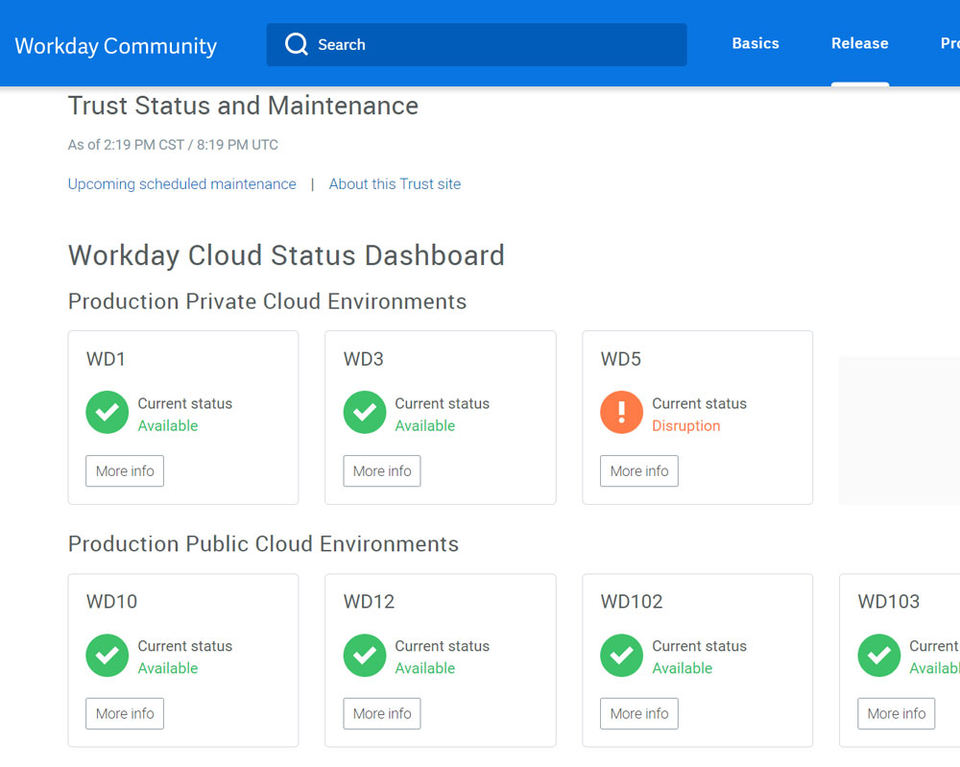
Workday says customers can visit Workday Community for status updates. Community access requires a login, so this option may not be available if you do not have an account or cannot sign in.
If you can access Community, look for an update relevant to your organization’s Workday service. The supplied Workday information does not identify a public, unauthenticated status checker, so do not treat an inability to find a public status page as proof that Workday is either up or down.
3. Contact your organization’s help desk
If you still cannot access Workday, contact your organization’s help desk or technical support team. Workday directs customers to start with their organization’s support team for product troubleshooting. Tell them:
What you were trying to do, such as sign in or open a Workday application.
When the problem began and whether it is continuing.
Whether you checked Wi-Fi, VPN, or your internal network.
Any error message you see, using its exact wording if possible.
Your organization’s support team can help determine whether the issue needs local troubleshooting or further escalation. Workday’s guidance does not specify particular error messages or device-specific fixes, so avoid changing account or device settings based on an unverified guess.
Troubleshooting common access problems
Workday will not load
Check your network connection and, if applicable, your VPN or internal network. Then check for a relevant Community status update if you have access. If the page still will not load, ask your organization’s help desk to investigate.
You cannot sign in to Workday Community
Community status updates are useful only if you can log in. If you cannot, do not assume that the Community login problem confirms a Workday outage. Contact your organization’s help desk for guidance.
Your organization’s help desk cannot resolve the issue
Workday says customers with Community access can use it to explore expert knowledge articles and crowdsource solutions. For additional Workday support, coordinate with your organization’s Named Support Contact (NSC), who can open a Workday Support case. See Workday Support for its support guidance. The page does not provide a direct case-opening process for every user, so follow your organization’s support route.
Verify that access is restored
After your organization’s support team advises you to retry, open Workday and repeat the task that failed. Access is restored for your purposes when the application loads and you can complete that task. If the same problem continues, report that result to the help desk and share any new error message.
Workday’s available guidance covers network checks, Community status updates, and escalation through organizational support. It does not establish a specific public status-check method or separate troubleshooting steps for particular browsers, devices, or app versions.