How to Check Whether Outlook Is Down and Troubleshoot Access Problems
Check Microsoft 365 service health if multiple people are affected, then troubleshoot your connection, Outlook version, sync, password, and mailbox storage.
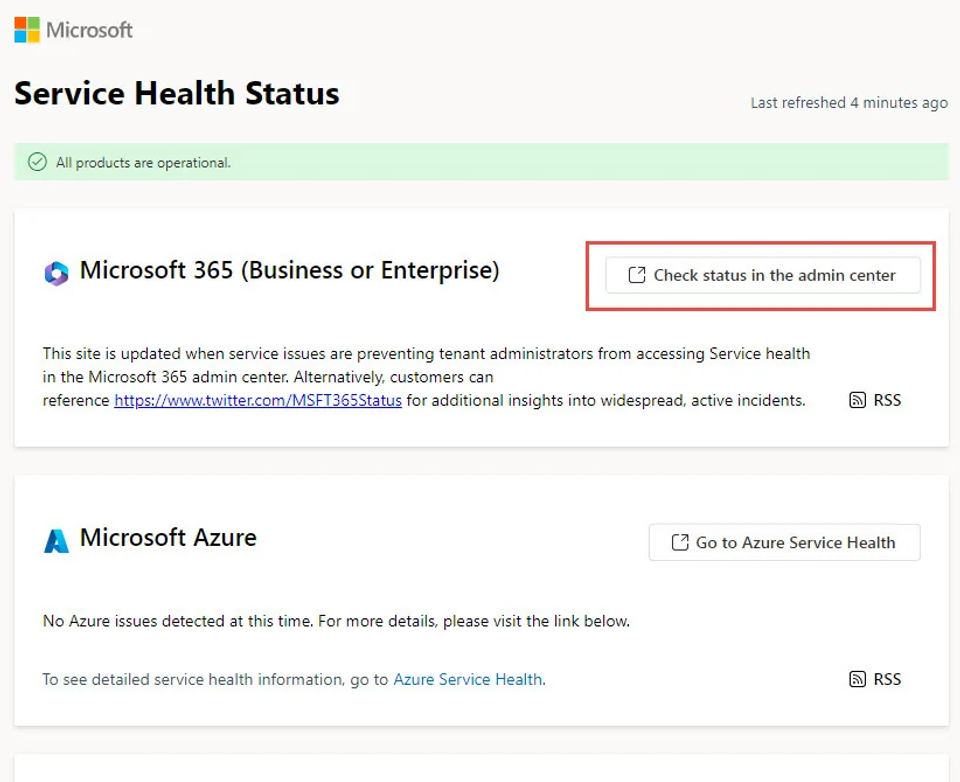
Check whether other people are affected, then use the steps below to separate a possible Microsoft 365 service issue from a problem with your device, account, or connection.
Before you start
Know which Outlook you use: new Outlook for Windows, classic Outlook for Windows, Outlook.com in a browser, or Outlook for Mac. The Windows instructions below differ by version.
If you use a work or school account, ask whether colleagues are having the same problem. An administrator account is needed to check Microsoft 365 service health and run the Microsoft 365 connectivity diagnostic described below.
If you can, note what fails: signing in, sending, receiving, or syncing. Avoid changing profiles or repairing the app until you have tried the simpler checks.
For personal accounts, check Microsoft’s service status and Outlook.com known issues first. For work or school accounts, use the administrator checks below. During a confirmed outage, wait for Microsoft’s update before resetting passwords or rebuilding profiles.
Check whether the issue is an outage
Ask whether the problem affects others
If several people in the same organization suddenly cannot send or receive email, a Microsoft 365 service issue is one possibility. If only one person is affected, start with the connection and app checks in the next section. This comparison is a clue, not proof of an outage.
Ask an administrator to check Exchange Online

This route is for an organization’s Microsoft 365 tenant. Microsoft says the Service health page covers cloud services including Exchange Online, Office on the web, Teams, and Dynamics 365.
Go to the Microsoft 365 admin center and sign in with an admin account.
Open Service health. The Microsoft documentation describes the default Overview tab as showing services, their health states, and active incidents or advisories.
Find the service related to the problem, such as Exchange Online if the issue concerns organizational email. Read the incident or advisory details and its current status.
Check Issue history for incidents and advisories resolved within the last 7 or 30 days. The documentation also describes a History view for past service health.
If your organization is affected but no matching issue appears, select Report an issue on the Service health page and complete the form. The Reported issues tab shows issues your tenant has submitted and their status.
Expected result: The admin view shows the organization’s reported service health information, including posted incident or advisory details. Microsoft notes that an issue can require action in your environment; when applicable, it appears under Issues for your organization to act on.
Understand the status wording
Microsoft’s documentation defines these service-health statuses:
Investigating: Microsoft is gathering information about a potential issue and its scope.
Service degradation: A confirmed problem may cause slow performance, intermittent interruptions, or a feature failure.
Service interruption: Microsoft has determined that the issue significantly and consistently affects access to the service.
Restoring service: The cause and corrective action are identified, and service restoration is in progress.
Extended recovery: Restoration is underway but may take time to reach all affected systems; a temporary fix may be in place while a permanent fix is pending.
These labels describe Microsoft’s posted assessment. They do not guarantee that every user is affected in the same way or that service has returned for every account.
The same Microsoft guidance describes an Outlook User Connectivity diagnostic. It requires a Microsoft 365 administrator account and is unavailable for Microsoft 365 Government, Microsoft 365 operated by 21Vianet, and Microsoft 365 Germany. If you are not an administrator, ask your organization's IT team to run or review it.
Separate an internet problem from an Outlook problem
Open a browser and check whether you can reach the internet. If other sites also fail, troubleshoot the device's internet connection before changing Outlook settings. If the internet works but Outlook does not, continue below.
Troubleshoot Outlook access in order
Check the Outlook status and sync
In classic Outlook for Windows, look at the status bar at the bottom of the Outlook window. Disconnected, Working Offline, or Trying to connect… means Outlook cannot reach the email server.
To turn off offline mode, select Send/Receive on the ribbon, then Work Offline in the Preferences group. If needed, select Send/Receive again or reopen and resend a message. If the status continues to show a connection problem, check the internet connection and ask your administrator whether Exchange Online has a reported issue.
If classic Outlook appears connected but mail is not updating, select View on the ribbon, then Sync. Watch for a status message at the bottom of the message list while Outlook syncs. These menu instructions apply to classic Outlook, not new Outlook.
Check for a stuck message or full storage
If messages are stuck in the Outbox, open the oldest one first. Microsoft's guidance says an attachment larger than 20 MB may prevent a message from sending; remove it and use a smaller attachment or a link instead. Some email providers also set their own message-size limits.
If you use new Outlook and cannot send or receive, check your Microsoft cloud storage. Microsoft's send-and-receive troubleshooting guide says that full Microsoft cloud storage prevents sending and receiving email. Check the storage allowance shown for your own account; limits depend on your plan.
Check a recently changed password
If you recently changed the email account password on its provider's website, Outlook may need the updated credentials too. In new Outlook for Windows, select the email account name and follow the sign-in prompts to enter the new password. In classic Outlook, update the credentials when prompted. If you use another email provider and Outlook asks for an app password, Microsoft's guide says to get that password from the provider, not from Microsoft.
For a forgotten Microsoft account password, use the recovery guidance linked from Microsoft's send-and-receive troubleshooting guide. For Outlook.com-specific help, use the Outlook.com help route referenced in Microsoft's Exchange connectivity guidance; Exchange Online administrator checks are not a substitute for personal-account support.
If the basic checks do not fix it
Use troubleshooting tools for the right Windows version
Microsoft's automated Outlook troubleshooting tools explain that the Get Help troubleshooters for startup or profile setup problems apply to classic Outlook for Windows, not new Outlook. Check which Outlook version you are using before following a troubleshooter. Follow the linked Microsoft instructions for the supported troubleshooter.
For Microsoft 365 or Exchange-based accounts, Microsoft's connection troubleshooting guidance also identifies outdated software and a corrupted Outlook profile as common causes. It recommends keeping Windows and Outlook up to date. If you are considering a profile repair, use Microsoft's linked instructions or your organization's IT support; profile steps vary and are not the same as checking for an outage.
Outlook for Mac has separate instructions. Do not apply the Windows ribbon paths above to Mac; use the Mac-specific help route referenced in Microsoft's connection guidance.
Verify that access is restored
After a fix, check that Outlook no longer reports Disconnected, Working Offline, or Trying to connect… in classic Outlook. Run Sync in classic Outlook if needed, then confirm that a new message arrives or that a test message sends successfully. If several people remain affected, ask the administrator to recheck Exchange Online service health. If the internet works and the issue remains isolated to your account or app, contact your organization's IT team or use the relevant Microsoft support guidance linked above.