How to set up Apple TV and stream content
Connect Apple TV 4K or HD to a display and the internet, complete setup, then stream available content from the Apple TV app.
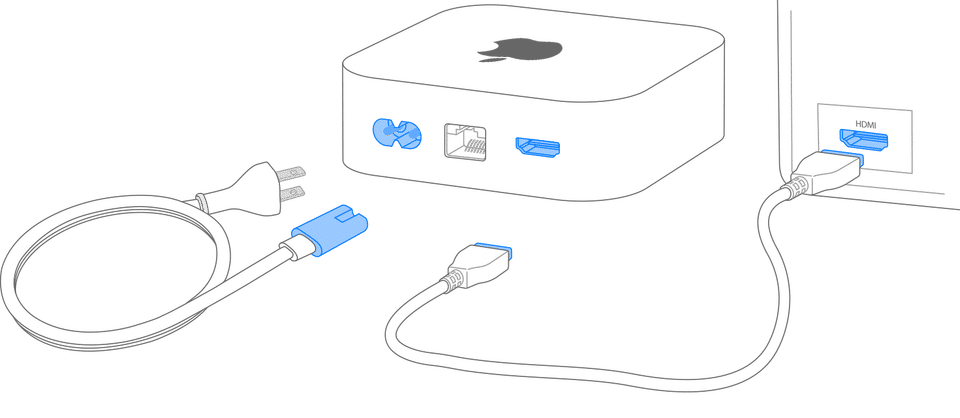
Connect your Apple TV to power and a display with an HDMI cable, select the matching HDMI input on the display, then follow the setup prompts. Once setup is complete, open the Apple TV app to find content you can watch.
Check what you need
For an Apple TV 4K or Apple TV HD, have ready:
The Apple TV device and its power connection.
A TV or other display with an HDMI port, plus an HDMI cable.
An internet connection and an Apple Account to sign in.
The Apple TV remote. You can also use an iPhone for the guided setup option.
To use Set Up with iPhone, Apple says your iPhone should be updated to the latest iOS, signed in to iCloud with two-factor authentication turned on, and have iCloud Keychain enabled. If those conditions aren't met or you prefer not to use the phone, choose manual setup instead.
For model-specific setup details, follow Apple's Apple TV 4K and Apple TV HD setup instructions.
Connect Apple TV and complete setup
1. Connect the device to your display
Plug Apple TV into power and connect it to the display with HDMI. Turn on the display and select the HDMI input where the cable is connected. For example, if the cable is in HDMI 2, choose HDMI 2 on the display. You should see the Apple TV setup screen.
If you have Apple TV 4K and want to watch in 4K HDR, Apple specifies an HDMI 2.0-or-later cable and a display that supports 4K, HDR, or both, depending on the format you want. Apple says HDMI 2.1 is needed to access all the features of Apple TV 4K. These requirements are specifically for Apple TV 4K; don't assume they apply to Apple TV HD.
2. Connect to the internet and choose language

Follow the on-screen prompts. Choose your language and country or region using the remote's clickpad, then select whether to use Siri if prompted. Siri availability and features vary by language and country or region.
Connect over Wi-Fi when prompted. If your Apple TV has an Ethernet port, you can instead connect it to your router with an Ethernet cable. The Ethernet option depends on the ports on your particular device.
3. Sign in
For automatic transfer of your Apple Account and Wi-Fi settings, choose Set Up with iPhone, unlock the iPhone, hold it next to Apple TV, and follow the prompts on both screens.
To configure it without an iPhone, choose Set Up Manually, connect to your home Wi-Fi when prompted, and sign in with your Apple Account. If you don't have an account or can't sign in, use the account help options linked from Apple's setup instructions, rather than guessing at credentials.
4. Choose the remaining settings

Follow the prompts for any settings offered, such as One Home Screen, which keeps the Home screen and apps the same across Apple TVs, or adding Apple TV to the Home app. These choices are optional in setup. When the process finishes, the Home screen should appear.
If you need to return to an earlier setup screen, press the remote's Back button. To start setup over, unplug Apple TV from power and plug it back in, then follow the prompts again.
Start streaming
From the Home screen, open the Apple TV app and choose a show or movie available to you. You may also be able to sign in with a TV or cable provider to watch content included with that provider's subscription, depending on your country or region.
The Apple TV device and an Apple TV subscription are separate. Setting up the device does not, by itself, mean every title in the app is included. Apple says an Apple TV subscription is needed to watch Apple Originals; other content and services may have their own subscription or purchase requirements. Check the title's offer and terms before subscribing or buying. Availability varies by region.
For example, after setup you can open the Apple TV app, select an Apple Original, and check whether the app asks you to subscribe before playback. If it does, the title isn't included merely because you own the Apple TV hardware.
Troubleshoot common setup and playback problems
The display shows no Apple TV picture: Confirm Apple TV has power and that the display is set to the HDMI input used by the cable. For further help with a black screen or a device that won't turn on, use Apple TV troubleshooting.
Setup won't connect to the internet: Check that the home internet is available and retry the Wi-Fi details. If the device has an Ethernet port, a wired connection is another setup option. You can also check internet speed on your devices, but Apple doesn't specify a minimum speed in the supplied setup information.
A video won't stream: Check the connection, then follow Apple's steps for streaming problems. Don't assume a connection-speed test alone identifies the cause.
The remote isn't responding: Use Apple's remote troubleshooting guidance for the remote type you have.
You can't complete account sign-in: Use the account recovery or sign-in help linked from Apple's setup page. Don't share your password with anyone helping you troubleshoot.
Verify setup is complete
You should be able to see the Apple TV Home screen, open the Apple TV app, and reach a title's playback or subscription screen. Start playback only if the title is available under your account or you accept its stated subscription or purchase terms. If the Home screen never appears, return to Apple's setup and troubleshooting pages for the specific issue.