How to set up a new iPhone and configure basic settings
Step‑by‑step guide to set up a new iPhone, connect to Wi‑Fi, sign in, restore data and configure essential settings.
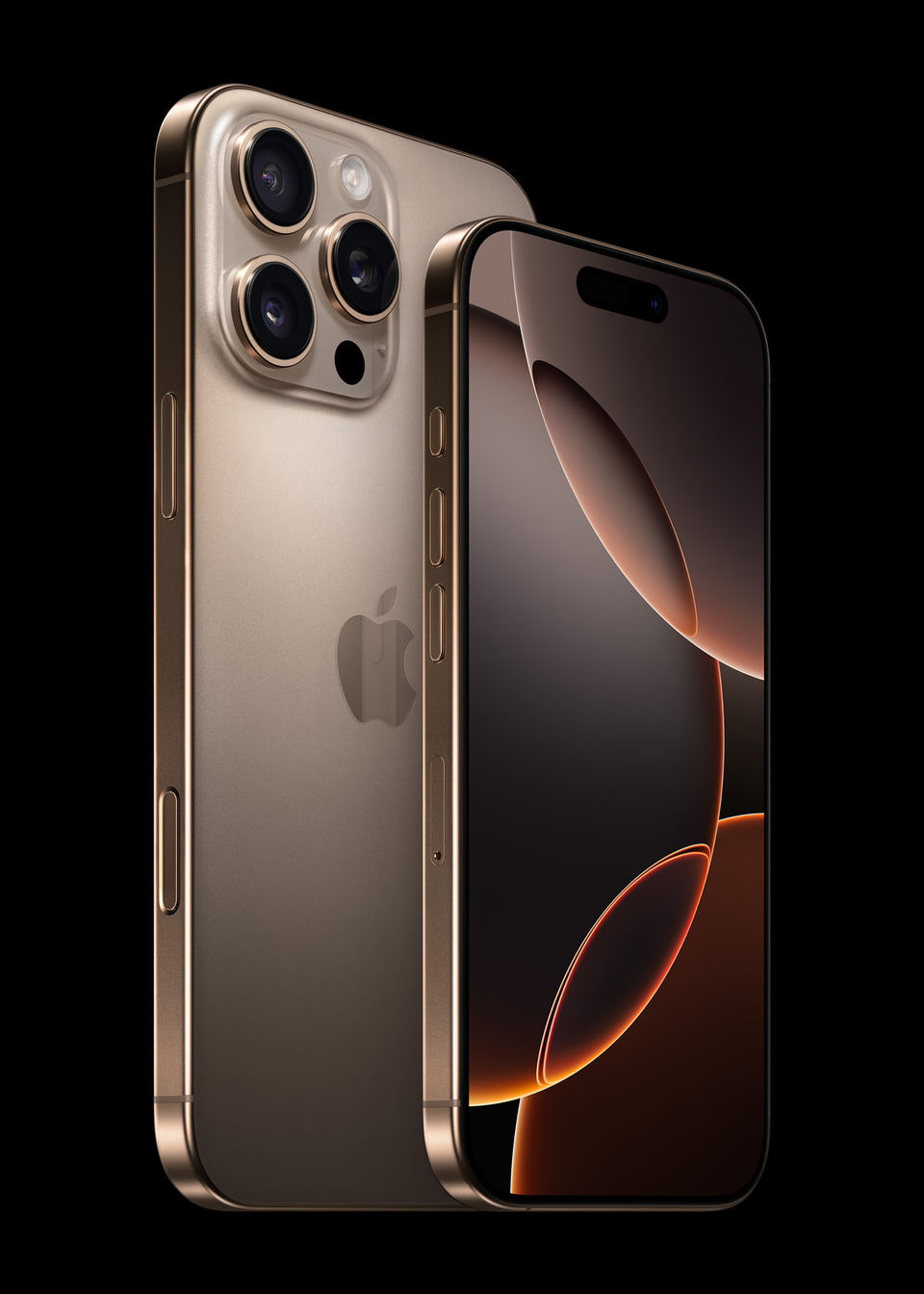
Prerequisites
iPhone and charger – Make sure the device is fully charged or plugged in.
Wi‑Fi network – You’ll need an active internet connection for activation and iCloud services.
SIM card or eSIM – Insert the carrier SIM before activation, or have your eSIM details ready.
Verified backup – If you plan to restore data, confirm you have a recent iCloud or computer backup. Do not proceed with a restore until the backup is verified.
Apple ID – Have your email/password handy; you can create one later if needed.
Setup Steps
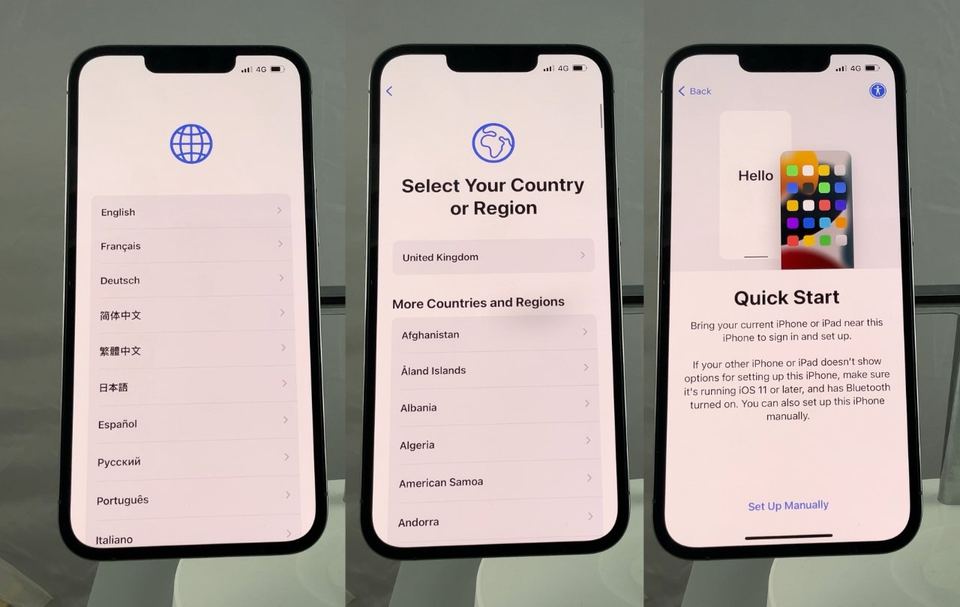
Power on the device – Press and hold the side button until the Apple logo appears. The "Hello" screen will show in multiple languages.
Select language and region – Tap your preferred language, then your country or region. This determines the default keyboard and locale.
Connect to Wi‑Fi or cellular – Choose a Wi‑Fi network and enter the password, or tap Continue Without Wi‑Fi to use cellular. If you have a SIM, insert it now. For activation help, see Apple Support’s Setup basics.
Set up Face ID or Touch ID – Follow the on‑screen prompts to register your face or fingerprint. You can skip and configure later in Settings.
Create a passcode – Choose a six‑digit passcode (or tap Passcode Options for a four‑digit, custom, or no passcode). This protects your data and enables Apple Pay.
Sign in with your Apple ID – Enter your Apple ID email and password. If you’ve forgotten the password, tap Forgot password to start the recovery process on the same screen.
Restore or transfer data –
iCloud backup – Select Restore from iCloud Backup and choose the most recent backup.
Computer backup – Choose Restore from Mac or PC if you have a local backup.
Don’t transfer anything – Set up as a new device.
Important: Do not attempt a restore unless you have verified the backup in step 4.
Enable iCloud services – Turn on iCloud Drive, Photos, and Find My iPhone (see the guide on How to find my iPhone for details).
Turn on automatic updates – To keep iOS current, enable automatic app and system updates. Follow the instructions in Apple’s guide on how to turn on automatic app updates on iPhone and iPad.
Customize appearance and Siri – Choose Light, Dark, or Auto mode, set your preferred text size, and set up Siri if desired.
Set up Screen Time – Configure limits and usage reports for yourself or family members.
Pair accessories – Connect AirPods, Apple Watch, or other Bluetooth devices via Settings → Bluetooth.
Basic Settings to Review
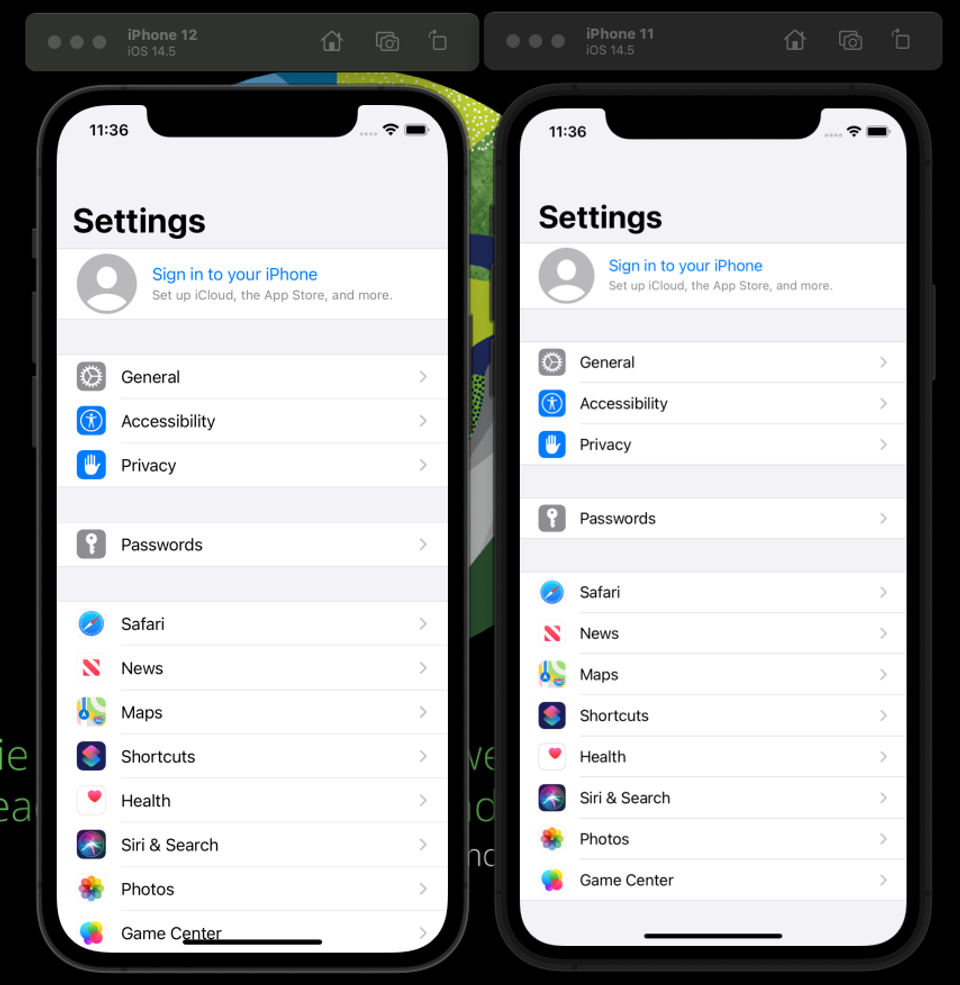
Privacy & Data Sharing – Review what data you share with Apple and app developers.
Location Services – Enable for maps, Find My, and weather.
Apple Pay – Add a card in Settings → Wallet & Apple Pay.
Emergency SOS – Verify that emergency contacts are set (iPhone 14 or later).
Troubleshooting
| Issue | Quick Fix |
|---|---|
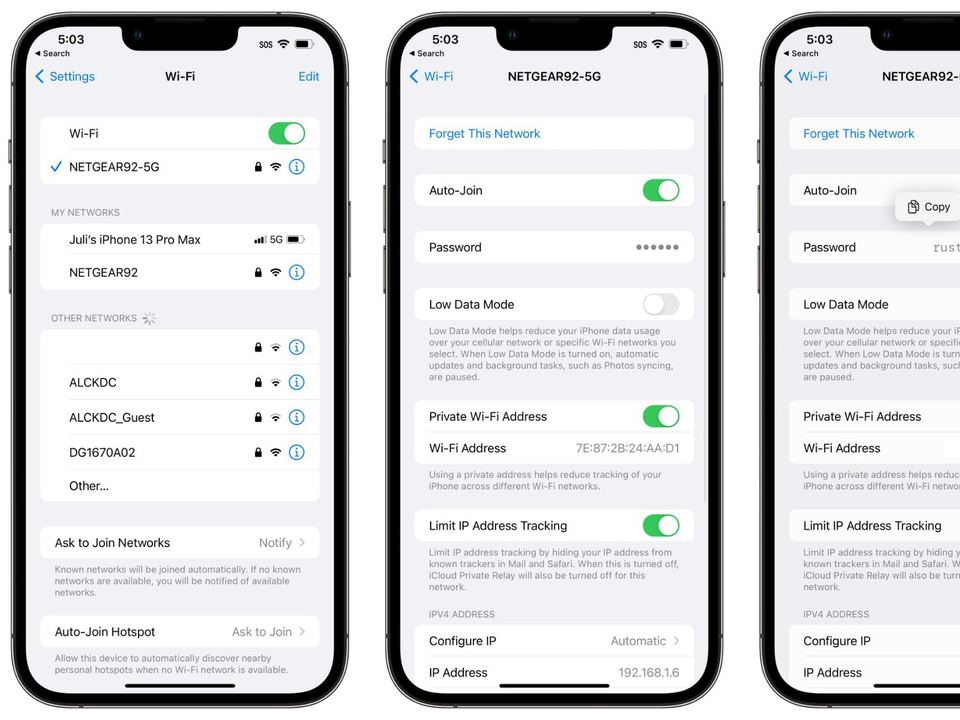
| Cannot connect to Wi‑Fi | Restart the router, forget the network and reconnect, or try a different network. If the problem persists, see Apple Support’s activation help page linked above. |
| Activation fails | Ensure the SIM is inserted correctly, check carrier coverage, and confirm you have an internet connection. Contact your carrier or Apple Support if the issue continues. |
| Backup not found | Verify the backup date in Settings → [Your name] → iCloud → iCloud Backup. If the backup is missing, you may need to create a new one on your old device before proceeding. |
| Passcode forgotten | After several failed attempts, the iPhone will prompt you to erase the device. This will delete all data; you must restore from a verified backup afterward. |
For any step that requires additional help, you can visit Apple’s official support page at https://support.apple.com/en-us/105132 or use the Contact Apple Support option in Settings.
Congratulations! Your iPhone is now set up, secured, and ready for daily use. Feel free to explore the App Store, customize widgets, and enjoy the ecosystem.


