Best Free Scanner Apps for Android & iPhone: Top Picks
Compare free scanner options for iPhone and Android, including built-in tools, PDF export, OCR and paid limits. Microsoft Lens alternatives included.
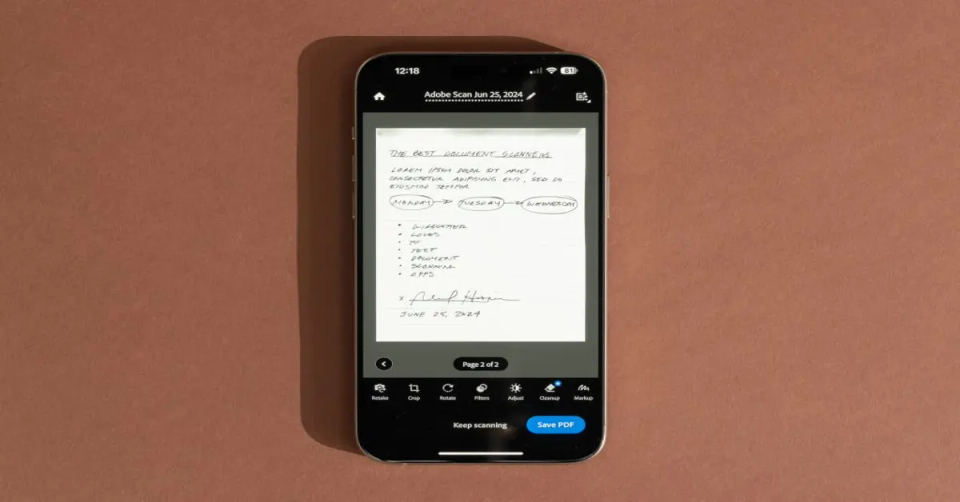
For a free document scan, start with Notes or Files on iPhone, or Google Drive on Android. Adobe Scan is another option when you want searchable PDFs on either platform. Choose based on where the finished file needs to go and which features you actually need.
Microsoft Lens is no longer a current recommendation. Microsoft says new scans stopped working after March 9, 2026. See its retirement notice and OneDrive alternative.
Which free scanner should you choose?
| Your task | Start with | Check before using it |
|---|---|---|
| Scan a form on an iPhone without installing another app | Apple Notes or Files | Choose a suitable save location; check account sync settings |
| Save searchable scans into Google Drive | Google Drive on Android or iPhone | Requires the mobile app; scans use your Drive storage |
| Create PDFs with text recognition on Android or iPhone | Adobe Scan | Advanced PDF tools and higher OCR limits require a subscription |
| Replace Lens within a Microsoft workflow | OneDrive | Scans save to OneDrive; Microsoft says local saving is not supported |
These are choices for different tasks, rather than a claim that one app wins every scan-quality comparison. No hands-on benchmark is implied. For a one-off form, try the scanner you already have before starting a paid trial.
Scan on iPhone without a separate scanner app
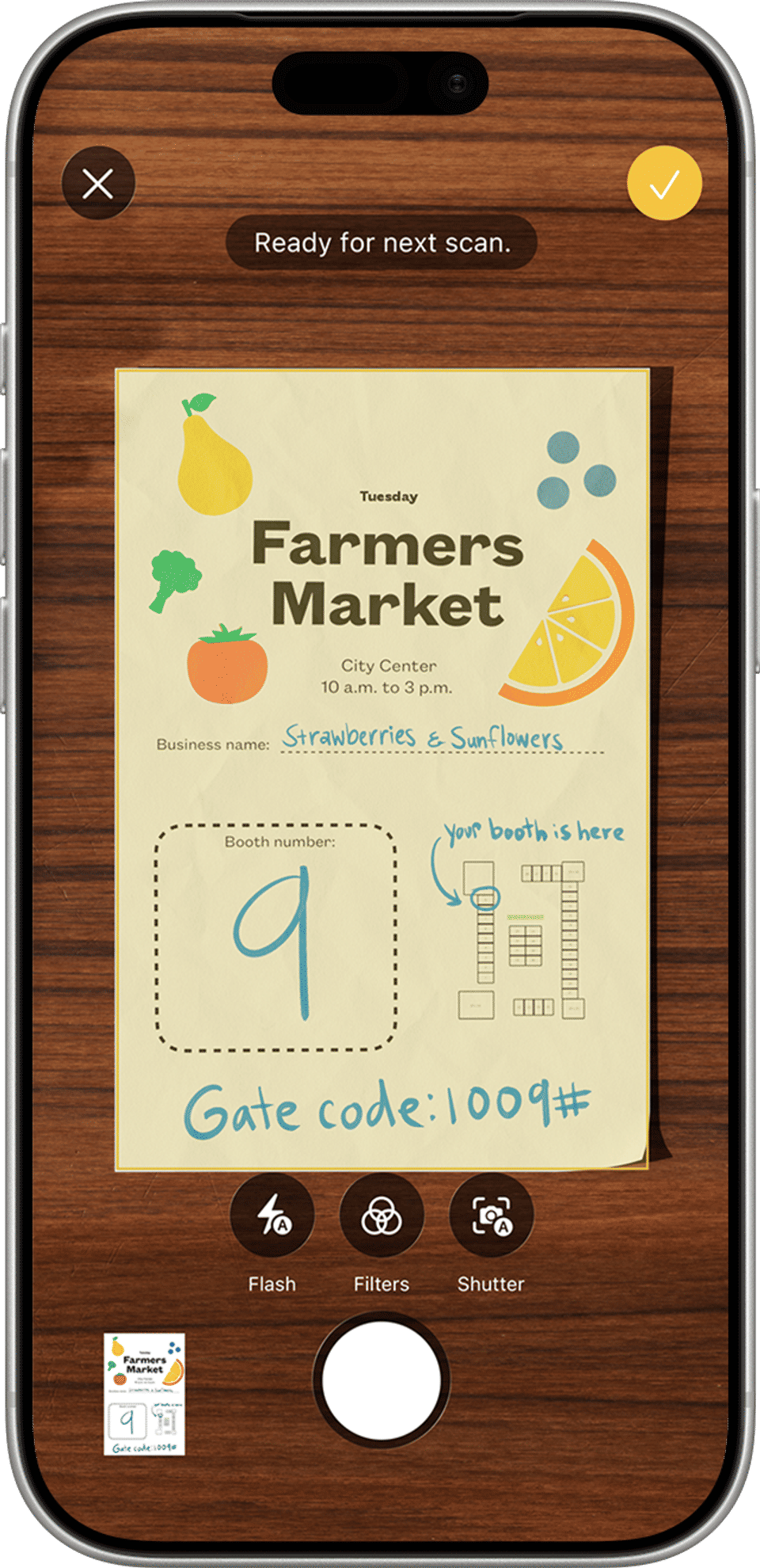
Apple documents scanning in both Notes and Files.
In Notes, open a note and choose Attachment → Scan Documents.
Position the page in view. Use automatic capture or the shutter, then adjust the corners if necessary.
Keep the scan, add further pages if needed, and tap Done.
For a file saved directly to a folder, use Files → More → Scan Documents, then choose a location when saving.
For personal paperwork, check whether the destination is local or cloud-synced before saving. A scan stored in a synced account should not be treated as a local-only copy. Open the finished file and verify every page before sending it.
Scan into Google Drive on Android or iPhone
The Google Drive mobile scanner saves searchable PDFs. Scanning is available in its mobile apps, not the Drive website.
On Android, Google's step-by-step instructions use this workflow:
Open Drive and tap the Camera button at the bottom right.
Frame the page and capture it. Inspect the detected edges.
Use Crop & Rotate, filters or Retake where needed. Choose Add for another page.
Tap Done, name the document, select PDF or JPG, choose a destination and save.
On iPhone, use the scanner in the Drive app; button placement can vary by version. Use Google's linked help page and select the iPhone tab for device-specific instructions.
If saving fails because the account is full, see how to free space on Google Drive. Confirm that the new file opens before removing any source documents.
Adobe Scan: free scanning versus paid PDF tools
Adobe Scan is available for Android and iPhone and supports PDF scanning with text recognition. It is useful when you need to search the text inside a scan, rather than simply keep a photograph.
Free scanning does not mean every PDF operation is included. Adobe lists combining files, exporting PDFs to other formats, compression and increased OCR limits among its subscription features.
Before committing to an app, scan one ordinary page and check that the free workflow produces the file you need. Read any subscription screen carefully; an optional trial is different from a requirement to pay for a basic scan. Prices and feature limits can vary by platform and region.
What happened to Microsoft Lens?
Microsoft retired Lens on Android and iOS in 2026. Its replacement recommendation is OneDrive: open the mobile app, choose +, then Scan photo, and save to OneDrive. Microsoft specifically notes that this workflow cannot save scans locally.
Existing Lens scans may remain accessible if the app stays installed and you are signed into the last active account. Check the retirement notice above before uninstalling it, and verify that any documents you need are accessible elsewhere.
A repeatable two-page check before choosing an app
Use two non-sensitive sample pages: one with small text and one with a table. Scan both into one PDF, open the saved file, and check the page order, corners and smallest print. If searchable text matters, search for a word visible on the page. This is a comparison you can perform on your own phone, not a claim that we benchmarked these apps.
For a document intended for an upload form, check its accepted file type and size before scanning. A clear JPG is not interchangeable with a multi-page PDF. In Drive, use the PDF option for a multi-page document and check the destination folder before saving.
Check the scan before sharing it
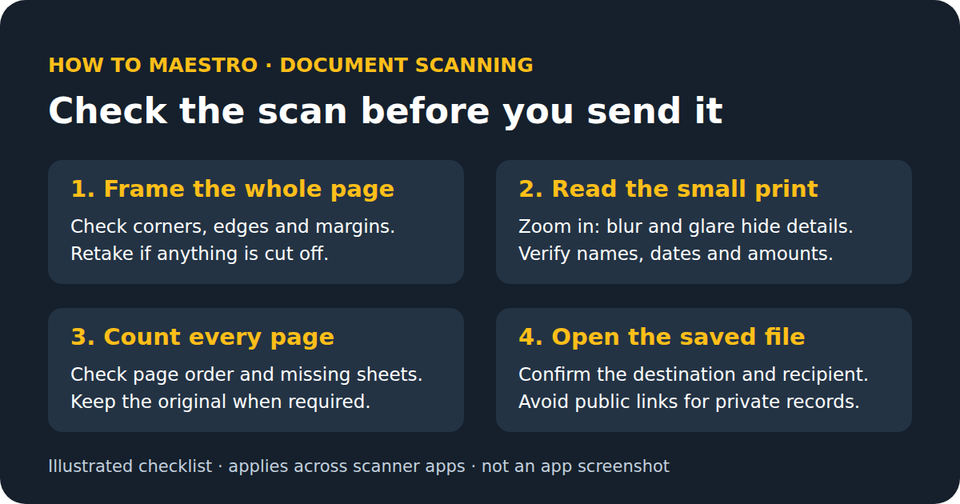
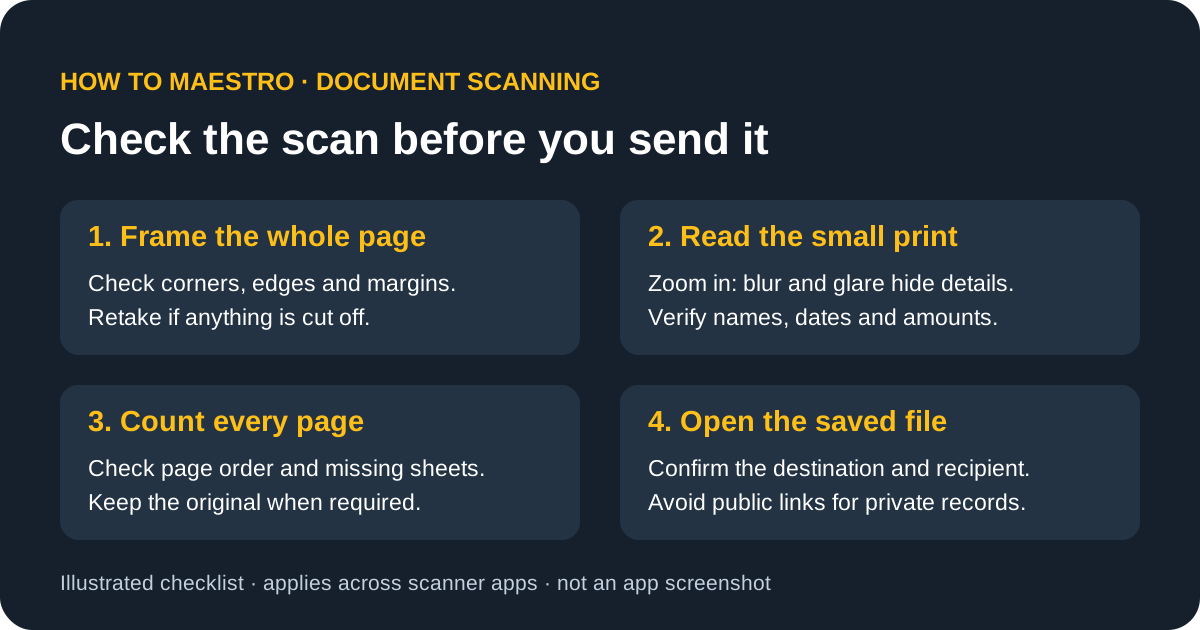
Missing edges: Include the whole sheet in the frame, then inspect the crop. Forms often have important information near a margin.
Blurred text: Flatten the page, clean the lens and retake the image with the phone steady. Zoom into small print before accepting it.
Shadows or glare: Move the light or phone rather than relying entirely on a filter to repair the image.
Missing pages: Count the pages in the saved PDF and check their order.
Text recognition mistakes: Compare names, dates and amounts with the paper original. Searchable text can still contain errors.
Unexpected payment prompt: Check which feature triggered it. Exporting a scan and converting it into an editable Word document can have different limits.
For sensitive documents, review the app's storage and sharing settings, verify the recipient, and avoid public links. Keep the paper original whenever an organization requires it: a convenient digital scan is not automatically a substitute for the original document.
AI-assisted publication. Source checks are not device testing. How we make guides