How to Recover a Wi-Fi Password on Android
Use Android’s built-in Wi-Fi sharing screen to reveal a saved network’s password or display its connection QR code.
Before you start
The Wi-Fi network must already be saved on your Android phone, and you’ll need to unlock the phone to confirm your identity. This method uses Android Settings, so you don’t need a password-viewer app or root access.
Menu names vary by Android version and phone manufacturer. The available evidence does not establish a reliable version-by-version cutoff, so treat the paths below as common labels, not a guarantee for every phone.
Find the saved network in Settings
Open Settings.
Go to Network & Internet or Connections, then open Wi-Fi. On some phones, Wi-Fi may appear directly in Settings.
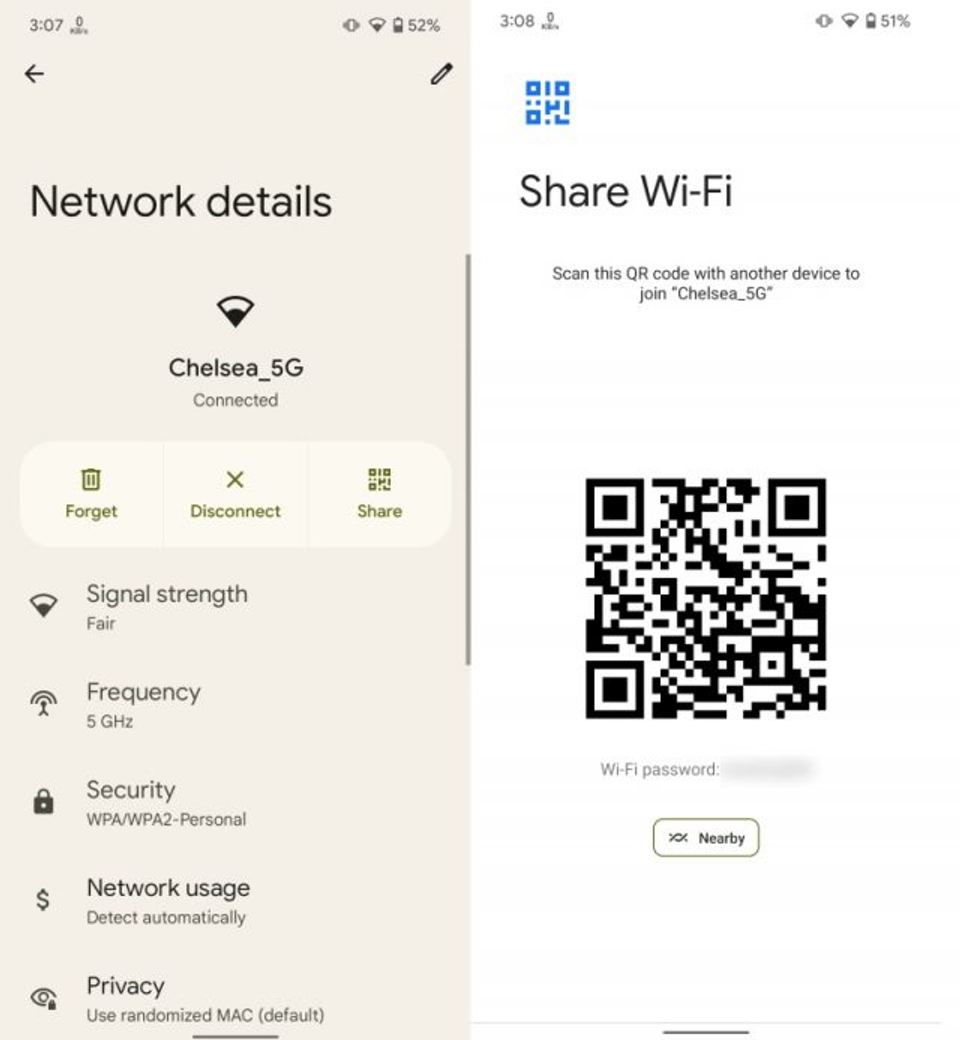
Find and select the saved network. If it is not listed with nearby networks, look for Saved networks or a similar option.
Tap Share or the QR-code icon. You may need to verify with your PIN, pattern, password, or fingerprint.
Expected result: Android displays a QR code for the network. Some phone interfaces also show the password as text beneath the code. If the password is visible, note it carefully; don’t share it with anyone who shouldn’t have access.
Read the password from the QR code
If the screen shows a QR code but no password text, you can try scanning a screenshot of the code with Google Lens:
Take a screenshot while the QR code is visible.
Open Google Lens and select that screenshot from your gallery.
If Lens recognizes the code, check the network details it displays for the password.
A QR code can give another device access to the network, so treat the screenshot like a password. Delete it when you no longer need it. If Lens does not recognize the image, the supplied information does not confirm another built-in method that works across Android phones; use the troubleshooting options below instead.
If the network or password isn’t available
The network isn’t saved: The Settings sharing method only applies to a network stored on the phone. Ask the network owner or administrator for the current password, or use a device or router account you’re authorized to access.
You can’t find the menu: Search Settings for Wi-Fi or Saved networks, then open the relevant network and look for Share or a QR-code icon. Labels and placement differ by phone.
Android asks you to authenticate: Unlock the phone using its configured method. If you can’t unlock it, you can’t complete these steps from Settings.
The QR code doesn’t scan: Try selecting a clear screenshot in Lens. If it still fails, check whether your phone displays the password directly, or ask the network owner or administrator.
You’re considering the router’s admin page: It may show Wi-Fi settings, but access requires the router’s administrator login, and the page layout varies. Don’t guess login details or reset the router just to retrieve a password; a reset can disrupt its configuration.
For help specific to your Android device, use the official Android Help Center.
Verify you have the right password
Use the displayed password to connect a device you’re authorized to use, or compare it with the network owner’s current credentials. A successful connection confirms it works. If it fails, check that you selected the intended saved network and that the password hasn’t changed since the phone last connected.