How to install and configure OpenSSH on Windows, macOS, and Linux
Install the OpenSSH client to connect out; install and enable the server only on devices that should accept incoming SSH connections.
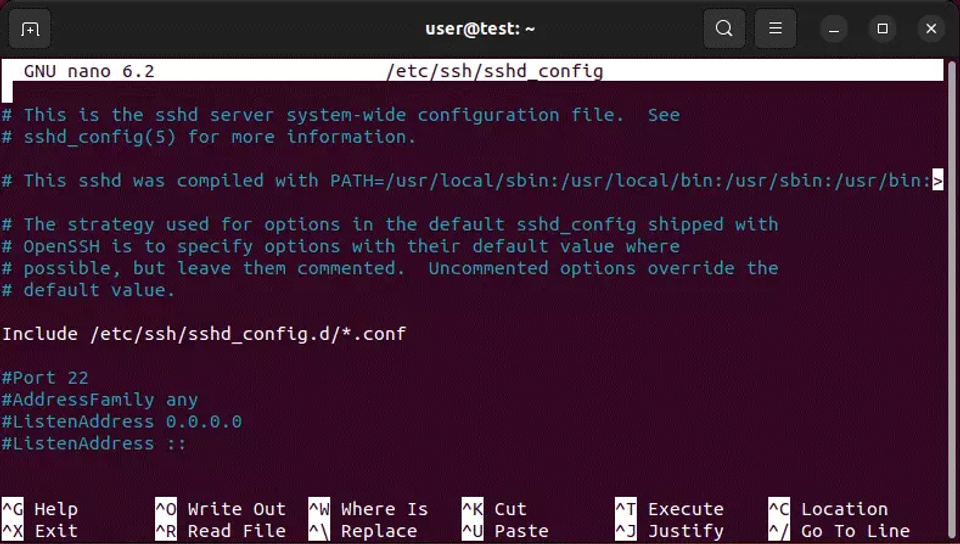
Install only the OpenSSH component you need: the client lets this device connect to another computer; the server lets other devices connect to this one. Server setup opens a remote-access path, so enable it only on a device you intend to administer over SSH.
Before you begin
Have administrator rights on Windows or a
sudo-capable account on Ubuntu Linux if you need to install or configure system components.To connect, you need the remote computer’s host name or IP address, a user account authorized to sign in, and the SSH service running on that computer.
To accept connections, make sure the network allows SSH traffic. OpenSSH normally uses TCP port 22; permitting inbound access can expose the device to connection attempts. Restrict access through your network or firewall when appropriate.
Commands below use
usernameandhostas placeholders. Replace them with the actual account name and IP address or host name.
Install and configure OpenSSH on Windows
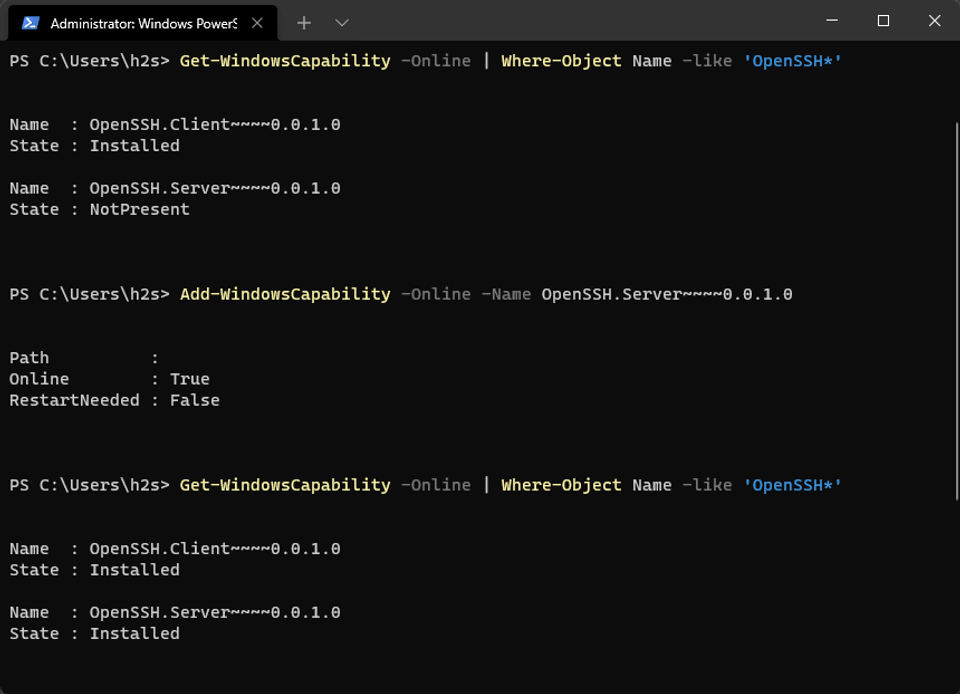
Windows 10 version 1809 or later and Windows Server 2019 or later support the built-in OpenSSH Feature on Demand. Microsoft documents Windows 10 and 11, and Windows Server 2019, 2022, and 2025. Windows Server 2025 includes OpenSSH by default. Check a Windows PC’s version by running winver; Microsoft’s documented PowerShell prerequisite is version 5.1 or later.[1]
Install the client or server
Open PowerShell as Administrator.
Install the component you need. The client is for outgoing connections; install the server only to accept incoming ones.
# Client
Add-WindowsCapability -Online -Name OpenSSH.Client~~~~0.0.1.0

# Server
Add-WindowsCapability -Online -Name OpenSSH.Server~~~~0.0.1.0
A successful installation reports
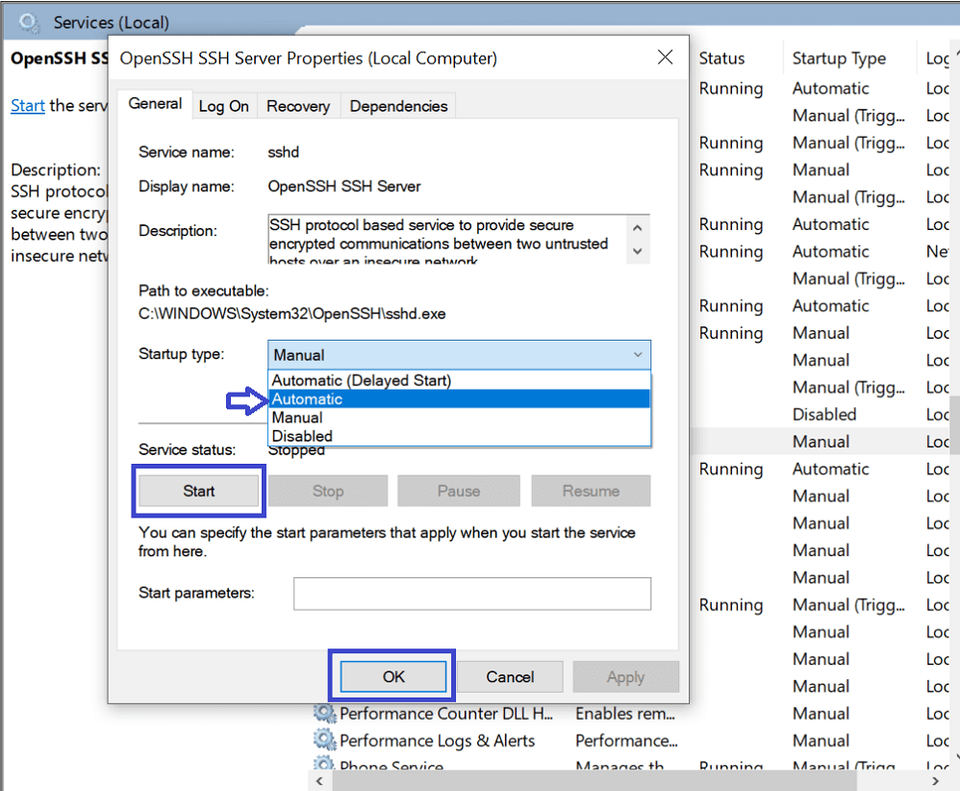
Online : True. The command output also reports whether a restart is needed.If you installed the server, set it to start automatically and start it now:
Set-Service -Name sshd -StartupType 'Automatic'
Start-Service sshd
The server installation normally creates the inbound firewall rule
OpenSSH-Server-In-TCPfor port 22. Check that the rule exists and is enabled before troubleshooting elsewhere.[1]
Connect from Windows
In PowerShell, connect with:
ssh username@hostFor a Windows domain account, Microsoft also documents this form:
ssh domain\username@servernameOn a first connection, SSH may display the server’s host-key fingerprint and ask whether to continue. Confirm the fingerprint through a trusted channel with the server administrator before accepting it. For installation details and Windows-specific guidance, see Microsoft’s OpenSSH for Windows documentation.
Use OpenSSH on macOS
Connect from your Mac
Open Terminal and run ssh username@host, replacing the placeholders with the remote account and server address. You need an account authorized on the remote server; installing or enabling a server on your Mac is not necessary just to connect outward.
Let another device connect to your Mac
On macOS 12, Apple’s documented path is Apple menu > System Preferences > Sharing. Select Remote Login, then choose which users may log in. Apple describes Remote Login as enabling SSH and SFTP access.[2] Limit access to the users who need it. Menu names and locations can vary in other macOS versions; check the Mac’s built-in help if that path does not match your version.
From the other device, connect using the Mac’s account name and network address: ssh username@host. If you need version-specific Mac instructions, use Apple’s support documentation for your installed macOS version; no newer menu path is assumed here.
Install and configure OpenSSH on Ubuntu Linux
These commands are for Ubuntu. Other Linux distributions use different package managers and may use different service names or defaults, so do not apply Ubuntu commands unchanged.
Install the client or server
Open a terminal.
Install the client for outgoing SSH connections, or the server to accept incoming connections. Ubuntu documents these packages:[3]
sudo apt install openssh-client
sudo apt install openssh-server
If you installed the server, check its status:
sudo systemctl status ssh.service ssh.socketThe service or socket shown as active indicates systemd is handling SSH. Ubuntu versions and configurations can differ in how the listener is managed; check both units rather than assuming one particular service state. Ubuntu’s documentation describes installing the server package and reloading its service after configuration changes.[3]
If you use UFW, allow SSH only if you intend to accept inbound connections and your network policy permits it:
sudo ufw allow sshDo not enable a firewall rule merely to make an outgoing client connection; that rule is for inbound access.
Verify the setup and troubleshoot
Test a connection
From a client device, run ssh username@host. A successful connection prompts for the account’s authentication method or opens a remote shell. On first connection, verify the displayed host-key fingerprint before accepting it. OpenSSH also provides sftp for file transfer and scp for copying files over SSH.[4]
Fix common connection problems
sshis not recognized or not found: The client is missing or unavailable in the command environment. On Windows, install the OpenSSH Client capability. On Ubuntu, installopenssh-client.Connection refused or timed out: Confirm the destination address, that its SSH server is installed and running, and that the network permits inbound traffic on the SSH port. On Windows, check the
sshdservice andOpenSSH-Server-In-TCPfirewall rule. On Ubuntu, checkssh.serviceandssh.socket, as applicable, plus any active firewall.Permission denied: Check that the username is correct and that the account is authorized to log in to the remote host. A network connection alone does not grant account access.
The host fingerprint changed: Do not accept the new fingerprint automatically. Verify it with the server administrator; a changed key can have legitimate causes, but should be checked before reconnecting.
For OpenSSH command and configuration reference, consult the OpenSSH manual pages.