How to Fix Steam Stuck on Loading User Data
A cautious guide to checking Steam sign-in, connection, and cache issues without deleting account files or treating community reports as guaranteed fixes.

Before you begin
Steam may hang on “Loading User Data” for several reasons. Community reports describe different outcomes, including a cache-folder change that helped one user. These reports are anecdotal and do not confirm the cause or guarantee a fix.
Prerequisites
Check whether you can sign in to Steam in a web browser. Never share your password, Steam Guard codes, or recovery codes.
Save your work and close games before restarting Steam or your computer.
If you choose to change any files or folders, first make a separate backup and verify that the copy exists and contains the files you intend to preserve. Do not proceed without a verified backup.
Try low-risk checks first

Restart Steam and your computer. Exit Steam from its menu or system-tray icon, then restart your computer and try again. Steam recommends restarting as an initial troubleshooting step in its official Steam Client Troubleshooting guide.
Check whether the problem affects only the client. Try signing in to Steam’s website. If web sign-in works but the client hangs, note that difference. It may help support investigate, but it does not establish the cause.
Check the connection without weakening security. If practical, try another trusted network, such as a mobile hotspot. Do not disable your firewall or security software as a general fix. If the same account hangs on multiple devices or networks, that does not prove whether the issue is account-, service-, or device-related. Avoid repeatedly reinstalling Steam based only on that symptom.
Optional: rebuild the web cache
A user in this Steam Community discussion reported that moving the htmlcache folder out of Steam’s config folder resolved the hang for them. This is an unofficial, anecdotal suggestion, not a guaranteed fix. Skip it if you are unsure which folder is correct.
Fully exit Steam before working with its files.
Find your Steam installation folder, open
config, and look forhtmlcache. The installation location can vary.Back up first: copy the entire
htmlcachefolder to a separate location outsideconfig. Verify the copy exists and contains the expected files before continuing.Rename the original folder to
htmlcache.old, then start Steam and check whether it loads. Steam may create a replacement cache folder.If the change does not help, exit Steam and restore the original folder name. Keep your verified backup until the issue is resolved.
If Steam is still stuck
Do not delete userdata, login files, or account configuration as a next guess. Community posts mention changing such files, but they do not establish that those steps are safe or appropriate for every device or account. In particular, do not copy login or configuration files from another person’s device.
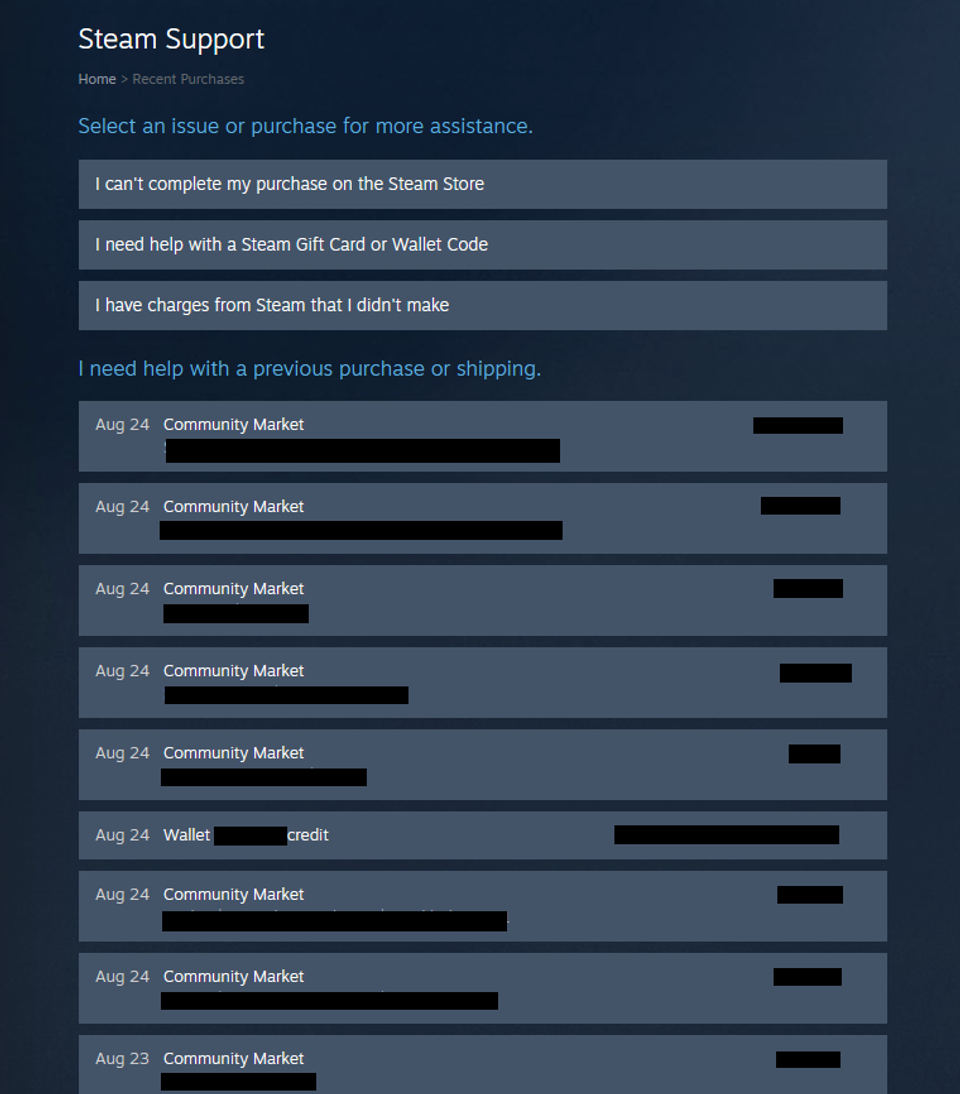
Use the official Steam Client Troubleshooting guide to continue troubleshooting or reach the relevant Steam Support options. Include whether website sign-in works, which checks you tried, and whether the problem occurs on another device or network. Never include your password or authentication codes.


