How to create a Google Cloud account and set up your first project
Create a Google Cloud account, start a project in the console, and verify it in the project dashboard while keeping billing decisions clear.
Open the Google Cloud getting-started documentation and select Go to console to begin creating your Google Cloud account. After signing in or completing the account setup offered there, create a project in the console using IAM & Admin > Create a Project.
Before you start
You’ll need an internet connection and access to the Google Cloud console. The supplied Google documentation does not specify the full account sign-up screens or list account-level prerequisites, so follow the prompts shown in the console rather than relying on a particular screen sequence.
Decide whether this is a personal project or one that should belong to a Google Workspace organization. The organization choice matters for some project features and permissions.
Google’s getting-started page says sign-up includes $300 in free credits and free usage of 20+ products. The supplied information does not state the credits’ duration, product quotas, eligibility details, or what happens when credits are used up. Don’t treat every Google Cloud service or workload as unlimited or free. Some features may require billing to be enabled; check the terms shown for the products you plan to use before running workloads.
Create your Google Cloud account
Open the console and complete sign-up
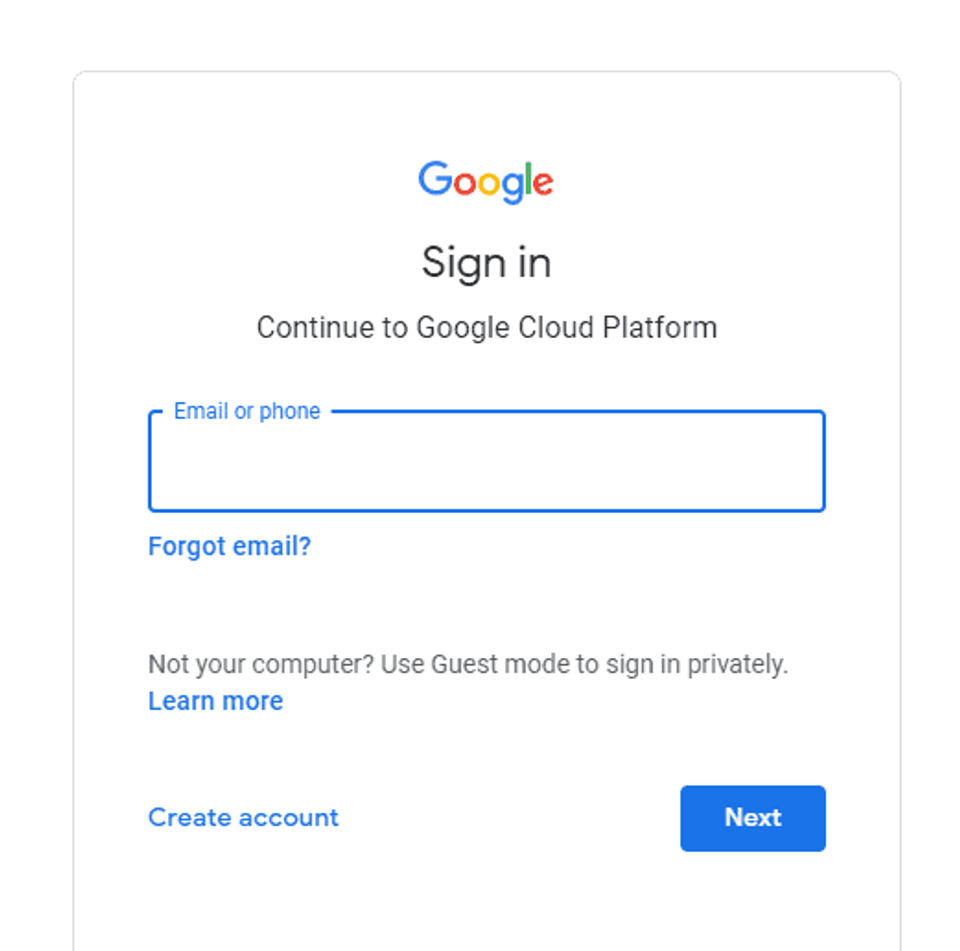
Open the Google Cloud getting-started page and select Go to console.
Sign in or complete the account creation steps presented by Google Cloud. The exact account screens aren’t described in the supplied documentation, so use the current on-screen prompts.
When you reach the console, continue to project creation below. If you are using an organization-managed account, check that you are signed in to the intended account before creating the project.
Expected result: You can access the Google Cloud console and start creating or selecting a project. If you can’t get past sign-in or account setup, use the sign-in and help options shown by Google on that page; no separate account-recovery URL was supplied for this guide.
Create your first project
Use the console
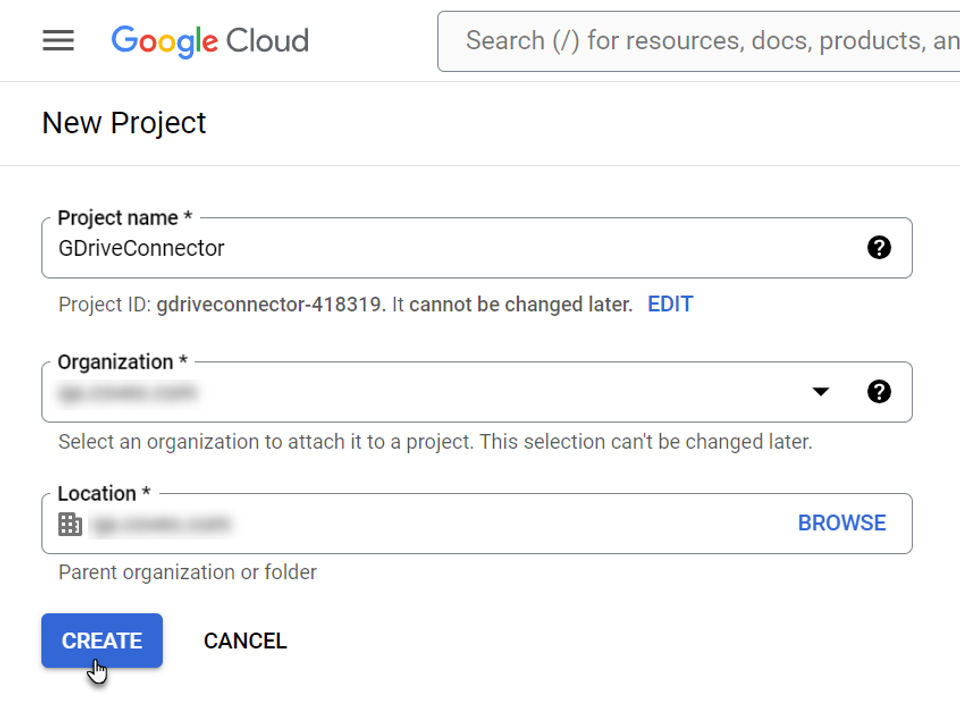
In the Google Cloud console, open Menu > IAM & Admin > Create a Project. For the official project-creation instructions, see Create a Google Cloud project.
Enter a descriptive Project Name. For example, if you’re trying a small personal app, use a name that makes its purpose clear, such as “Personal app test.” This is only an example name, not a required format.
Optionally edit the Project ID. Choose carefully: the documented instructions say the ID can’t be changed after the project is created.
In Location, select Browse, choose a location, and click Select. If the project should be associated with an organization, choose the appropriate location offered in the console.
Click Create. Google says the console navigates to the project’s Dashboard and the project is created within a few minutes.
Expected result: The console opens the new project’s Dashboard. Check the project name and ID in the console to confirm you’re working in the project you intended.
Command-line alternative
The supplied Google guide also documents creating a project with the Google Cloud CLI. You can use Cloud Shell, where the CLI is already set up, or a local environment after installing and initializing the CLI. The documented command is:
gcloud projects create PROJECT_IDReplace PROJECT_ID with the ID you want. Since the project ID is permanent after creation, check it before running the command. This alternative creates the project; the supplied instructions don’t describe a separate account sign-up process through the CLI.
Decide whether to enable billing
You don’t need to enable billing just to follow the documented project-creation steps. Google says billing may be needed depending on the Workspace APIs and features you use. Enable it only when your intended service requires it, and review the billing details and product terms before linking an account.
The supplied project guide documents this console path: open Menu > Billing > My Projects, select the relevant organization, find the project, open its Actions menu, choose Change billing, select a Cloud Billing account, and click Set account. If you can’t link an account, the documentation says you may not have the required permissions. Ask an administrator with the necessary permissions rather than trying to work around access controls.
Troubleshooting and verification
The organization you expect isn’t listed
Google’s project guide says that if you can’t find your Google Workspace organization, you may not be signed in to a Google Workspace account. Check which account is active and sign in to the intended Workspace account. Some features in the Workspace developer documentation require a project associated with an organization.
You can’t change the project ID
That is expected after creation: the project guide says the ID can’t be changed. If you haven’t created the project yet, edit and review the ID before clicking Create. The supplied source doesn’t give instructions for renaming or replacing an existing project.
Billing setup is unavailable
You may lack permission to make the change. Contact the project or billing administrator and ask them to review access. Don’t enable billing on a different project as a workaround.
Confirm setup is complete
Verify that the console shows the project Dashboard, and confirm its name and ID. If you intentionally need a paid or billing-dependent feature, verify the project’s billing status in the console before using it. The supplied sources do not give a separate verification procedure for account registration or a universal test workload.
The cited instructions describe the Google Cloud console and CLI, but don’t specify differences for particular mobile devices, operating systems, or console versions. Menu labels may therefore differ from what you see; use the official project-creation guide as the reference for the documented path.


