How to Check Your Linux Kernel Version and Update It Safely
Check the running kernel with uname -r, then use your distribution’s package manager to update it after verifying a backup.
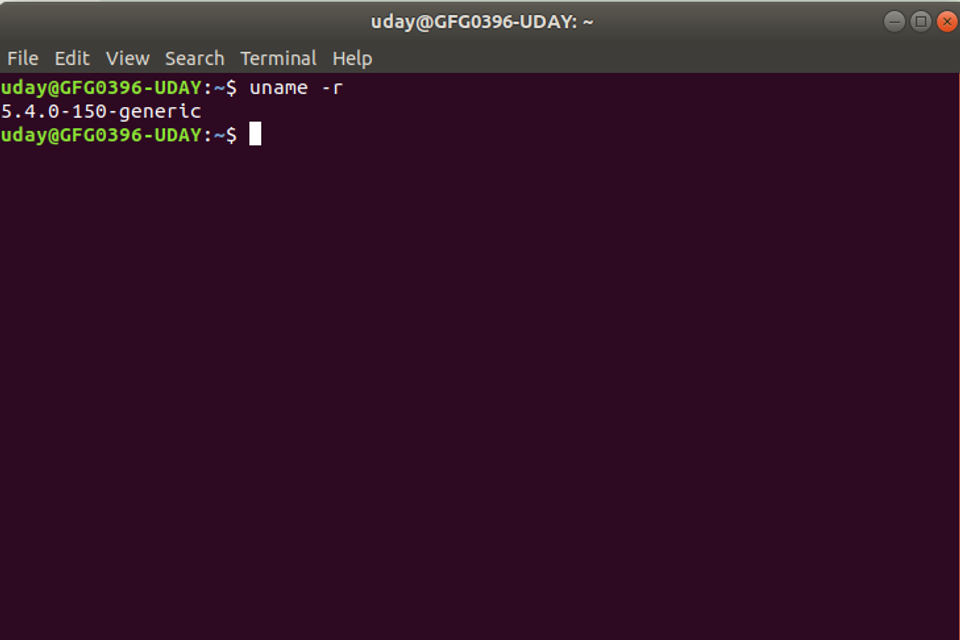
Run uname -r in a terminal to see the Linux kernel currently running. Then update through your distribution’s package manager, not by installing a kernel intended for a different distribution.
Prerequisites
Identify your distribution and release, for example in your system’s About or Settings page. The update command depends on the distribution.
Before updating, make a backup and verify it: confirm the backup completed, that you can access its files, and that you know how your backup tool restores them. Do not proceed if you cannot verify the backup.
Save your work, connect the computer to power if practical, and make sure you have time to restart.
1. Check the running kernel
Open a terminal and run:
uname -rThis reports the kernel release that is active now. It does not necessarily tell you which other kernel packages are installed. On systems with hostnamectl, you can also run hostnamectl and look for the Kernel line.
On Debian or Ubuntu, list installed kernel image packages with:
dpkg -l | grep linux-imageThis package-list command is specific to Debian-based distributions. Do not assume its output or package names apply to Fedora, RHEL, or other systems.
2. Install updates using your distribution’s package manager
Package-manager updates usually install the kernel supplied for your distribution. They may update other software too, so review the package manager’s proposed changes before confirming.
Ubuntu or Debian
sudo apt update
sudo apt upgrade
apt update refreshes package information; apt upgrade installs available upgrades. If it reports packages that were not upgraded, don’t force a kernel change with an unfamiliar command. Check your distribution’s release-specific guidance first.
Fedora
sudo dnf upgradeThis updates packages through Fedora’s package manager, not just the kernel. Review the changes before accepting them.
RHEL or CentOS Stream
sudo dnf update kernelThis requests the kernel package update. Package names and supported update procedures can differ by release, so use your distribution’s guidance if the command fails or proposes unexpected changes.
Avoid downloading and installing a mainline kernel manually unless you have a specific, well-understood reason. Distribution kernels may include vendor-selected fixes and integration that a generic kernel does not.
3. Restart and verify
A newly installed kernel does not become the running kernel until the computer boots with it. Restart after the package manager completes:
sudo systemctl rebootAfter restarting, open a terminal and run uname -r again. Compare the result with the version shown before the update. Keep older kernel packages installed rather than removing them as part of this process. Whether an older kernel remains available and how to select it depends on the distribution and boot setup.
Troubleshooting
The version did not change: The update may not have installed a newer kernel, or the computer may still be running its previous kernel. Check the package manager’s results and restart if you have not already.
The update reports errors or held-back packages: Stop rather than adding repositories or forcing package changes based on a guess. Check instructions for your exact distribution and release.
The computer has problems after restarting: If the boot menu offers a previously installed kernel, selecting it may let you start with that older kernel. The menu and recovery options vary, and this works only if an older kernel is still installed and available.
Do not remove old kernels or delete files from /boot as a cleanup step unless you have verified the backup and are following instructions for your specific distribution.