How to Check for and Install Nintendo Switch Firmware Updates
Check and install the latest Nintendo Switch firmware via System Settings → System → System Update.
Prerequisites
Internet connection – wired or Wi‑Fi. The console must be online to download updates.
Power source – battery ≥ 50 % or plug the Switch into its AC adapter.
Free storage – at least 1 GB of internal space (the update file size varies by version).
Unmodified console – if the system has been hacked or uses unsupported accessories, updates may fail or brick the device (see the caution in the official support page).
Optional backup – while a normal update does not erase data, backing up save data to the cloud (Nintendo Switch Online) or a microSD card is recommended.
How to Manually Check for and Install a Firmware Update
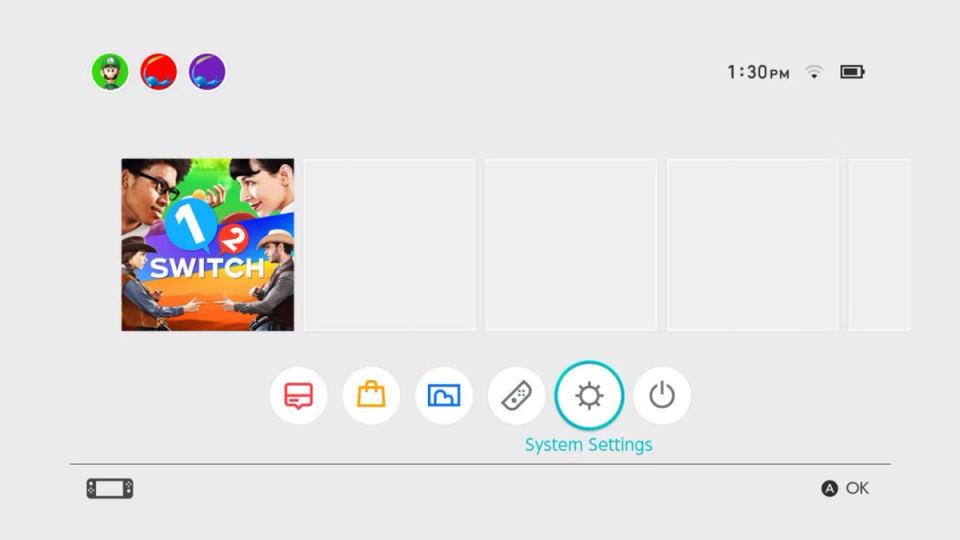
Open System Settings
From the HOME Menu, select the gear icon labeled System Settings.
Navigate to System
Scroll down the left‑hand menu until you reach System and tap it.
Select System Update
Choose System Update. The console will immediately perform a check for the latest version.
Download (if available)
If an update is found, a progress bar appears and the download starts automatically. Wait until the download finishes; the console may display a notification when it’s complete.
Install the Update
After the download, the system will prompt you to install. Confirm and let the console restart. Do not power it off during this process.
Verify the Installed Version
Return to System Settings → System → System Update. The current version is displayed at the top of the screen. As of 29 Oct 2024 the latest public version is 19.0.1.
Tip: The Switch also updates automatically when connected to the internet. The manual method above forces an immediate check.
---\n
Device‑Specific Notes
| Model | Update Path | Dock Firmware Update |
|---|---|---|
| Nintendo Switch (original) | Same as steps above | Not applicable |
| Nintendo Switch Lite | Same as steps above | No dock, so no dock update |
| Nintendo Switch – OLED Model | Same as steps above | Update Dock appears in System Settings → System (only for the OLED dock with LAN port) |
Common Issues & Troubleshooting
1. No Internet Connection Detected
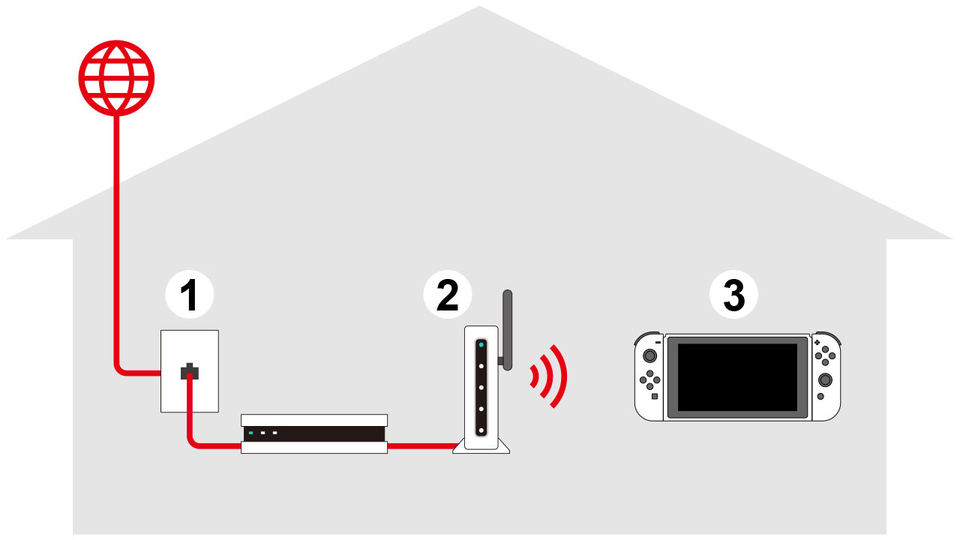
Check Wi‑Fi settings: Go to System Settings → Internet → Internet Settings, select your network, and confirm you are connected.
WPA2 (AES) requirement: Some updates (e.g., version 18.0.1) fail on networks using WPA3 or mixed security. Temporarily set your router to WPA2‑AES as suggested by Nintendo.
Restart the console and router, then retry the update.
2. Insufficient Storage
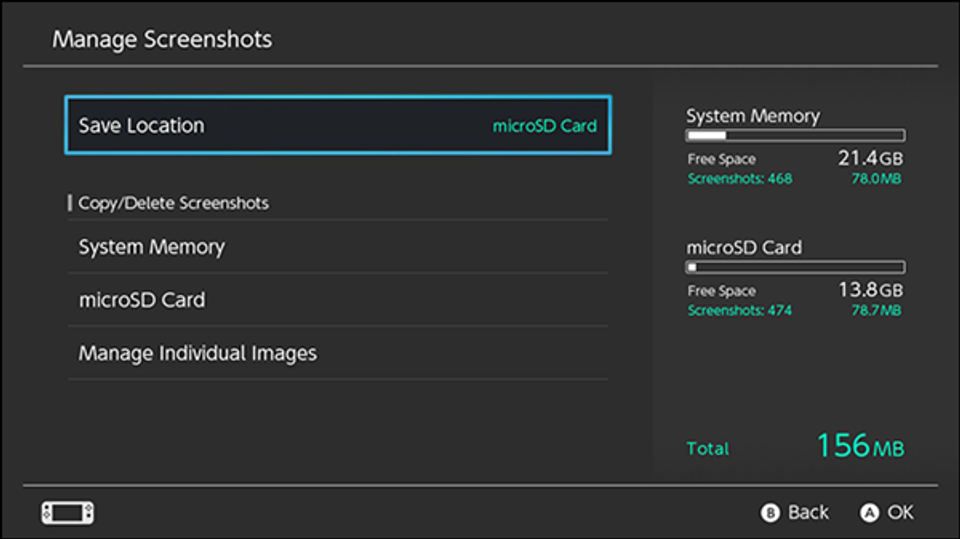
Open System Settings → Data Management to see free space.
Delete unused screenshots, videos, or move games to a larger microSD card.
After freeing space, repeat the update steps.
3. Update Stalls or Fails
Ensure the battery is ≥ 50 % or keep the AC adapter plugged in.
Press the Power button → Power Options → Restart to reboot the console, then try again.
If the problem persists, clear the DNS cache: System Settings → Internet → DNS Settings → Clear Cache.
4. Modified or “Hacked” Console
Nintendo warns that updates on modified hardware can render the system unresponsive. If you have installed custom firmware, you may need to re‑flash the original firmware using Nintendo’s repair service – see the official support page for details.
Verifying the Update Was Successful
After the console restarts, go back to System Settings → System → System Update.
The displayed version number should match the latest release (e.g., 19.0.1).
Optional: Open Nintendo Switch system update information to compare the changelog with your version. The page lists the most recent version and its release date.
When to Seek Official Help
The update repeatedly fails despite following the troubleshooting steps.
The console becomes unresponsive after an update.
You see error codes such as 0‑2005 (network) or 0‑3001 (storage).
Visit Nintendo’s official support page for system updates: How to perform a system update on Nintendo Switch – Nintendo Support.
For the latest version list and detailed release notes, see: Nintendo Switch system update information.
Quick Reference Checklist
[ ] Console connected to the internet (Wi‑Fi or LAN).
[ ] Battery ≥ 50 % or AC adapter plugged in.
[ ] At least 1 GB free storage.
[ ] No custom firmware or unsupported accessories.
[ ] Follow steps System Settings → System → System Update.
[ ] Verify version number after restart.
This guide reflects the official Nintendo procedures as of October 2024 and does not cover third‑party tools or unofficial firmware.