Free chat apps: compare phone, desktop and browser support
Choose a free chat app for your phone and computer. Compare Signal, Telegram, Discord and device-linking limits, with a practical setup check.
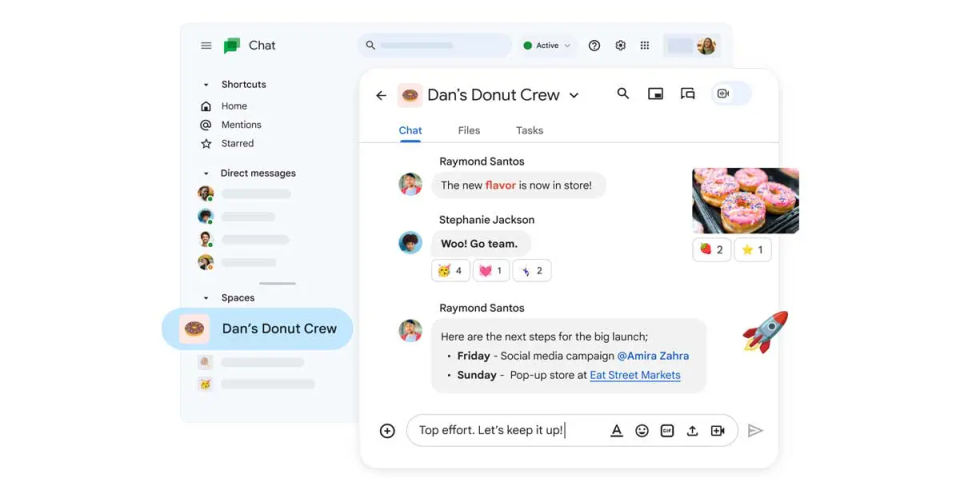
Choose a chat app your contacts can use, then check its official download page for each device you own. Free messaging, browser access and identical features across devices are separate questions. A paid subscription or a desktop download does not automatically solve a missing feature.
Compare the access method before installing
| App | Phone and computer options | Browser or linking limit |
|---|---|---|
| Signal | Android or iPhone; Desktop for Windows 10/11, macOS 13 or later, and amd64 Linux | The documented computer route is an installed Desktop app linked to Signal on a phone. Signal-to-Signal messages are free and end-to-end encrypted |
| Telegram | Android and iPhone/iPad; desktop clients for Windows, Mac and Linux; web client | Telegram Web provides browser access to Cloud Chats. Those chats sync across devices but are not end-to-end encrypted. Secret Chats are device-specific |
| Discord | Android and iPhone; desktop downloads for Windows, macOS and Linux | Use its web application when you cannot install the desktop app. Optional paid extras are separate from basic messaging |
| Viber | Mobile app plus desktop downloads for Windows, Mac and Linux | Desktop activation needs an active Viber account on a phone. The download page lists separate packages and operating-system versions |
Start with your contacts rather than the longest feature list. If they cannot use the service, ask whether they can join before moving important conversations. On a computer where you cannot install software, narrow the choice to a service with supported browser access. Use Telegram's official app list or Discord's download page to find the genuine client.
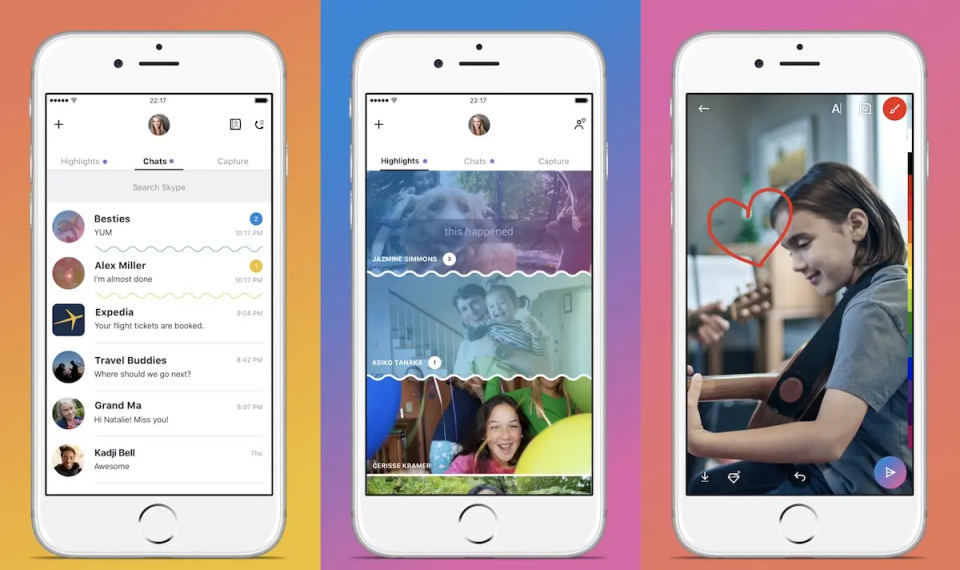
Example: a phone and a shared computer
Suppose you and a family member already use Telegram Cloud Chats on your phones, and you need to reply from a shared computer where you cannot install software. The browser client meets that access requirement; Signal's installed, linked Desktop route does not.
Open Telegram Web from the official app link above. Follow its displayed sign-in instructions for the same account you use on your phone. Do not use an unofficial extension or a login link sent by a stranger.
Open the existing Cloud Chat with your family member. Its history should be available under the same account. A Secret Chat is a different case: it does not become a synchronized browser conversation.
Send a non-sensitive message from the browser and ask your contact to reply. Check that the reply appears in that Cloud Chat on the phone too. This verifies the conversation you need rather than assuming every feature works identically.
When finished, sign out on the shared computer and check for downloaded attachments left behind. Never share a login code with someone offering to link the devices for you.
If end-to-end encryption is required, this Cloud Chat route does not meet that requirement. Use a suitable service on a trusted supported device instead. For example, Signal documents installing Desktop and linking it to the phone app; if installation is prohibited, continue on the phone rather than treating an unofficial web client as equivalent.
If the second device does not work
| What happens | What to check next |
|---|---|
| No official client matches the computer | Check the provider's current browser option; if none fits, use a supported device rather than a third-party login tool |
| The desktop app asks for a phone | Read the service's linking requirements; a phone requirement is not necessarily an installation error |
| You signed in, but a conversation is missing | Confirm the account and chat type. For Telegram, compare the Cloud Chat and Secret Chat limits in the table before treating this as a failed sync |
| A feature asks for payment | Check whether you need that feature or only basic messaging. Do not assume a paid upgrade changes device compatibility |
Paid and discontinued options
Threema Private is paid, so it belongs in a separate comparison if your requirement is a free app. Check its official pricing; a business trial is not the same as a free private account.
Wickr Me is discontinued. The organizational AWS Wickr service is a different offering and should not be treated as a replacement free consumer account.
Before replacing your current messenger, review the new service's recovery and backup options. Keep the old account until your important contacts and necessary conversations work. For services that support it, enable two-factor authentication. Encryption does not prevent someone with access to an unlocked device or a recipient from copying a message.
AI-assisted publication. Source checks are not device testing. How we make guides
