How to use Hugging Face models on your computer
Install Transformers, load a model in Python, and run it locally; model size and hardware determine how well it performs.
Choose a way to run the model
For a first test, use Python and Hugging Face Transformers. This approach can run text, vision, and other supported model types, but the code and required libraries depend on the model. The steps below run a text-classification pipeline.
If you want to download model files into a folder before using them, see the optional CLI step below. Downloading files by itself does not run a model.
Prerequisites
Python and a terminal or command prompt.
An internet connection for installing packages and fetching model files the first time.
Enough disk space for the model files, plus enough memory to load the model. Requirements vary by model; check its Hugging Face Hub page and file listing before downloading.
A GPU is not required for a basic test, but running on a CPU may be slower. GPU setup depends on your hardware and software environment, so these steps do not assume a particular GPU configuration.
Run a model with Transformers
1. Create and activate a virtual environment
In a terminal, create an isolated Python environment:
python -m venv .venvActivate it with the command for your terminal:
# macOS or Linux
source .venv/bin/activate
# Windows PowerShell
.\.venv\Scripts\Activate.ps1The prompt may change after activation. Keep the environment active for the remaining commands.
2. Install the libraries
python -m pip install -U torch transformersInstallation details can vary by operating system and hardware, especially for GPU support. If you need a GPU-specific setup, use the installation guidance for your hardware rather than assuming this basic command configures it.
3. Run a text-classification example
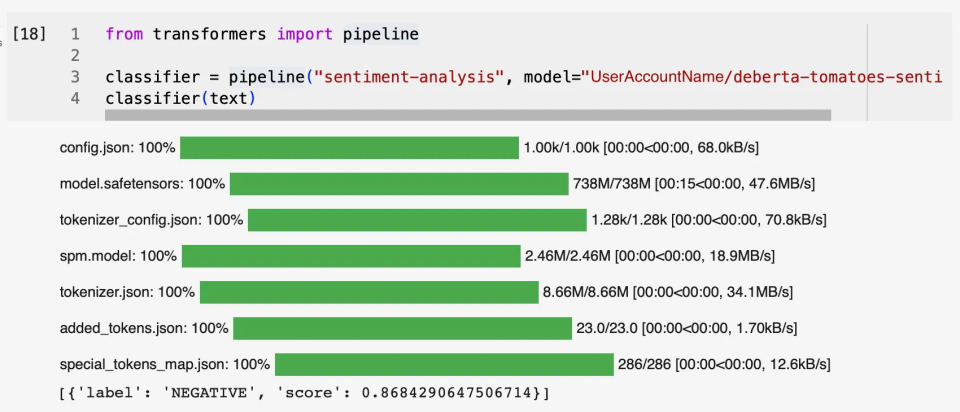
Save this as run_model.py, or paste it into a Python session:
from transformers import pipeline

classifier = pipeline("sentiment-analysis")
result = classifier("I can run a model on my computer.")
print(result)
Run the file from the same terminal, with the virtual environment active:
python run_model.pyThe first run downloads the pipeline's required model files and loads them for inference. Later runs can reuse downloaded files. The printed result contains the model's classification output; the label and score depend on the model. This basic pipeline example is also discussed in the Hugging Face forum.
4. Choose a specific model when needed
The example lets the pipeline select its default model. To use a particular model, first check its Hub page for its task, instructions, licence, and any access requirements. Then pass its repository ID to pipeline, for example:
classifier = pipeline("sentiment-analysis", model="organization/model-repository")Replace the placeholder with the exact model ID shown on the Hub. A model must be suitable for the task you choose; not every model is a text classifier. Some repositories are gated or private, so access may need to be granted before the files can be downloaded.
Optional: download a repository into a folder
Install the Hugging Face Hub package, which includes the hf command-line tool, then download a model repository:
python -m pip install -U huggingface_hub
hf download organization/model-repository --local-dir ./models/model-repository
Replace the placeholder with the repository ID. The command saves the repository files in the specified local folder. For a gated or private repository, first obtain access through the Hub and authenticate in the terminal with hf auth login. Follow the Hub's instructions for authentication; do not share an access token.
See the official Hugging Face Hub CLI and Python client project for the hf tool and its download command. To load a downloaded model, use a library and method compatible with that model. A folder of model files is not, on its own, a chat application.
Use the model again or work offline
Once the required files have been downloaded, the libraries generally reuse their local cache. For a strict offline run, configure the load operation to use only local files, such as with local_files_only=True where the relevant loading API supports it, or set HF_HUB_OFFLINE. Offline use works only if all required files are already available locally. If the program still tries to reach the Hub, check that the right model files were downloaded and that the offline setting applies to the code path you are using.
Troubleshooting and verification
Download or access errors
Check the repository ID for typos and confirm that the model is public or that your account has been granted access. For gated or private models, authenticate with hf auth login after access is granted. A login does not itself grant access to a gated model.
Out-of-memory errors or very slow output
Try a smaller model and reduce the amount of text or generated output. Model requirements vary, and a model that fits on disk may still require more memory than your computer has available. The optional device_map="auto" approach requires the accelerate package and may place model parts across available devices, but it does not guarantee that a model will fit or run quickly.
Missing packages or imports
Make sure the virtual environment is active in the terminal where you run the script. Then install or update the packages in that environment with python -m pip install -U torch transformers.
Confirm the setup works
The setup is working when python run_model.py completes and prints a classification result. To check that a run does not depend on a fresh download, try it with the required files already present and offline loading enabled. If that fails, the model may still need files that were not cached.
