How to transfer data from Android to Android using a USB cable
Use the new phone’s setup transfer flow, connect the Android phones with a compatible data cable, and follow the prompts until copying finishes.

Before you connect the phones
Use the cable transfer flow on the new Android phone’s setup screen. Android may recommend a cable if wireless transfer isn’t supported or the connection is slow. The exact prompts and available options can vary by device maker.
Before starting:
Charge both phones. Google recommends having them fully charged for a cable transfer.
Have a compatible USB data cable ready. Follow the cable instructions shown on the phones. If nothing happens or you see a “Try another cable” message, try another cable.
Keep the old phone available and unlocked when the prompts ask you to use it.
If the new phone has already been set up, check whether it offers a transfer option in Settings before considering any reset. A reset can erase data, so verify that anything important on the new phone is backed up first.
Transfer during new-phone setup
Connect and start copying
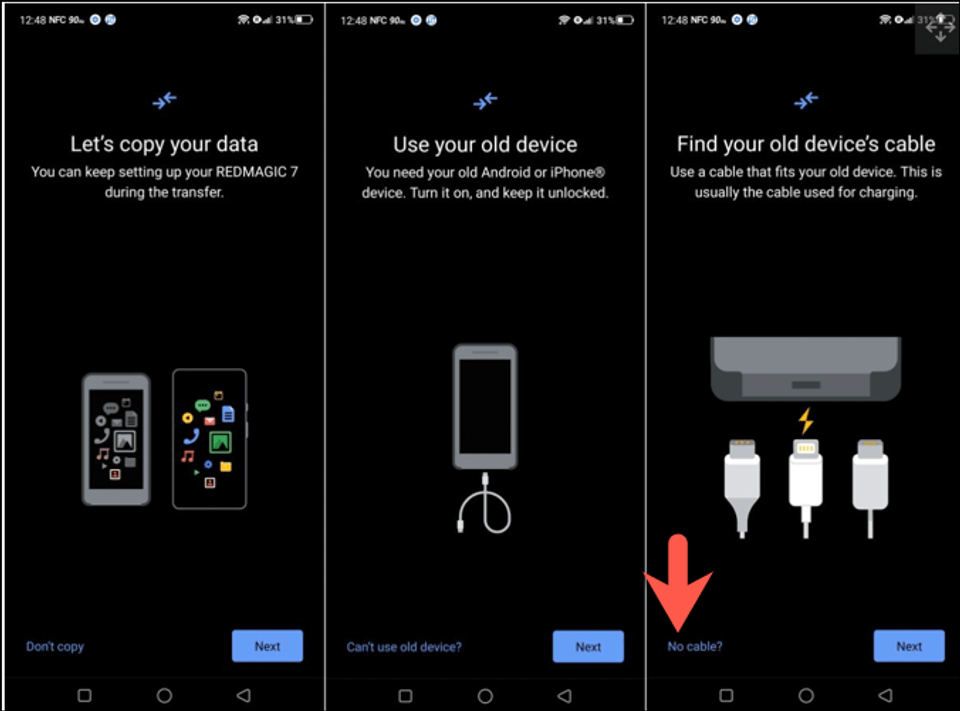
Turn on the new Android phone and proceed through setup until it offers to copy data from another device. Choose the option to transfer from your old Android phone.
When prompted, connect the phones with the USB cable. Use the connection and follow the on-screen instructions on both devices. If either phone asks you to approve access or continue the transfer, respond to that prompt.
Follow the new phone’s instructions to begin copying. The available choices and data categories depend on the devices and the setup flow; select only from the options actually shown.
Keep both phones connected and powered while the transfer runs. Don’t unplug the cable just because progress pauses briefly. Wait for the new phone to say the copy is complete before disconnecting.
Expected result: the new phone finishes setup and reports that the transfer has completed. Some device makers offer additional transfer tools or options, so screens may not look exactly the same on every Android phone.
For Google’s cable-transfer troubleshooting and setup guidance, see Can’t transfer data to a new Android device.
If the new phone is already set up
Open Settings on the new phone and look for Accounts & backup and an option to copy data from another device. Google says this option is available on all devices running Android 17 and later, and on select devices running earlier Android versions. The menu and wording may vary by manufacturer.
If you don’t see the option, check the phone maker’s support instructions. Google notes that some devices may require transferring during setup instead. Do not factory reset the new phone unless you have verified a backup of its important data and understand that a reset erases data stored on it.
Troubleshooting
Nothing happens after connecting the cable
Restart the old phone and try the cable transfer again. If it still doesn’t work, try another cable; Google specifically recommends this for a “Try another cable” message. Follow any connection prompts that appear on either phone.
The transfer stops or takes a long time
If setup has been stuck for more than 15 minutes, Google advises tapping Stop copying. If a phone ran out of battery or the cable came loose, recharge the devices and try again; Google says the process can often be restarted. Keep both phones charged during another attempt.
The transfer option isn’t available after setup
The post-setup option is not available on every older Android device. Check the manufacturer’s support guidance for your model. If the only suggested route is to repeat setup by resetting the new phone, first verify a backup of its current contents; don’t proceed if you cannot confirm one.
Verify the transfer
Wait for the new phone to show completion, then check it before treating the move as finished. Open the apps or locations you expected to bring over and confirm that the needed items are present. If something is missing, consult the new phone’s transfer options or manufacturer support; what can be copied depends on the devices and the options shown during transfer.


