How to Share a Status Update with a WhatsApp Group
How to post a 24-hour WhatsApp Status for one group, with rollout caveats and checks if the feature is missing.
Check that Group Status is available
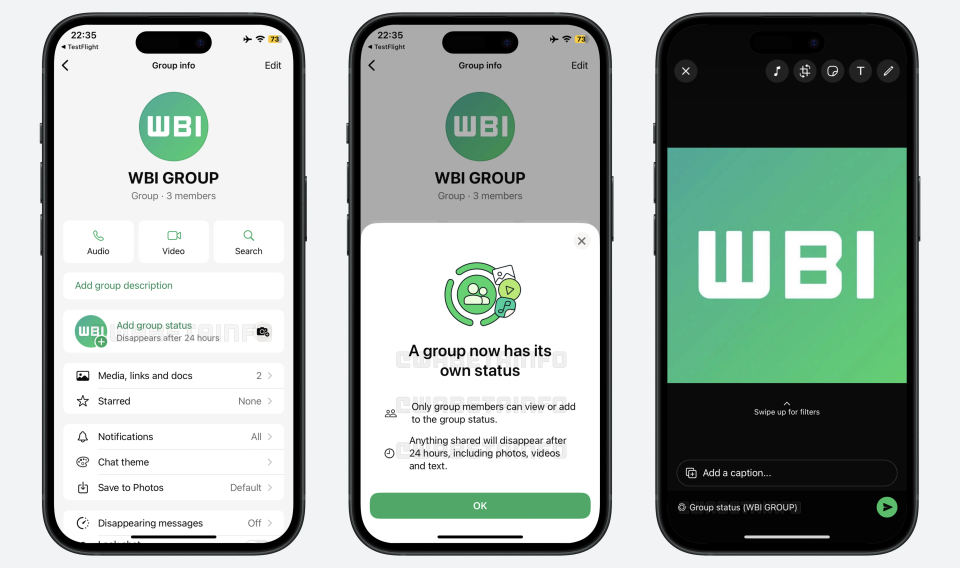
WhatsApp is rolling out a feature that lets you share a Status update with a specific group. It may not be available on every account yet, even if WhatsApp is up to date. The rollout covers Android and iPhone, but the available reports do not confirm exact app versions or a universal menu path.[1][3]
Group Status updates disappear after 24 hours. Group members can view and react to the update, and can add their own Status updates.[1] The available information does not establish any paid tier or feature-specific cost.
Prerequisites
Install the latest WhatsApp version available for your device. Updating may not make the feature appear immediately, because availability is rolling out gradually.[1]
Be a member of the group you want to share with.
Confirm the intended group before posting. This feature is described as sharing with a specific group, rather than with all your contacts.[1]
Share a Status with a group
Open WhatsApp and open the group you want to share with.
Look for a Group Status option in that group. The supplied sources confirm the feature, but do not document the exact button name, icon, or tap-by-tap path for Android or iPhone. If no group-specific Status option appears, see troubleshooting below rather than choosing a general Status audience setting.
Use the available group-specific option to create and share your update. WhatsApp Status supports text, photos, videos, and GIFs; the Help Center explains how to create and share a Status.
Review the audience shown in the app before posting. Make sure it is the intended group, then publish using the on-screen controls.
Expected result: the group can view the update as a Status for up to 24 hours. Members may react to it; it is not a permanent group-chat message.[1]
Verify the update
After posting, check the group-specific Status area or the confirmation shown in WhatsApp. If available, view the update there and confirm it is associated with the intended group. The sources do not specify an exact confirmation screen, so the labels and layout may differ by device or account.
For example, if you want to share a photo from a weekend event only with your project group, start from that group’s Group Status option and check the displayed audience before publishing. Do not assume that a regular Status post is limited to that group unless WhatsApp explicitly shows that audience.
Troubleshooting
There is no Group Status option

The feature is still rolling out, so it may not have reached your account. Update WhatsApp from your device’s official app store, then check again later. If the option remains missing, use a regular Status only if its audience controls clearly match your intent; otherwise, wait for the group feature to appear. The available sources do not give a rollout date for each account.[1]
You are unsure who can see the post

Pause before publishing. The intended feature shares an update with a specific group, but the supplied sources do not provide detailed audience-setting screens or explain how it behaves if group membership changes. Verify the audience displayed in your app; if it is unclear, do not post sensitive content.
The post is not visible in the group chat
Group Status is a Status update, not necessarily a message posted into the chat timeline. Check the group’s Status area or the relevant Status view in your app. The sources do not specify a separate chat-message notification or a recovery method for an expired update.
For general Status creation guidance, consult the WhatsApp Help Center.