How to set up and use Slack for team communication
Step‑by‑step guide to install Slack, join a workspace, set up your profile, configure notifications, create channels, and troubleshoot common issues.

Prerequisites
A Slack account (email + password or SSO). If you don’t have one, sign up at https://slack.com.
An internet‑connected device: Windows 10/11, macOS 10.13+, Linux, iOS 13+, or Android 8+.
(Optional) Admin rights on a corporate computer if you need to install software.
For free‑plan users, be aware that message history and file storage are limited compared to paid plans.
Install Slack
Desktop (Windows, macOS, Linux)
Open a web browser and go to https://slack.com/downloads.
Click the button for your operating system – the site will download an installer file (
SlackSetup.exe,Slack.dmg, or a.deb/.rpm).Run the installer and follow the on‑screen prompts. When installation finishes, the Slack app launches automatically.
Mobile (iOS / Android)
Open the App Store (iOS) or Google Play Store (Android).
Search for Slack and tap Get / Install.
Once installed, tap Open to launch the app.
Sign in and join a workspace

In the Slack app, click Sign in.
Enter your email address and password, or choose Sign in with Google/SSO if your organization uses single sign‑on.
After authentication, you’ll see a list of workspaces you belong to. Select the one you want, or click Create a new workspace if you’re starting from scratch.
If you received an invitation link, click it; Slack will prompt you to confirm joining the workspace.
Tip: Use the F1 shortcut (desktop) to open the Help Center quickly if you get stuck.
Set up your profile
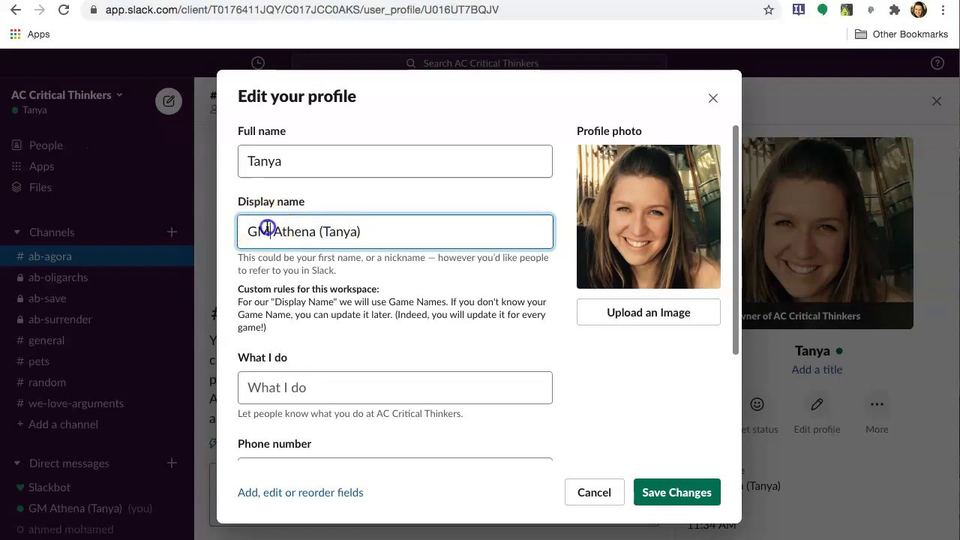
From the desktop app, click the default profile picture in the bottom‑left corner.
Choose Edit profile.
Fill in your full name, display name, and optionally a profile picture.
Click Save Changes.
(Mobile) Tap the You tab → Edit profile → fill fields → Save.
Configure your notifications
Click your profile picture in the bottom left (desktop) or tap the You tab (mobile).
Select Preferences → Notifications.
Choose when you want to be notified (e.g., All messages, Mentions & keywords, Direct messages only).
Set Do Not Disturb hours if needed.
Click Save.
For a full list of options, see Slack’s official guide: Configure your Slack notifications.
Create and manage channels
In the sidebar, click the plus (+) button next to Channels.
Choose Create a channel.
Enter a channel name (lowercase, no spaces) and an optional purpose.
Decide if the channel should be public (anyone in the workspace can join) or private (invite‑only).
Click Create.
To rename or archive a channel, click the channel name at the top, select Settings, then choose Rename or Archive.
Send messages and use basic features
Click the plus (+) button in the sidebar → select Direct message or a channel.
Type your message in the message field at the bottom.
Press Enter to send, or click the arrow next to the paper‑plane icon to schedule the message.
To mention someone, type
@followed by their name.Add an attachment by clicking the paper‑clip icon or dragging a file into the message field.
React to a message with an emoji by hovering over it and selecting the emoji button.
Invite teammates (workspace owners/admins)
Click your profile picture → Invite people.
Enter the email addresses of the people you want to add.
Choose whether they join as full members or guests (guests can only access selected channels).
Click Send Invitations.
Guests have limited access – they can only view and post in channels you grant them.
Common issues and troubleshooting
| Problem | Quick Fix |
|---|---|
| Can’t sign in – “Incorrect password” | Verify your credentials; use Forgot password? link on the sign‑in page. If your organization uses SSO, ensure you’re using the correct identity provider. |
| App won’t launch (desktop) | Restart the computer, then run the app as Administrator (right‑click → Run as administrator). Re‑install if the problem persists. |
| Notifications not arriving | Re‑open Preferences → Notifications and confirm the correct options are selected. Ensure your operating system’s notification settings allow Slack to show alerts. |
| Missing messages after a while (free plan) | Free workspaces retain the most recent 90 days of messages. Older messages are archived and not searchable. |
| File upload fails | Check your internet connection and ensure the file size is under the workspace’s limit (free plan: 1 GB per file). |
If none of the above resolves the issue, visit the Slack Help Center: https://slack.com/help/articles/360059928654-How-to-use-Slack--your-quick-start-guide.
Verify everything works
Send a test message to a newly created channel and confirm it appears for you and at least one other teammate.
Check that you receive a desktop or mobile notification according to the preferences you set.
Open the Files view in the sidebar and upload a small document; verify it appears in the channel’s file list.
Invite a colleague (or use a secondary email you own) and confirm they receive the invitation and can join the workspace.
When all four checks succeed, Slack is fully set up and ready for daily team communication.