How to Find Which App Is Using Your Location on Android
Use Settings > Location > App location permissions to see which Android apps are allowed location access and adjust an app’s permission.
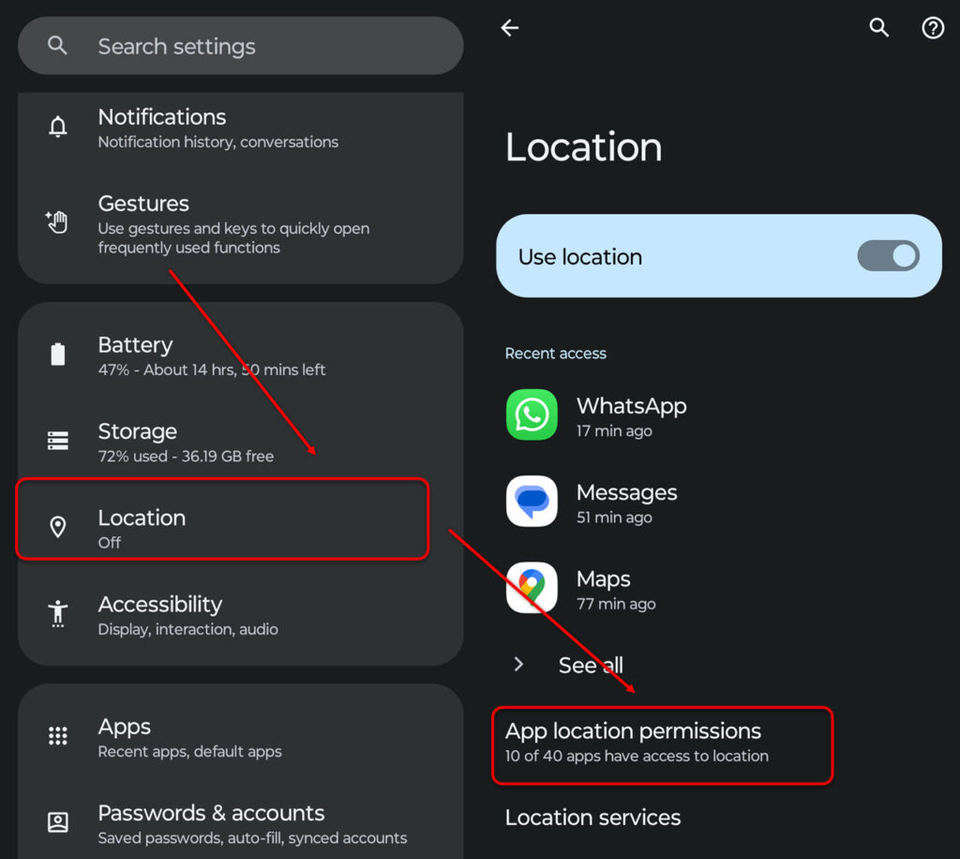
Open Settings > Location > App location permissions to see which apps have location access and how they are allowed to use it. This list shows permissions, not necessarily which app is accessing your location at this exact moment.
Before you start
You need access to your phone’s Settings.
Menu names and availability can vary by Android version and device. Google notes that some steps on Pixel phones work only on Android 11 and later.
Find apps with location permission
Check the location-permissions list
Open Settings.
Tap Location.
Tap App location permissions.
Review the apps grouped by access level. Depending on your device, groups can include Allowed all the time, Allowed only while in use, Ask every time or allow when I share, and Not allowed.
Tap an app to review or change its location access.
What the list tells you: An app under an allowed category has permission under those conditions. That alone does not confirm it is using location right now. An app under Not allowed cannot use your device’s location through that permission.
If you can’t find the menu
On supported devices, swipe down from the top of the screen, then touch and hold Location to open location settings. Tap App location permissions. If the Location tile is missing, the Google instructions say to tap Edit or Settings, then drag Location into Quick Settings.
For the official steps and version caveat, see Google’s Android location-permissions help. If the steps do not match your phone, Google recommends getting help from your device manufacturer.
Check what kind of location an app requested
An app with location permission may be able to get an approximate location, a precise location, or both. To check an individual app:
Find its icon on your Home screen.
Touch and hold the icon, then tap App info.
Tap Permissions > More > All permissions.
Look under Location for the type of location the app requested. If Location is not listed there, the app has not asked for your device’s location.
Google describes approximate location as an area of about 3 square kilometers; precise location is your device’s exact location. This shows the type requested, not whether the app is accessing it at this moment.
Change or remove an app’s access
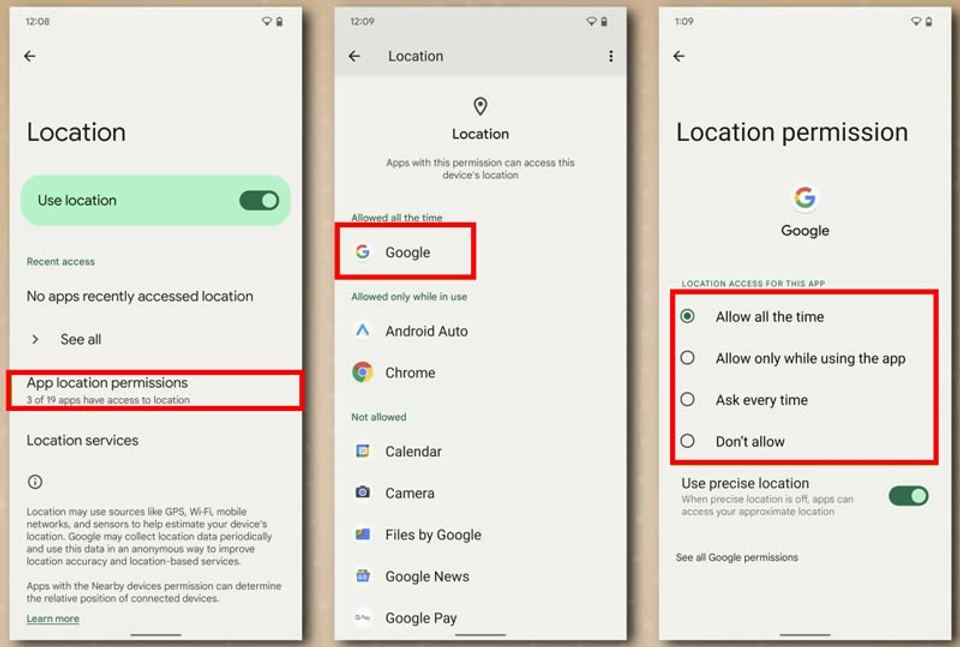
From the Home screen, touch and hold the app icon, then tap App info > Permissions > Location. Choose from the options shown on your phone:
Allow all the time: the app can use location at any time.
Allow only while using the app: it can use location while you are using it.
Ask every time or allow when I share: it asks when you open the app, and can use location until you close it. Some apps also offer a location button for a single session.
Don’t allow: the app cannot use your device’s location.
If access is allowed, you may also be able to turn Use precise location on or off. For example, you might keep location access for Google Maps to get directions but deny it to a game that does not need your location.
Troubleshooting and verification
The app is not where you expect
Check every permission group, including Allowed only while in use, Ask every time or allow when I share, and Not allowed. An app may have permission only while you use it, rather than all the time. If your phone uses different menu names, consult the Google help page or seek help from your device manufacturer.
You want to confirm the change
Return to Settings > Location > App location permissions and check that the app appears under the access category you chose. You can also reopen App info > Permissions > Location to review its setting. Remember: these screens confirm the permission setting; they do not establish that an app is currently using your location.
