How to combine PDF files online or locally on a Mac
Merge PDFs in the right order, choose between an online tool and Mac Preview, and verify the finished file while keeping the originals.
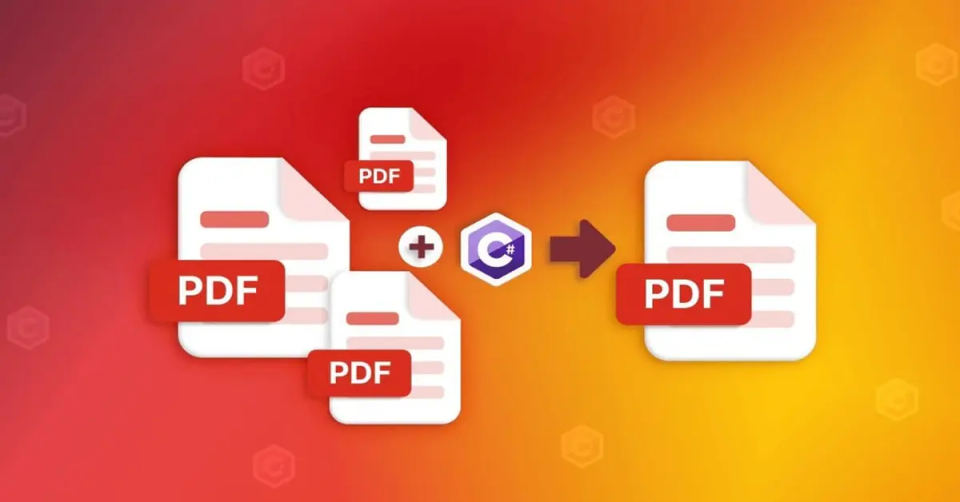
Choose an online PDF merger when you are permitted to upload the documents, or use Preview on a Mac to combine local PDFs. Keep the originals, put the pages in the intended order, and verify the downloaded or saved result before sending it.
Choose a method before uploading
| Situation | Suitable starting point |
|---|---|
| Ordinary PDFs you are allowed to upload | Adobe's online PDF merger |
| Private documents on a Mac that should stay local | Preview |
| Work documents controlled by an organization | Its approved document tool and storage policy |
| You need editable paragraphs rather than combined pages | Conversion or editing is a different task from merging |
Do not upload identity, financial or work documents just because a tool says it is free. Check whether an external service is allowed to receive them. Local processing and an online upload have different privacy implications.
Combine PDFs with Adobe's online tool
Choose Select files and select the PDFs, or drag them into the upload area.
Review and reorder the selected files.
Choose Merge files.
Download the combined PDF. Sign-in may be offered for sharing or other account features; read the action shown before proceeding.
Adobe describes this as an online service: files are handled by its servers. Its page distinguishes downloading the merged file from signing in to share it. Follow the current page's limits and account prompts rather than assuming every Acrobat feature or repeated use is unrestricted.
Combine local PDFs in Preview on a Mac
Preview saves changes automatically. First use File → Duplicate for the documents you intend to modify if you want to preserve the originals.
Open both PDFs in Preview.
In each window, choose View → Thumbnails.
Drag the desired page thumbnails from one sidebar into the other. Their position determines where the pages are inserted.
Rearrange thumbnails to correct the order.
Check the combined document and the location where the modified copy is saved.
Apple's Preview instructions also describe dragging a PDF from Finder into an open document's sidebar to insert its contents. These are Mac instructions; Windows and mobile apps have different controls.
Build a page-order manifest before merging
A page count cannot detect every mistake: a duplicated page and a missing page can cancel each other out. Instead, record where each source document should start and end. This also helps catch the wrong version of a file when two versions have the same number of pages.
Here is a six-page application packet:
| Source | Pages | Expected output range | Boundary check |
|---|---|---|---|
| cover.pdf | 1 | 1 | Cover letter |
| application.pdf | 3 | 2–4 | Application page 1 at output page 2; application page 3 at output page 4 |
| supporting.pdf | 2 | 5–6 | Evidence page 1 at output page 5; evidence page 2 at output page 6 |
Download the editable page-manifest CSV. It contains these example filenames, counts, ranges and boundary labels. Replace them with your own descriptions before using it; keep sensitive details out of filenames if you will share the manifest.
Open each source and record its page count and recognizable first/last-page headings. Do this before uploading or rearranging anything.
Put the files in the intended order. Each next range starts one page after the preceding range ends. For the example, 1 + 3 + 2 gives six output pages.
Merge using the chosen method, then open the saved result, not a source window still open beside it.
Check output pages 1, 2, 4, 5 and 6 against the manifest. Then inspect the application's middle page so a duplicate page 2 cannot hide a missing page 3.
Check document dates or version identifiers too. A six-page result with an old application version is still the wrong packet.
The downloadable example's ranges were checked arithmetically. It is a planning aid, not evidence that we tested Adobe's service or Preview on your device. Your labels and counts must come from the actual source files.
When the count matches but the result is wrong
| What you notice | What to compare |
|---|---|
| The application repeats a question or section | Compare its internal pages with the source, not just the total |
| Supporting pages appear inside the application | Compare the insertion boundary with output pages 4–5 in the example |
| Everything looks familiar, but a revision is missing | Check the date or version heading in both the source and merged copy |
| You cannot tell which file you opened | Save the result with a distinct name and reopen it from its destination folder |
Fix common problems
Pages appear in the wrong order: reorder files before the online merge, or thumbnails in Preview. Check the result again after saving.
A document will not open: confirm that the original itself opens and that you have permission and any required password. Ask its owner for an appropriate copy rather than trying to bypass restrictions.
Text is not editable after merging: merging preserves pages; it does not turn a scan into editable paragraphs. If that is your task, see PDF-to-Word conversion.
The output is too large for an upload form: check the recipient's file-size limit. Keep an unmodified copy before applying any compression and inspect readability afterwards.
Verify before sharing
Open the finished file from its saved location. Confirm the page count, order, orientation and small-print readability. Keep the source PDFs until the recipient accepts the combined document. If the files contain signatures or official forms, check the recipient's requirements before modifying or combining them.
AI-assisted publication. Source checks are not device testing. How we make guides


