How to update Iphone to iOS 18
A practical guide to checking for and installing iPhone security updates, with backup prerequisites and troubleshooting steps.
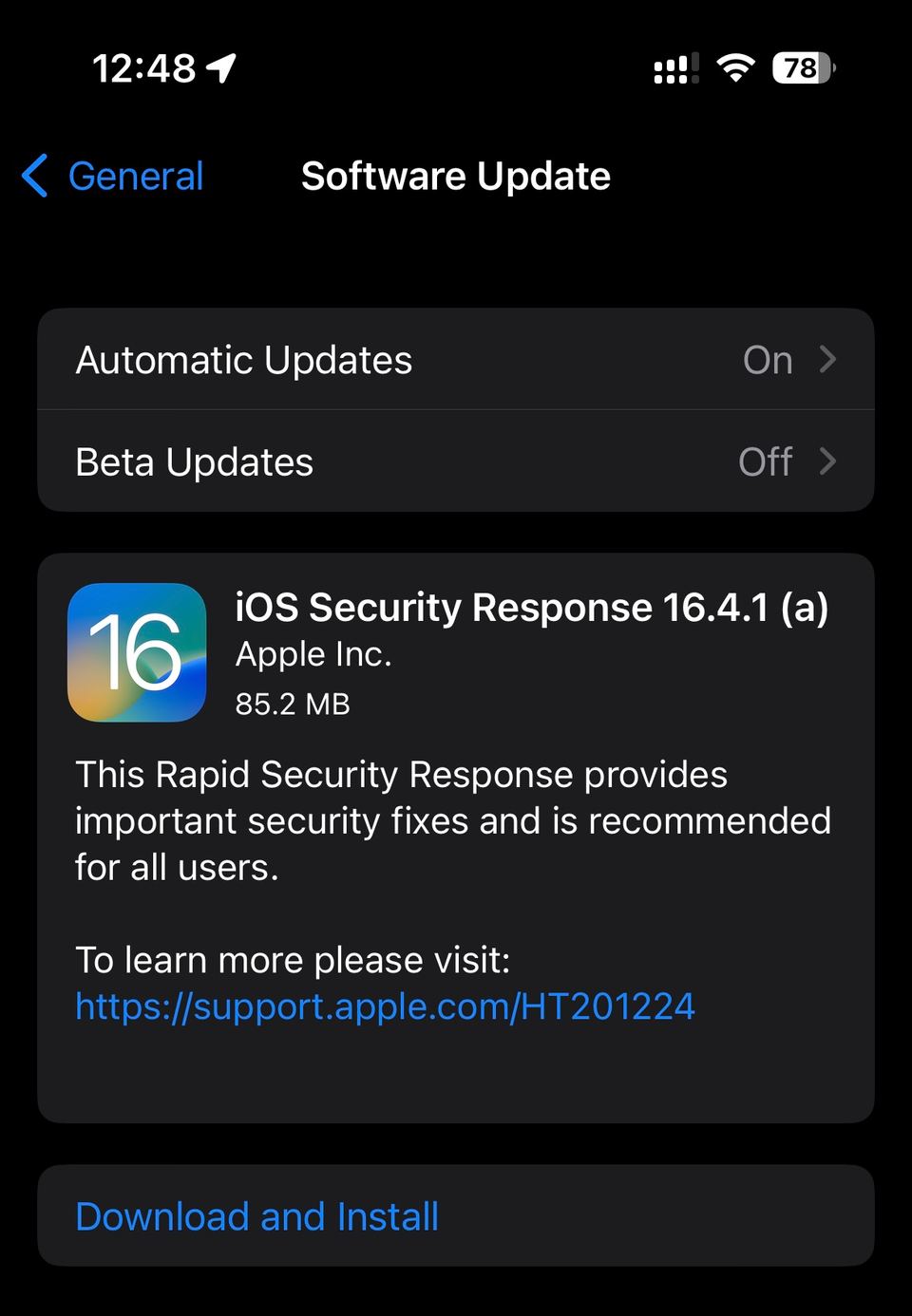
Keeping iOS current is one of the most important ways to reduce your iPhone’s exposure to known security flaws, including vulnerabilities attackers may already be exploiting. Apple says it has released fixes for reported web-based attacks and recommends installing the latest software available for your device.[1] Apple’s security update guidance
Before you update
Identify your iPhone and iOS version. Open Settings > General > About and note the Model Name and iOS Version. The updates available to you depend on your model and installed software.
Make and verify a backup before starting. Use iCloud or a computer, and confirm that the backup completed successfully before installing. Apple recommends backing up before updating.[2]
Connect to Wi-Fi and plug your iPhone into power. Allow time for the download, installation, and restart.
Install the latest available security update

Check and update manually
Open Settings > General > Software Update. The screen shows your installed iOS version and whether an update is available.
If an update appears, review the version and tap Download and Install. Follow the on-screen instructions and keep the iPhone connected to power while it installs.[2]
After the iPhone restarts, return to Settings > General > Software Update to confirm whether another update is offered. Install the latest version available for your device.
Do not assume that an older iPhone can install the newest major iOS release. Apple may provide security updates for older supported iOS versions, while some devices need to move to a newer iOS version to receive particular protections. Check Apple’s guidance on protecting iPhone from web attacks and the update screen for your device’s available option.[1]
Turn on automatic updates
Go to Settings > General > Software Update > Automatic Updates and enable automatic installation if available. Apple says automatic installation can download and install an update overnight when the iPhone is charging and connected to Wi-Fi; you’ll be notified before installation.[3]
Troubleshooting

No update appears: Check the installed version again, then revisit Software Update when connected to Wi-Fi. The available update can depend on your iPhone model and iOS version. Use Apple’s iPhone update instructions for model-appropriate options.
Download or installation won’t complete: Keep the device on power and Wi-Fi, then try again. You can also update using a computer: Finder on a Mac, or iTunes on a Windows device, following Apple’s instructions.[2]
You need help with a device-specific issue: Contact Apple Support through the official update guidance.
Avoid erasing or restoring the iPhone as a troubleshooting shortcut. If an update problem seems to require an erase or restore, first make and verify a backup, then follow Apple’s instructions for your specific situation. Updating iOS normally leaves data and settings unchanged, but Apple still recommends backing up first.[2]


